🎻 Instrument Master Data
The Instrument Master Data (WMDaten) module is responsible for managing the reference data of all financial instruments in the system.
It ensures that instruments are uniquely identified, validated, and enriched with the required metadata before they can be traded, reported, or processed.
Maintaining high-quality instrument master data is crucial because:
- It guarantees correct instrument identification (e.g., via ISIN).
- It supports compliance with regulatory and settlement requirements.
- It enables smooth front-to-back-office operations.
The module integrates with external data providers (like WM Datenservice) and internal sources to keep the instrument database up-to-date and accurate.
📂 Subsections
The Instrument Master Data module is divided into two main pages:
1️⃣ Instrument Master Data Browser (WMDaten Browser)
- Allows users to browse the master data of all instruments available in the system.
- Provides a searchable and filterable table with all relevant details of instruments.
- Useful for validation, audits, and operational monitoring.
2️⃣ Instrument Universe Management
- Allows users to manage the inclusion of instruments into the “universe” — the set of instruments actively tracked and processed by the system.
- Enables adding, updating, or marking instruments as inactive.
📄 Instrument Master Data Browser (WMDaten Browser)
The Instrument Master Data Browser provides an interface to explore and analyze detailed master data records (WMDaten) related to financial instruments. It is designed to allow users to view and inspect rich metadata of instruments maintained in the system.
This module is particularly useful for compliance, operations, or product teams who need to access granular instrument-level information directly from the master data Wmdatend.
🎯 Purpose & Use Cases
- To search and review master data of specific instruments by ISIN or instrument name.
- To examine hierarchical and structured metadata about instruments, such as their events, classifications, and clearing details.
- To access detailed definitions, field values, and tabled data associated with an instrument.
🔍 Search & Filter
At the top of the page:
- You can search by ISIN, Instrument Name, or predefined Fields.
- Once a search is executed, the system returns a list of master data records related to the instrument.
📋 Table Layout
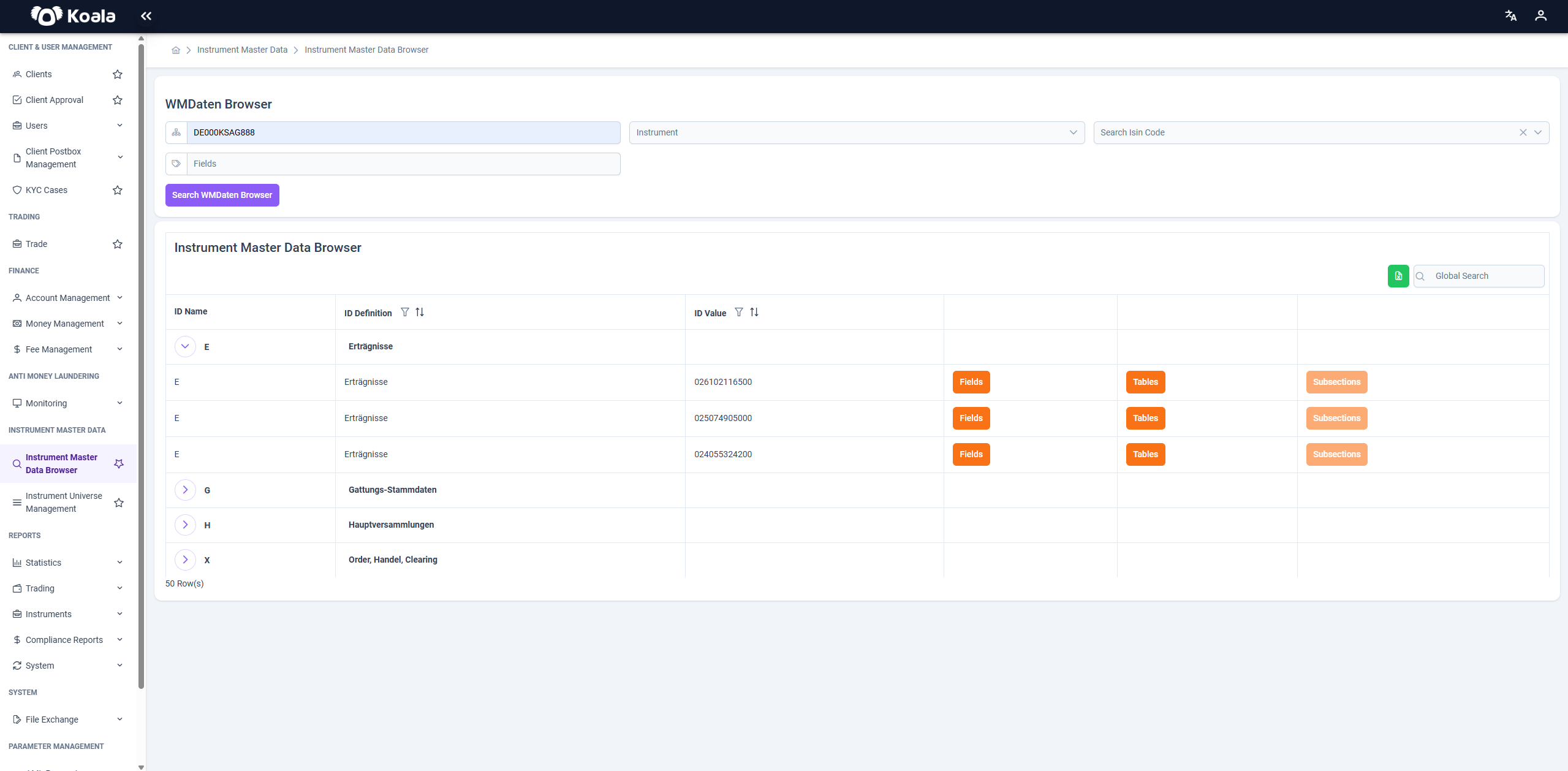
After running a search, results are displayed in a tabular format with the following key columns:
| Column | Description |
|---|---|
| ID Name | Identifier or section label (e.g., E, G, H, X) |
| ID Definition | The definition or description of the section (e.g., “Erträgnisse”, “Gattungs-Stammdaten”) |
| ID Value | Specific identifier values relevant to the section |
| Fields / Tables / Subsections | Action buttons that open further details of the respective data |
📝 Interactions
Fields
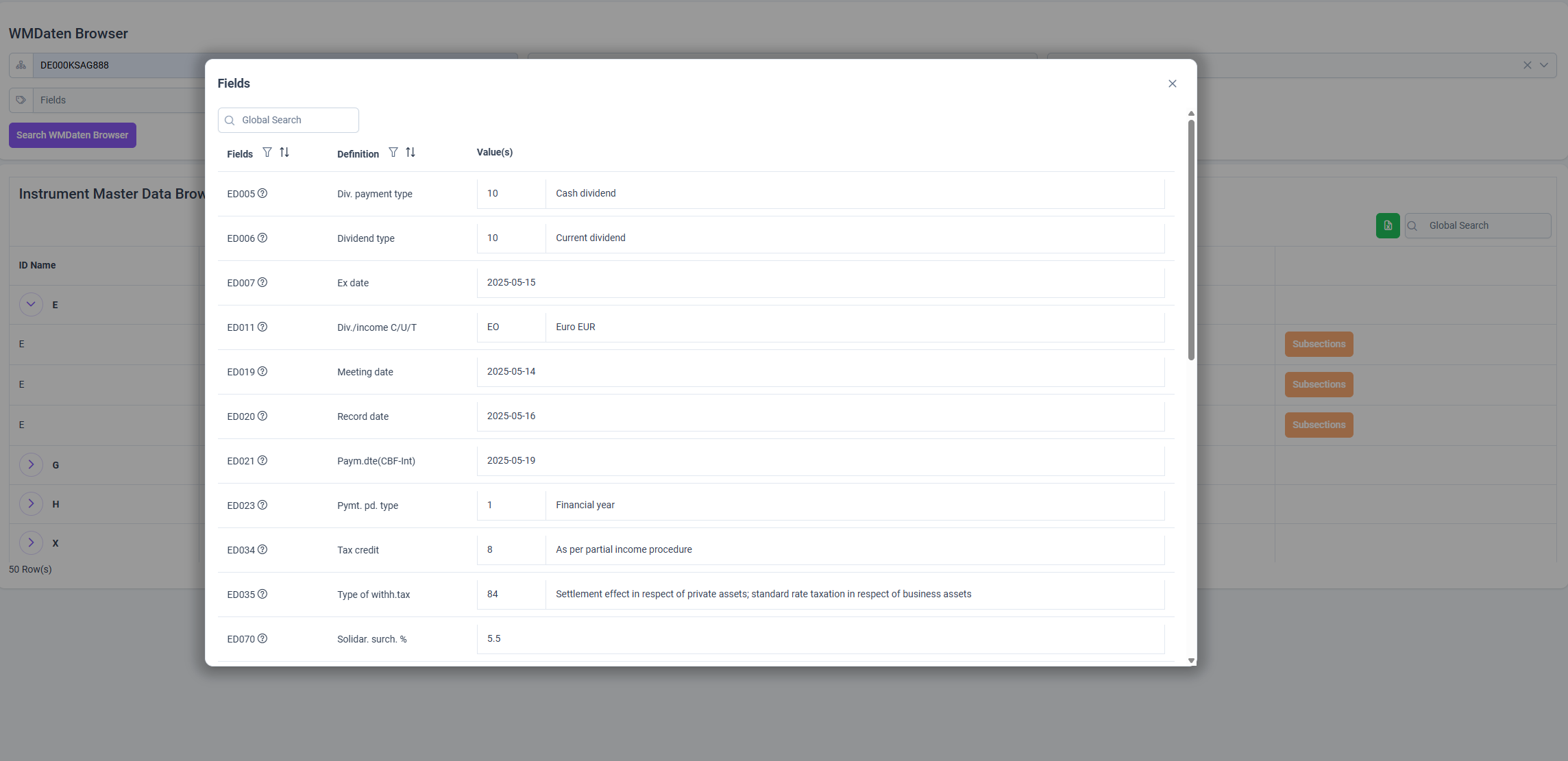
- Clicking the Fields button opens a dialog.
- This dialog presents a list of all individual fields related to the selected section.
- Each field entry includes:
| Field | Description |
|---|---|
| ID | Field code (e.g., ED005) |
| Definition | Field description (e.g., “Dividend type”) |
| Value(s) | The specific value(s) associated with that field (e.g., 10 – Cash Dividend) |
Tables
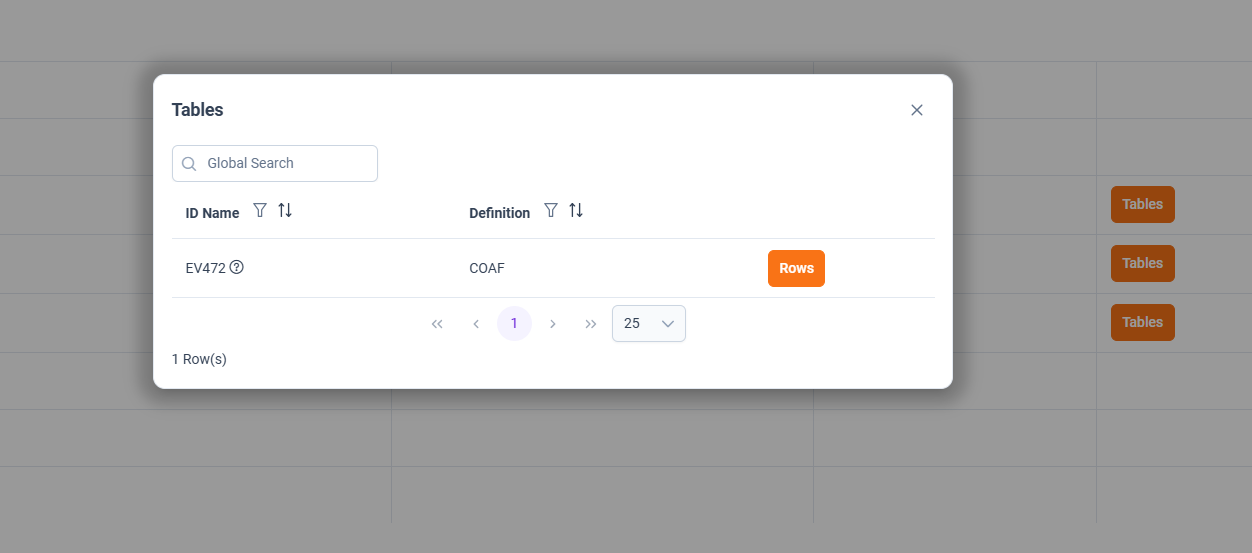
- Clicking the Tables button opens a table-level view showing:
| Column | Description |
|---|---|
| ID Name | Name of the table |
| Definition | Description of what the table represents |
| Rows | Button to explore rows within the table |
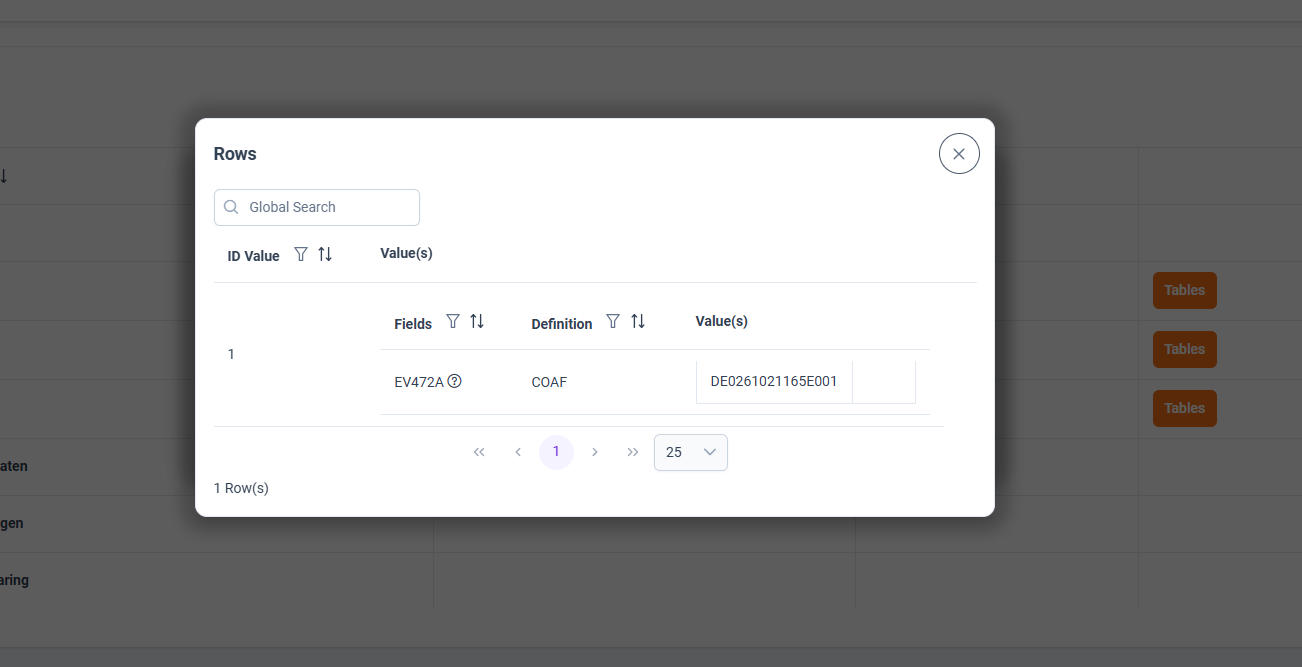
- Clicking a Rows button within a table opens another dialog where you can see:
- Detailed fields and their values for the specific row.
- This includes field codes, definitions, and their corresponding values — similar in structure to the Fields dialog.
Subsections
- Clicking Subsections expands any child sections or additional hierarchical metadata under the main section.
🧾 Summary
The Instrument Master Data Browser provides a comprehensive, drill-down view of instrument metadata in a highly structured and interactive way.
By navigating through fields, tables, and subsections, users can uncover all relevant data elements of an instrument, including its events, classifications, tax details, and operational parameters.
This functionality is essential for ensuring transparency, validating instrument data, and supporting regulatory or operational workflows that rely on correct and complete instrument master data.
🌌 Instrument Universe Management
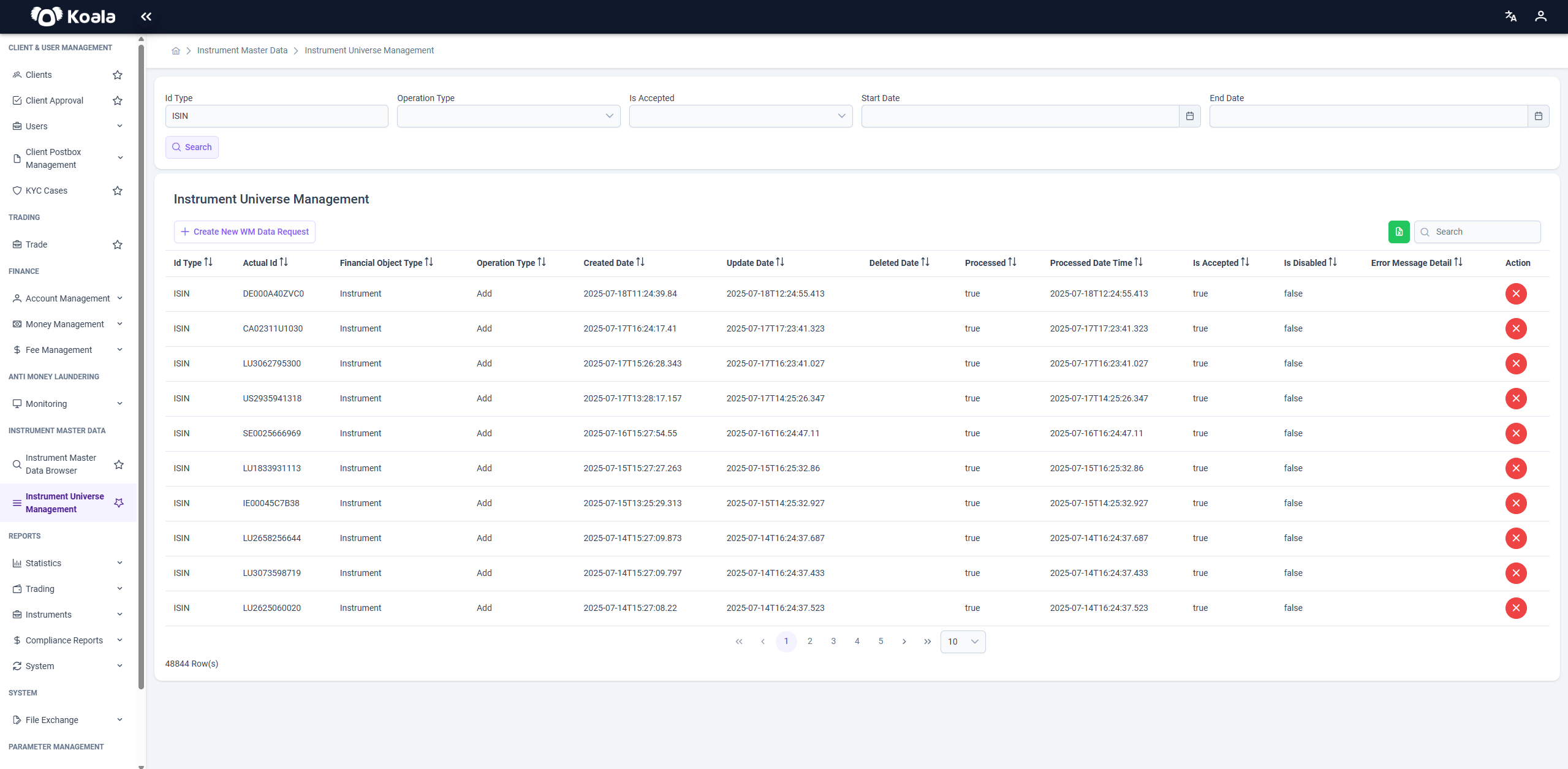
The Instrument Universe Management page provides an overview and management interface for the instruments currently in the active universe.
It lists each instrument’s identifiers, status, and operational details.
🔍 Search Parameters
At the top of the page, users can search/filter instruments by:
- ID Type (e.g., ISIN)
- Operation Type (Add,Remove,One Time)
- Is Accepted (Yes,No)
- Start Date & End Date
This helps to quickly find and review the desired instruments.
📋 Table Columns
The main table lists:
- Id Type
- Actual Id
- Financial Object Type
- Operation Type
- Created Date / Updated Date / Deleted Date
- Processed / Processed Date Time
- Is Accepted / Is Disabled
- Error Message Detail
- Action
Each row represents an instrument and its current state in the universe.
🛠️ Actions
- Clicking the red X button in the Action column marks the instrument as disabled (
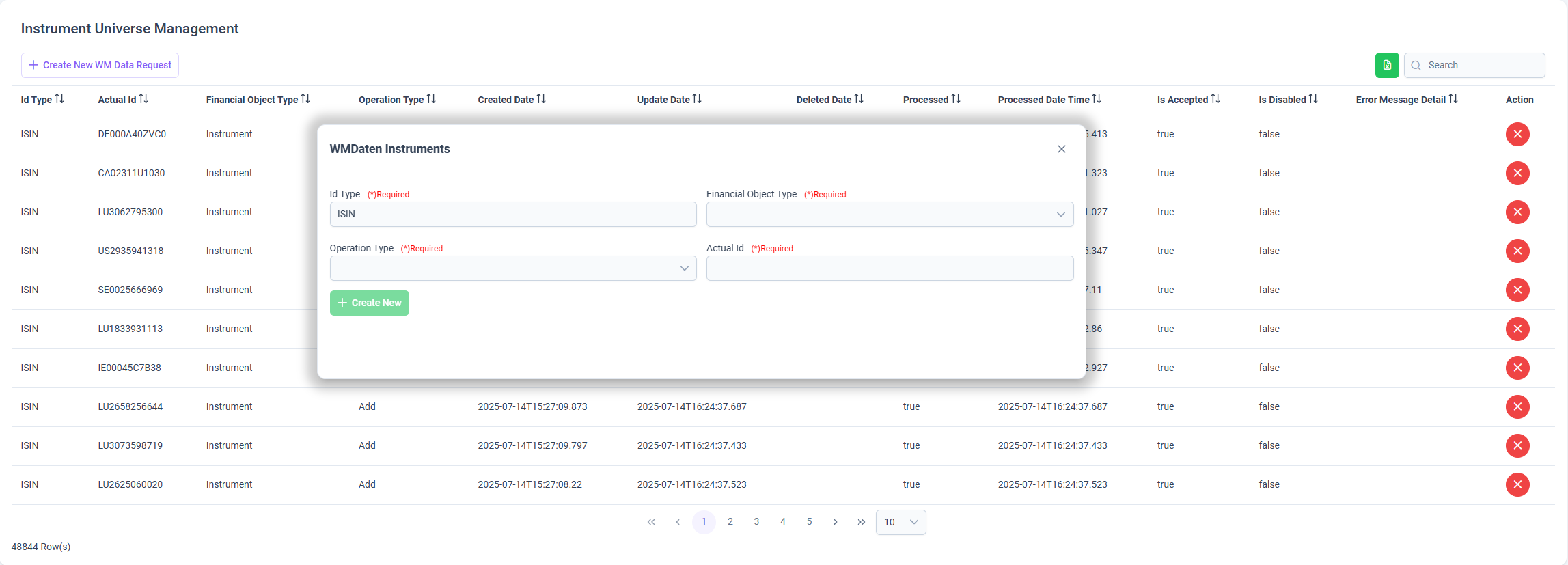
Is Disabled = true). - Clicking the Create New WM Data Request button at the top allows users to add a new instrument into the universe.
When creating a new instrument, the following fields are required:
- Id Type (required)
- Financial Object Type (required)
- Operation Type (required, e.g., Add)
- Actual Id (required, e.g., ISIN)
Once submitted, the instrument enters the processing workflow and is displayed in the table.
By maintaining and managing the Instrument Universe carefully, organizations can ensure operational integrity, data quality, and compliance with trading and settlement rules.