💰 Fee Definition – Pricing Management
The Fee Definition page under Pricing Management is used to define, configure, and manage transaction-based and service-based fee structures within the system. Each fee represents a pricing rule that is applied based on asset type, trade characteristics, and client type.
A new fee is initially created in DRAFT state and must go through an approval process to become active.
🔒 Access Restriction: This page is only available to users with the
tenant_managementrole.
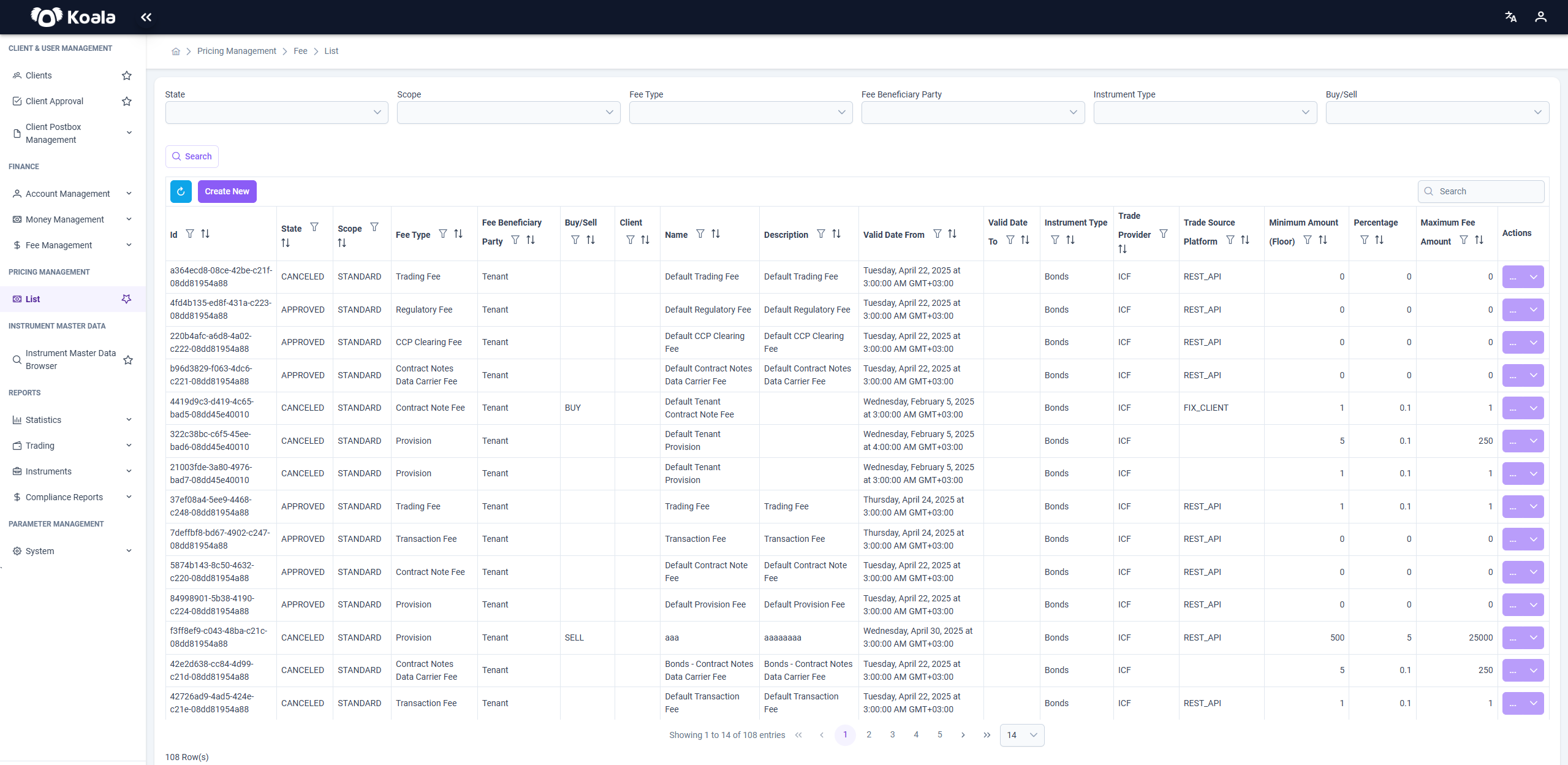
🔄 Refresh
- The refresh icon located at the top left corner of the screen reloads and updates the fee list table with the most current data.
📋 Columns Overview
| Column | Description |
|---|---|
| Id | Unique identifier of the fee entry. |
| State | Lifecycle state of the fee (DRAFT, APPROVED, CANCELED, etc.). |
| Scope | Determines the scope of applicability (STANDARD, CLIENT_SPECIFIC, PROMOTION). |
| Fee Type | Type of fee (e.g., Provision, Transaction Fee, Trading Fee, etc.). |
| Fee Beneficiary Party | Entity benefiting from the fee (Tenant or Contractual Partner). |
| Buy/Sell | Indicates whether the fee applies to BUY, SELL, or both sides of the trade. |
| Client | Client that the fee applies to (used for CLIENT_SPECIFIC scope). |
| Name / Description | Custom name and description for the fee. |
| Valid Date From / To | Validity period of the fee definition. |
| Instrument Type | Asset class affected (e.g., Stocks, Bonds, Warrants, ETFs, etc.). |
| Trade Provider | Provider handling the transaction. |
| Trade Source Platform | Source platform (e.g., REST_API, FIX_CLIENT). |
| Minimum Amount | Minimum charge that can be applied. |
| Percentage | Percentage value used in fee calculation. |
| Maximum Fee Amount | Cap on the fee charge. |
| Actions | Dropdown menu for managing the fee entry. |
🔍 Filters & Search
You can filter fee entries by the following attributes to narrow down the dataset:
- State: Filter by status (DRAFT, APPROVED, CANCELED, etc.)
- Scope:
STANDARD: Applies to all clients.CLIENT_SPECIFIC: Linked to a particular client.PROMOTION: Limited-time or campaign-based fee logic.
- Fee Type:
- Includes categories such as
Provision,Transaction Fee,Trading Fee,Contract Notes Fee,Regulatory Fee, etc.
- Includes categories such as
- Fee Beneficiary Party:
- Either the
Tenantor aContractual Partner.
- Either the
- Instrument Type:
- Asset classes such as
Stocks,Bonds,Warrants,ETFs, etc.
- Asset classes such as
- Buy/Sell: Filters based on direction of trade.
A search box is also available for quick keyword filtering.
➕ Create New Fee
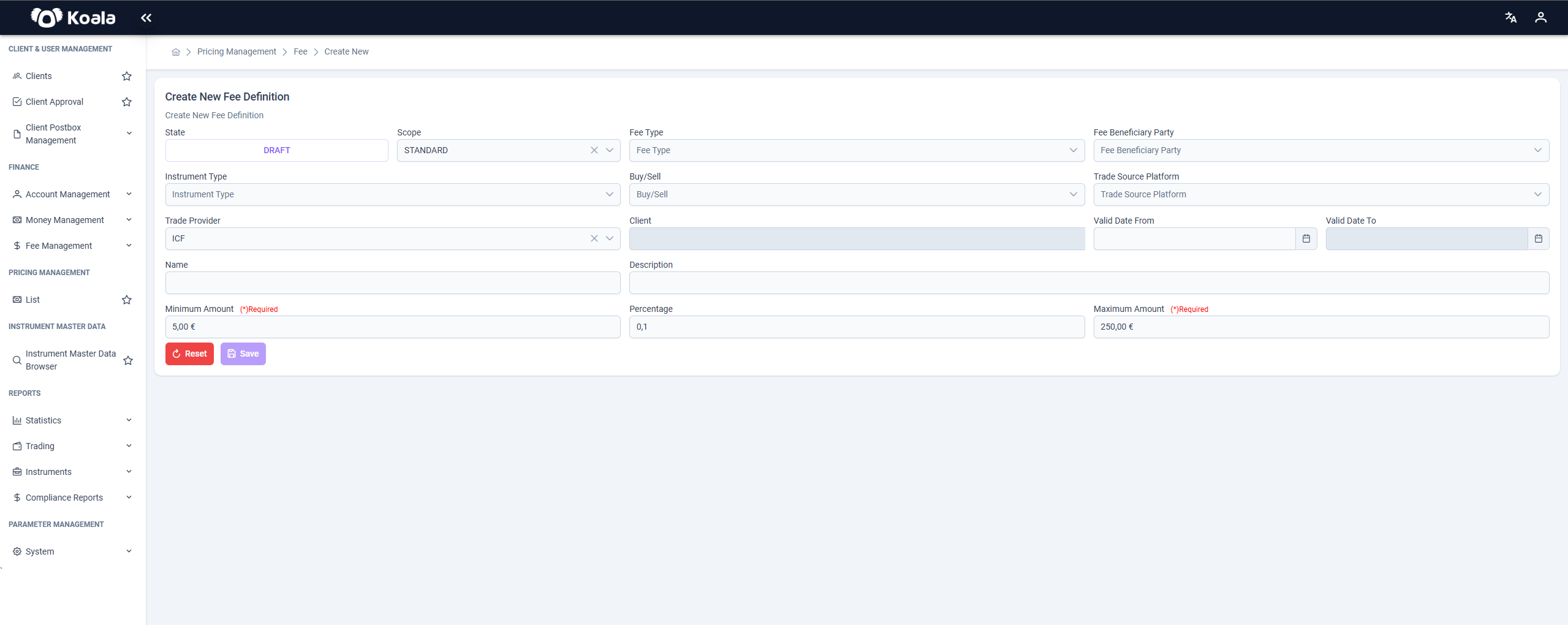
Clicking the Create New button opens the Create Fee Definition page. Users are required to fill in the following fields:
- State (set automatically to DRAFT)
- Scope
- Fee Type
- Fee Beneficiary Party
- Instrument Type
- Buy/Sell
- Trade Source Platform
- Trade Provider
- Client (for CLIENT_SPECIFIC scope)
- Valid Date From / To
- Name
- Description
- Minimum Amount (required)
- Percentage
- Maximum Amount (required)
After filling out the required fields and clicking Save, the fee is created in DRAFT state and appears in the table. You must Send for Approval from the actions dropdown to continue the lifecycle.
🧾 Actions Dropdown
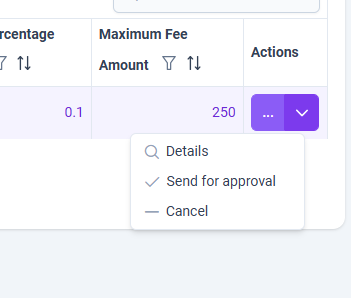
The Actions column provides a dropdown menu based on the current state of the fee:
| State | Available Actions |
|---|---|
DRAFT | Details, Send for Approval, Cancel |
WAITING_APPROVE | (Locked – awaiting decision) |
APPROVED | Details, Cancel |
CANCELED / DENIED | Details (read-only view) |
📄 Details View
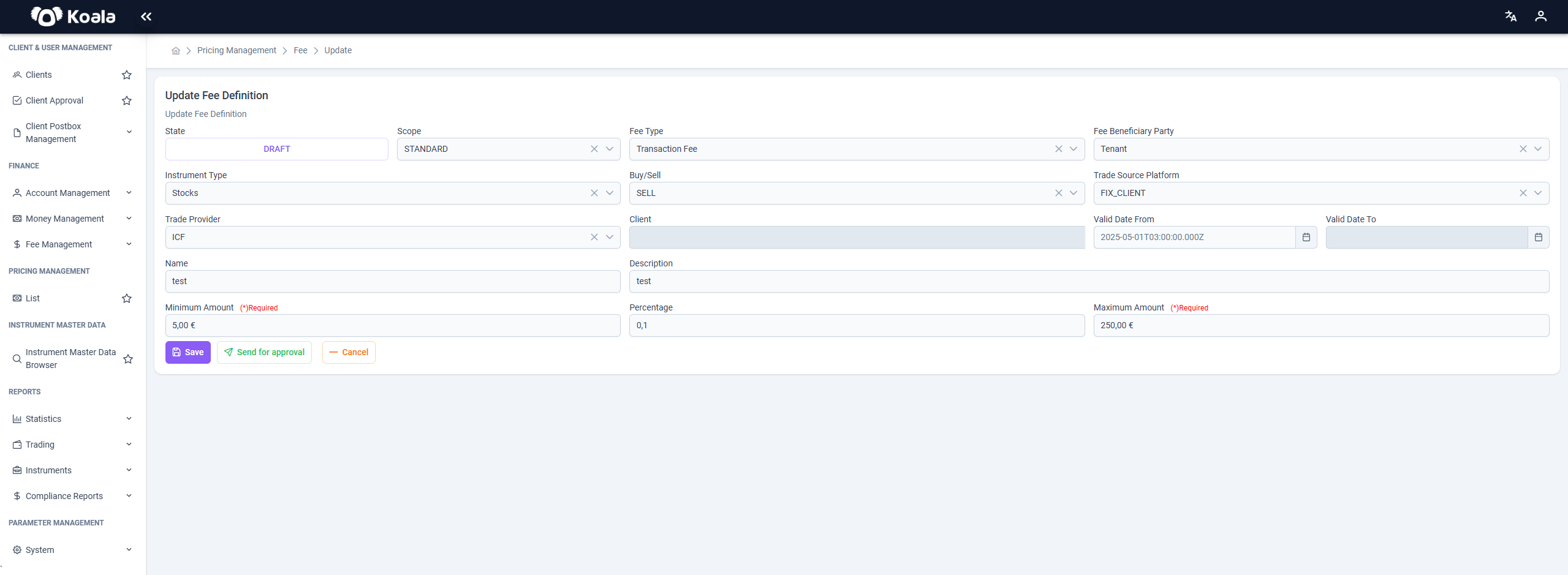
Selecting Details opens a page similar to the Create screen, pre-filled with all existing fee data.
- When the fee is in
DRAFTstate, you can Edit, Send for Approval, or Cancel the fee. - When the fee is in
CANCELEDorAPPROVEDstate, the form becomes read-only.
Buttons available at the bottom of the details page:
Save– to update DRAFT entriesSend for Approval– to initiate the approval workflowCancel– to void the fee before approval
🔁 Fee Lifecycle
- Create → Fee enters
DRAFT - Send for Approval → Fee becomes
WAITING_APPROVE - Approved by authorized roles → Fee becomes
APPROVEDand active - Optional Cancellation → Moves to
CANCELED