🤝 Trade
📈 Trading – Trade Page
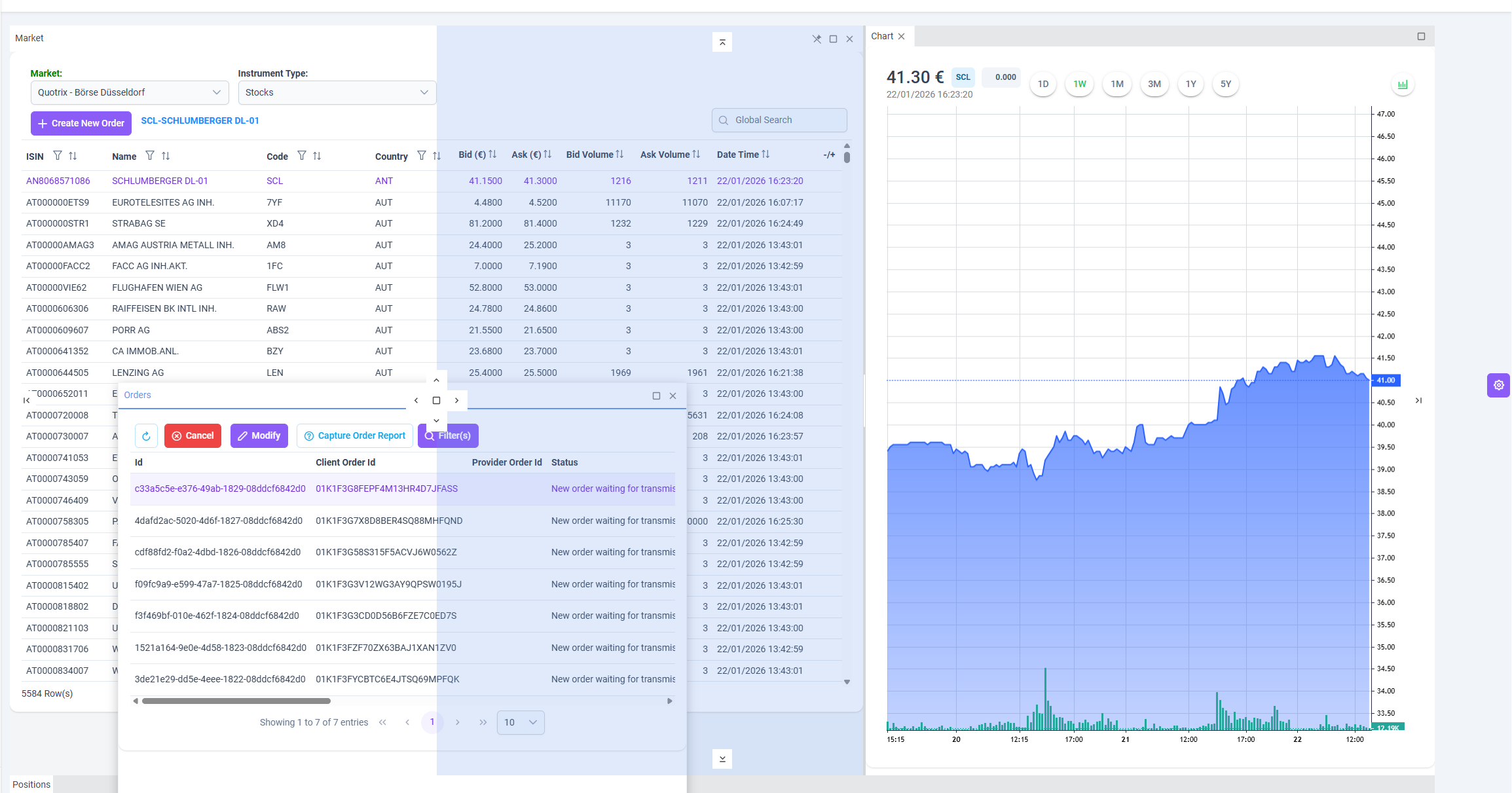
The Trade page is the primary trading workspace where users can monitor live market data, analyze instruments, place buy or sell orders, and manage their positions and orders through a highly flexible and customizable interface.
Note:
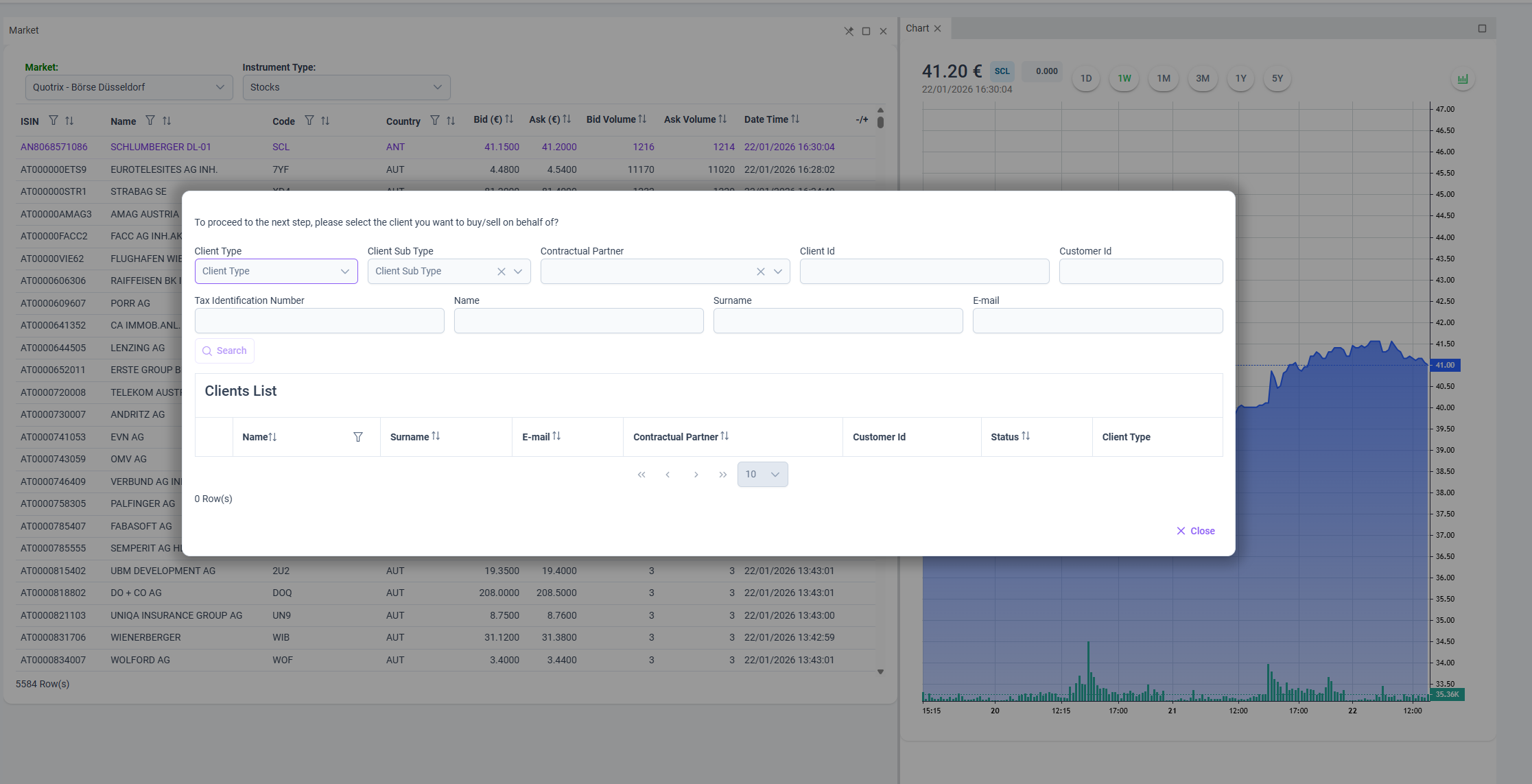
If the user is logged in as a Tenant, the page initially opens with a Client Selection screen.
A client must be selected before accessing market data and performing any trading operations.
🌍 Market & Instrument Configuration
Before placing any orders, users define the trading scope by selecting:
Market
- Supported markets:
- Allfunds
- Quotrix
The selected market determines the available instruments and pricing sources.
Instrument Type
- Supported instrument types:
- Stocks
- EtforEtc
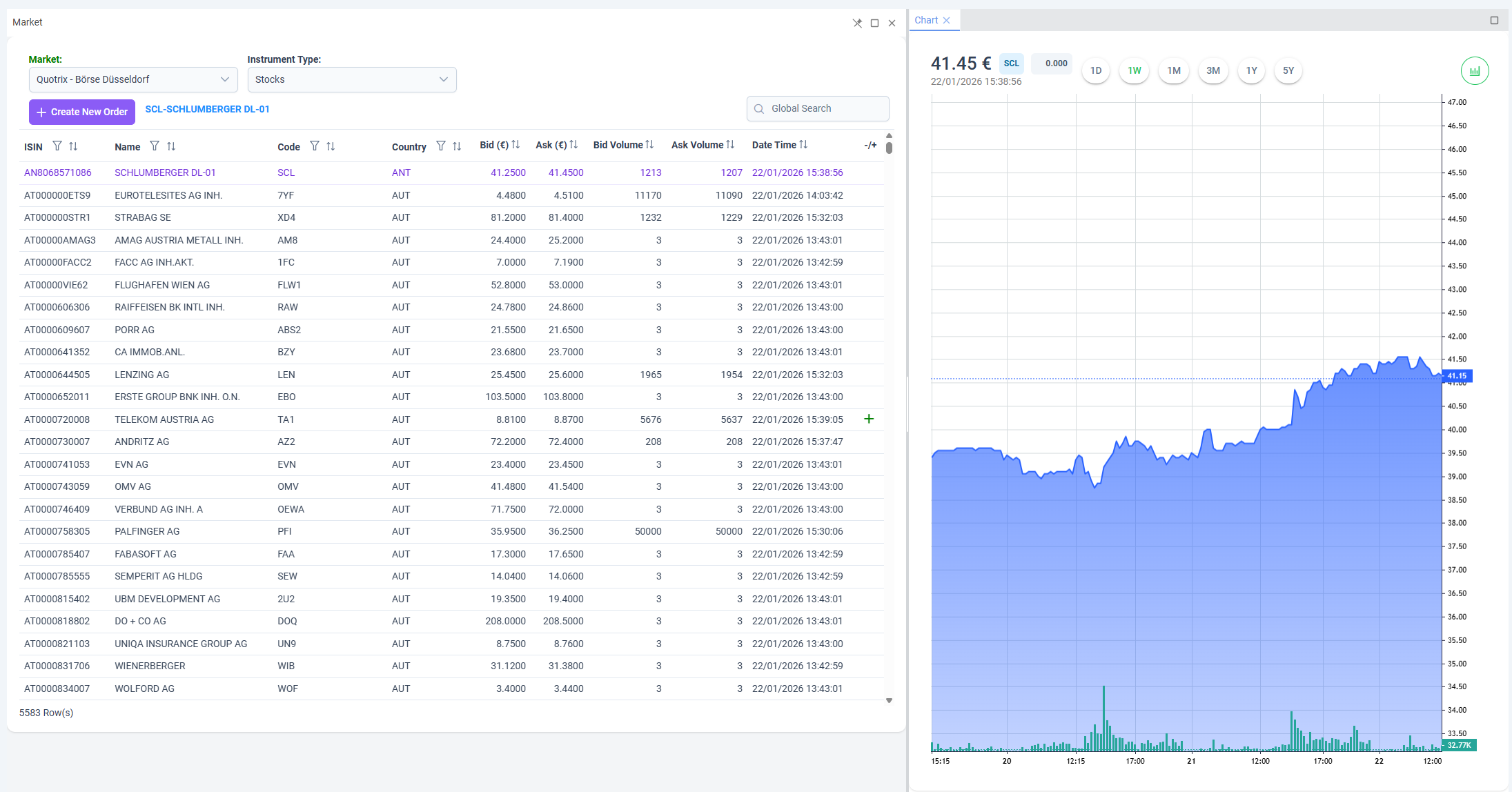
Once the market and instrument type are selected, the instrument list is populated with tradable securities, including bid/ask prices, volumes, and last update times.
📊 Instrument List & Market Data
The instrument list provides a real-time overview of available instruments, including:
- ISIN
- Instrument name and short code
- Country
- Bid / Ask prices
- Bid / Ask volumes
- Last price update timestamp
Selecting an instrument automatically synchronizes the price chart and enables order placement for that instrument.
➕ Create New Order
By clicking Create New Order, users open the order entry dialog to initiate a trade.
🔁 Buy & Sell Order Dialogs
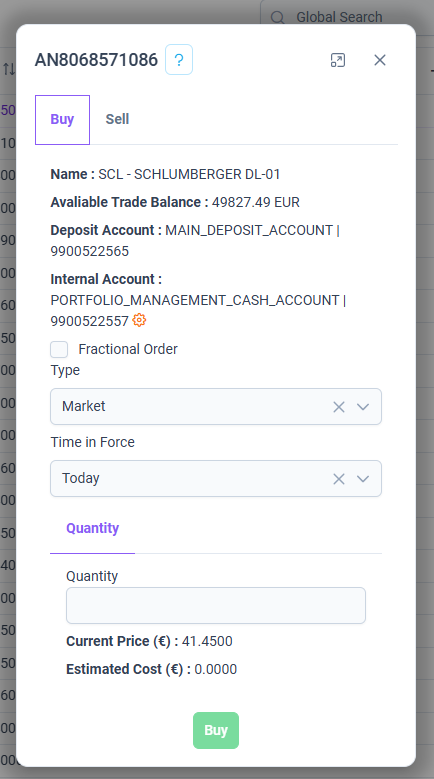
The order entry modal supports both Buy and Sell operations and is designed to guide users through all required trading parameters in a clear and controlled manner.
🏦 Account Selection
- Users can change:
- Deposit Account
- Internal Account
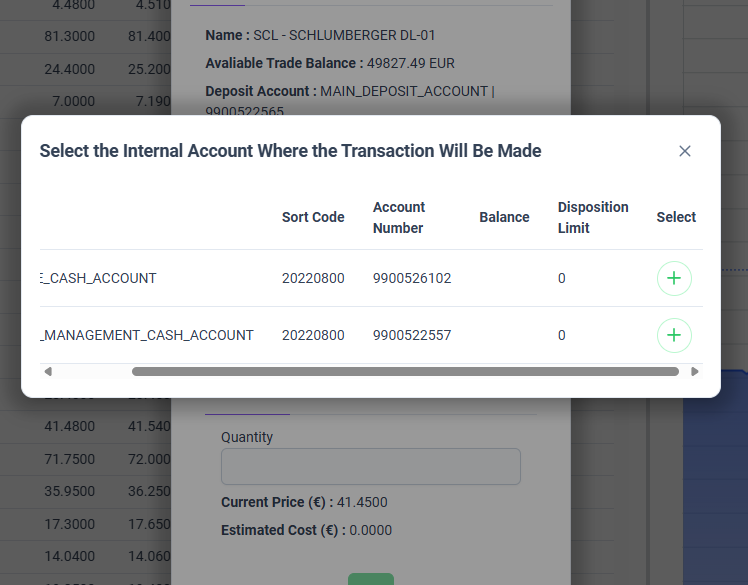
- Account selection is managed via the Settings (⚙️) icon within the order dialog.
- By clicking this icon, users can switch between available deposit and internal accounts.
- The Available Trade Balance is calculated dynamically based on:
- The selected accounts
- The chosen order side (Buy or Sell)
This mechanism enables seamless routing of trades across different portfolios or cash accounts while ensuring accurate balance validation before order submission.
⚙️ Order Parameters
Order Type
Users can choose from multiple order types depending on their trading strategy:
- Market – Executes immediately at the best available market price.
- Limit – Executes only at the specified price or better.
- Stop – Becomes a market order once the stop price is reached.
- Stop Limit – Becomes a limit order once the stop price is reached.
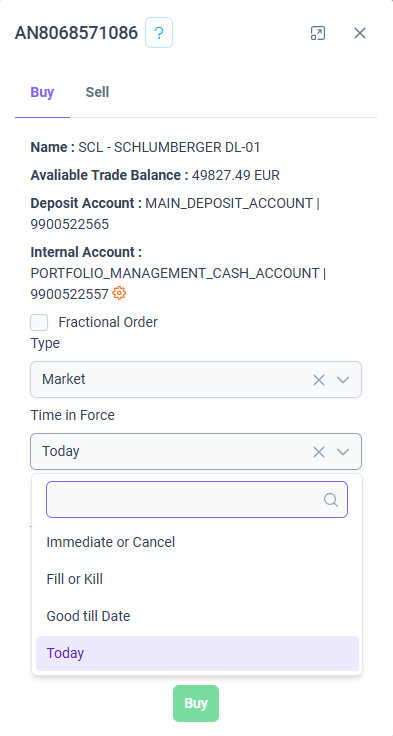
Time in Force
Defines how long the order remains active:
- Today – Valid until the end of the trading day.
- Good Till Date – Valid until a user-defined expiration date.
- Fill or Kill – Must be executed in full immediately or cancelled.
- Immediate or Cancel – Executes immediately; any unfilled quantity is cancelled.
🔢 Quantity & Fractional Orders
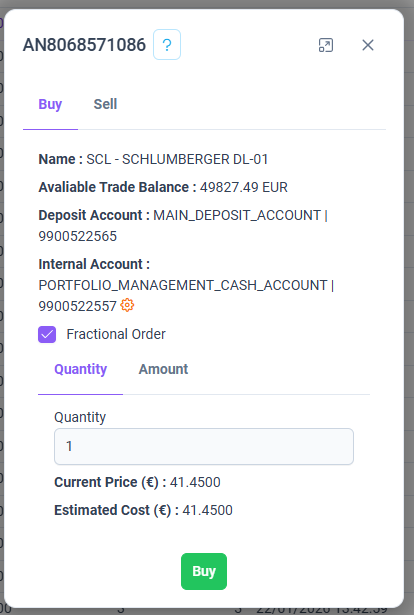
Standard Quantity
- Users can enter the number of units to buy or sell.
- Estimated cost or proceeds are calculated in real time.
Fractional Order
- When Fractional Order is enabled:
- The Amount field becomes available.
- Users trade by monetary value instead of whole units.
- This is especially useful for high-priced instruments or precise portfolio allocations.
The Sell dialog follows the same structure and rules as the Buy dialog, ensuring consistency and ease of use.
✅ Order Confirmation
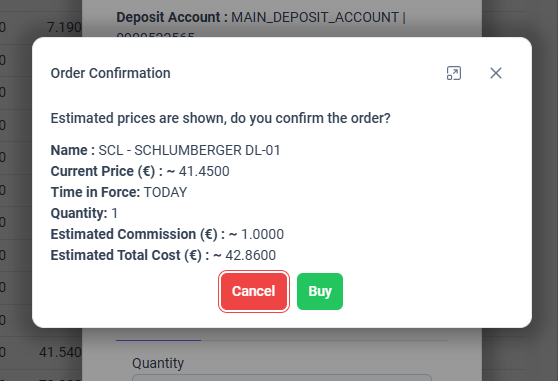
When a Buy or Sell action is selected, users are first presented with an Order Confirmation screen.
- This confirmation step summarizes all order details (instrument, order type, quantity/amount, price conditions, and selected accounts).
- Users must explicitly confirm the order before it is submitted.
Once the order is confirmed, the system processes the transaction and—unless any validation or execution constraints apply—the order is successfully executed.
🏦 Investment Decision & Execution Context (Tenant Users)
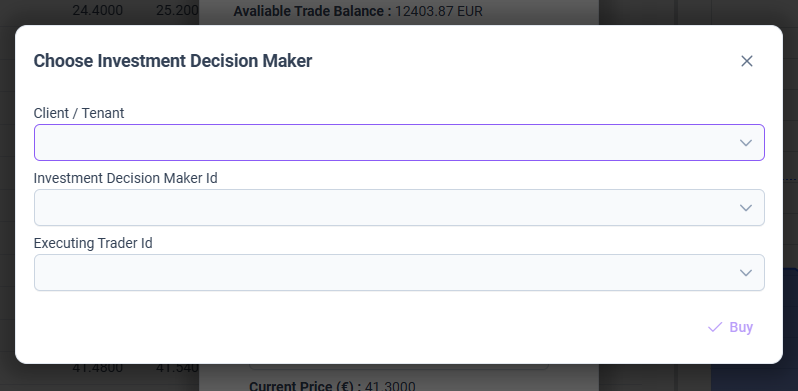
If the user is operating as a Tenant, an additional step is introduced after order confirmation:
-
The user must select who the trade is executed on behalf of:
- Client
- Tenant
-
Based on this selection, the user is required to specify:
- Investment Decision Maker
- Executing Trader
Only after these roles are explicitly selected can the Buy or Sell order be finalized and submitted.
This step ensures regulatory compliance, clear accountability, and proper attribution of investment decisions and trade execution responsibilities.
📂 Positions & Orders Panels
At the bottom of the Trade page, users can switch between two core operational views:
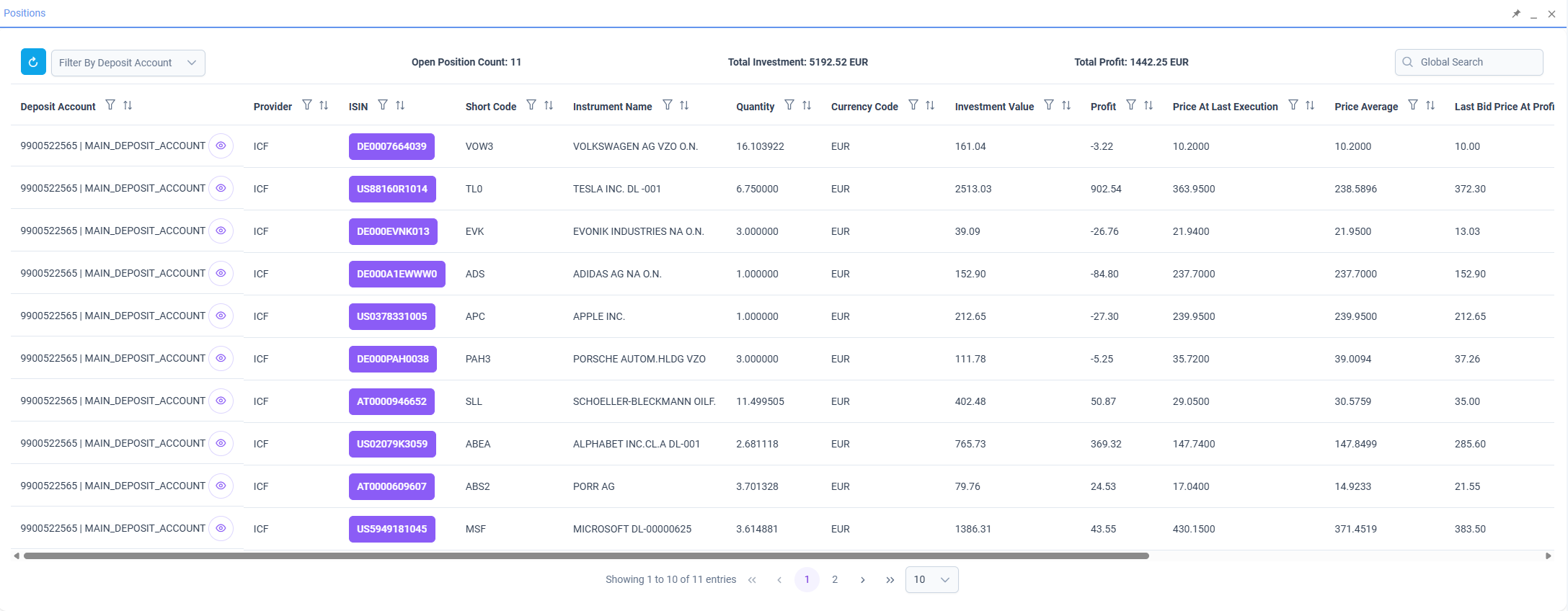
Positions
- Displays open and historical positions.
- Key information includes:
- Quantity held
- Investment value
- Profit / Loss
- Average price
- Price at last execution
- Enables users to continuously monitor portfolio performance.
📑 Orders Tab
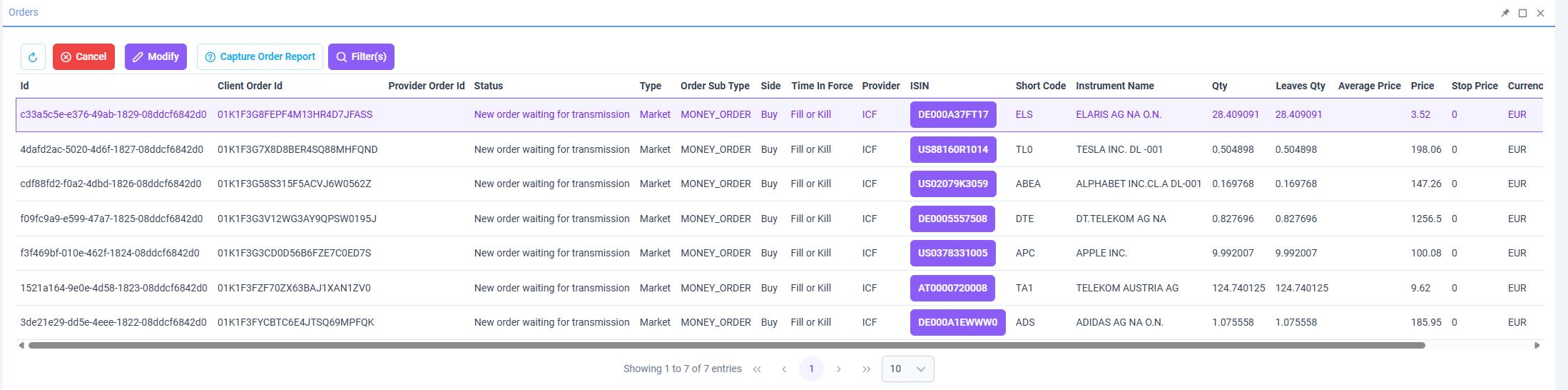
The Orders tab provides a comprehensive view of all trading orders and allows users to monitor, filter, and manage orders throughout their lifecycle.
🔍 Search & Filtering
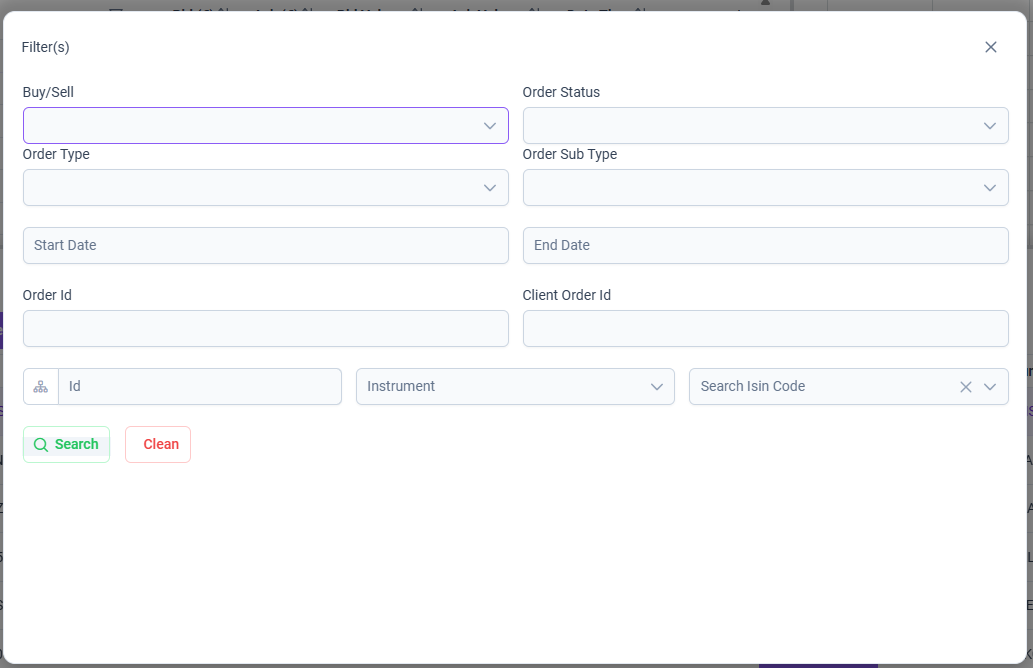
Users can perform advanced searches using flexible filter parameters, enabling quick access to specific orders. Supported filters include:
- Side: Buy / Sell
- Order Status (e.g. New, Filled, Rejected, etc.)
- Order Type (Market, Limit, Stop, Stop Limit)
- Order Sub Type
- Start Date / End Date
- Order ID
- Client Order ID
- ISIN
These filters can be combined freely to narrow down results according to operational or reporting needs.
⚙️ Order Actions
From the Orders tab, users can directly perform key order management actions:
-
Cancel Order
Cancels an eligible open order. -
Modify Order
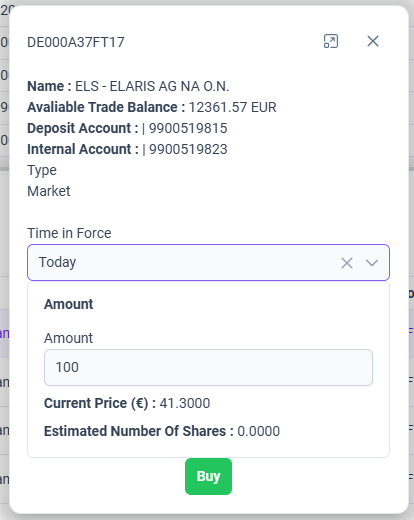
Opens a modification dialog where only the following fields can be updated:- Time in Force
- Amount / Quantity
Other order attributes remain immutable to ensure execution integrity.
- Capture Order Report
Generates and exports an order-level report for auditing, reconciliation, or regulatory purposes.
📄 Order Details & Navigation
- Double-clicking on any order row automatically redirects the user to
Reports → Trading → Order, where detailed order reports and execution information can be reviewed.
📌 Purpose
The Orders tab serves as the central control panel for order tracking, operational management, and reporting, ensuring full transparency and efficient post-trade handling.
🧩 Draggable & Customizable Layout
The Trade page supports a fully draggable and modular layout:
- All panels and tabs can be:
- Dragged
- Reordered
- Docked
- Closed
- The layout behaves similarly to professional IDEs (e.g., Visual Studio).
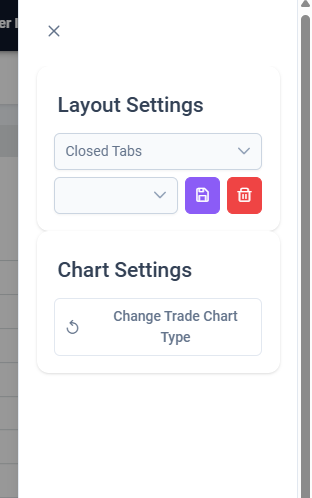
Layout Settings
- If a tab is closed accidentally:
- Clicking the Settings icon opens a side drawer.
- Under Layout Settings, users can restore previously closed tabs.
- This allows each user to personalize their workspace according to their trading workflow.
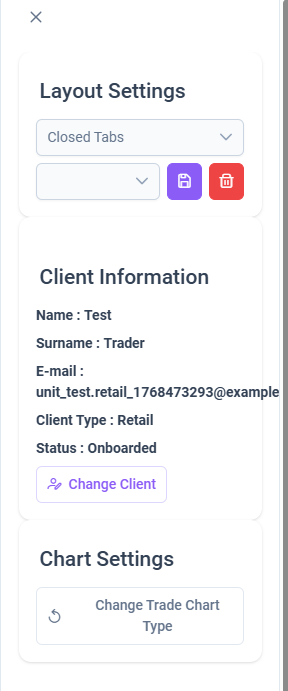
Note:
If the user is logged in as a Tenant, an additional Client Selection option is displayed in the drawer.
This enables tenant users to switch context and manage trading activities on behalf of different clients directly from the layout settings.
✅ Overall Experience
The Trade page delivers a professional-grade trading experience by combining:
- Real-time market data and charts
- Advanced order entry with multiple order types
- Fractional trading capabilities
- Comprehensive position and order tracking
- Fully customizable, drag-and-drop layout
This design ensures both efficiency for active traders and clarity for long-term portfolio management.