One Time Fee
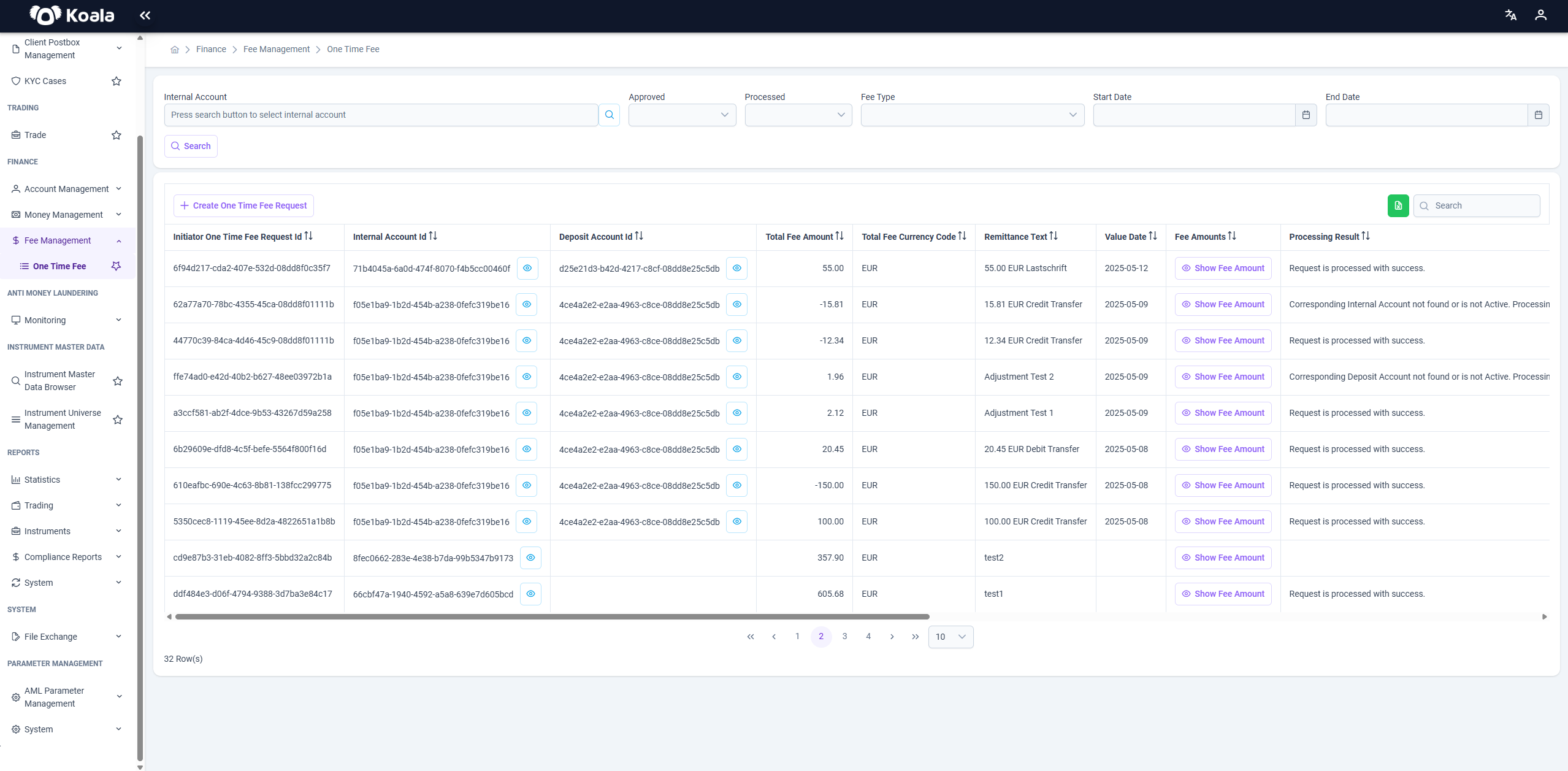
The One Time Fee page under the Fee Management module allows you to view, create, and manage one-time fee requests.
Features
✅ View a list of all one-time fee requests
✅ Filter the records using advanced search options
✅ Review details of fees and their processing status
✅ Export the table to Excel for further analysis
✅ Create new one-time fee requests
✅ View detailed fee amounts per request
🔎 Filters
At the top of the page, there are several filters to help you quickly find specific one-time fee records:
- Internal Account: Select the internal account to see fees charged to it.
- Approved: Filter based on whether the fee request has been approved (
YesorNo). - Processed: Filter based on whether the fee request has been processed (
YesorNo). - Fee Type: Select the type of fee (e.g., Adjustment).
- Start Date / End Date: Define a date range to find fees within a specific period.
You can also use the search box on the right side to perform text-based searches.
🎯 Actions
-
Create One Time Fee Request
Use the+ Create One Time Fee Requestbutton to initiate a new fee request. This opens a form where you can fill in the required details. -
Show Fee Amounts
In theFee Amountscolumn, click theShow Fee Amountbutton to see the detailed breakdown of the total fee, including individual components or calculations. -
Export to Excel
You can export the entire table to Excel by clicking the export icon next to the search bar.
Create One Time Fee Request
This guide explains how to create a One Time Fee Request in the Koala platform.
The feature allows finance teams to record non-recurring, manual fees applied to internal and/or deposit accounts in a transparent and auditable way.
📋 Why Create a One Time Fee Request?
A One Time Fee Request is created when a fee needs to be charged that does not fall under the standard, automated fee structure.
Typical use cases include:
- Manual adjustments or corrections
- Fees for exceptional or ad-hoc services
- Registration fees or regulatory charges
- Balance confirmations
- Other one-off charges agreed with the client
These requests ensure that such fees are properly documented, approved, and processed within the system.
📝 Required Fields
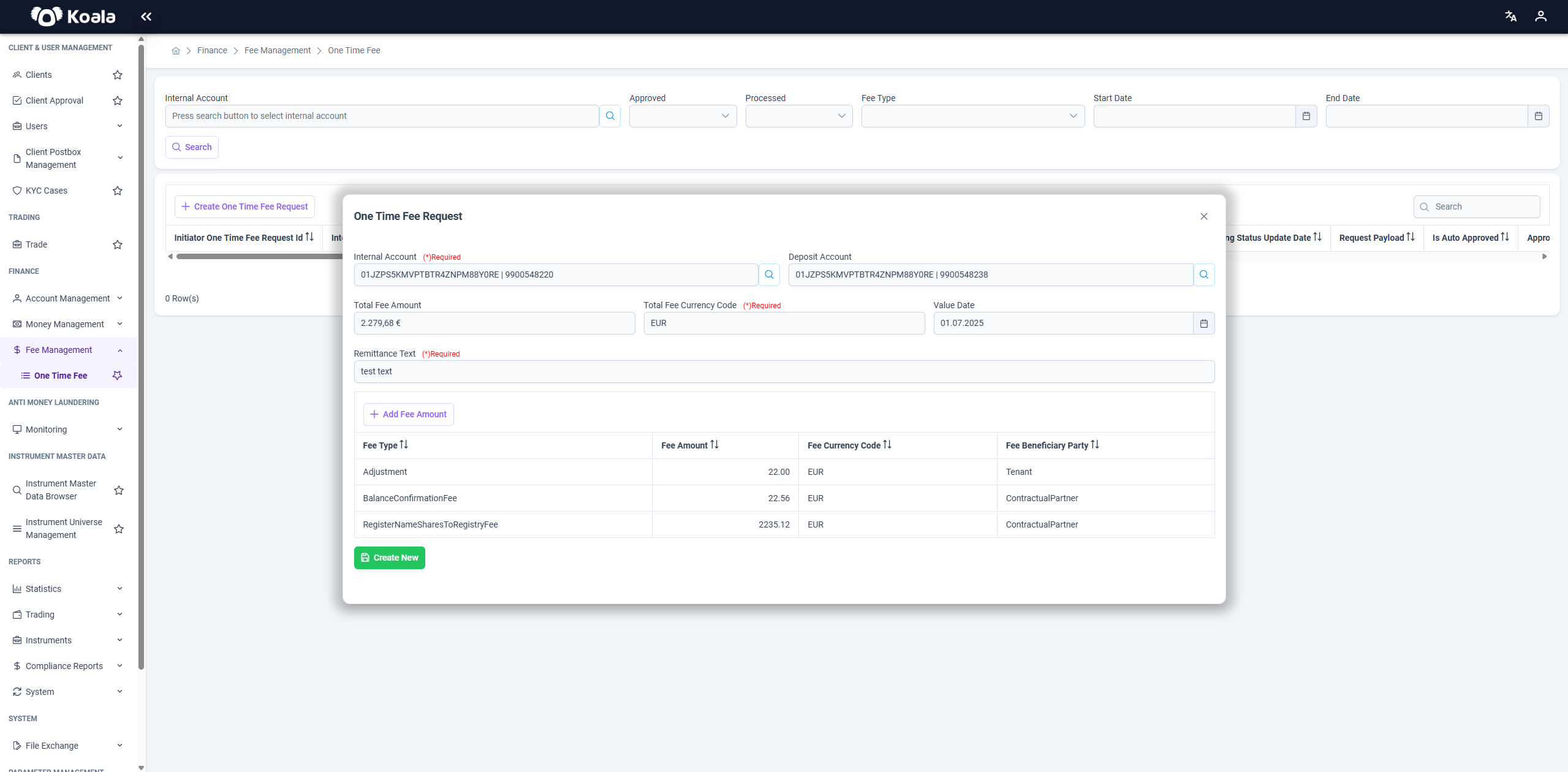
When creating a One Time Fee Request, you need to fill in the following fields in the main form:
| Field | Mandatory? | Notes |
|---|---|---|
| Internal Account | ✅ Yes | The internal account to which the fee will be charged. |
| Deposit Account | ❌ Optional | Optionally link a deposit account if applicable. |
| Total Fee Amount | ✅ Yes | The total amount of all fee components (calculated automatically, see below). |
| Total Fee Currency | ✅ Yes | Must be set to EUR. |
| Remittance Text | ✅ Yes | A description or reference text explaining the reason for the fee. |
⚠️ Note:
You cannot directly edit the Total Fee Amount field — it is automatically calculated from the detailed fee components you add in the next step.
➕ Adding Fee Amounts
To define the specific fee components that make up the total fee:
- Click the Add Fee Amount button in the form.
- A dialog window will appear where you must fill out the details of a single fee component:
- Fee Type: Select the type of fee from predefined options, such as:
- Adjustment
- Balance Confirmation Fee
- Register Name Shares to Registry Fee
- … and others
- Fee Amount: Enter the amount for this component.
- Fee Currency Code: Specify the currency (e.g., EUR).
- Fee Beneficiary Party: Choose who receives the fee:
- Tenant
- Contractual Partner
- Fee Type: Select the type of fee from predefined options, such as:
- After entering the details, click to confirm and add the fee component to the list.
- Repeat the process if the fee consists of multiple components.
As you add components, the system automatically calculates their sum and updates the Total Fee Amount field.
You cannot manually edit this field.
📝 Summary
When submitting a One Time Fee Request:
- Define the internal and optional deposit account.
- Specify a clear remittance text.
- Use the Add Fee Amount button to break down the fee into individual components.
- Ensure the total of all fee amounts equals the intended charge.
- Submit the request for approval and processing.
Best Practices
- Double-check all entered amounts and accounts before submission.
- Use meaningful and clear remittance texts for auditability.
- Break down complex fees into logical components for transparency.
By following this process, you can confidently create One Time Fee Requests that are accurate, transparent, and compliant with internal procedures.
Summary
The One Time Fee page in Koala is a powerful tool for finance teams to manage ad-hoc fee adjustments accurately and transparently. With rich filtering capabilities, detailed views, and export options, it ensures full control and auditability over non-recurring fee operations.