🏦 Bank Account
📄 Bank Account Overview
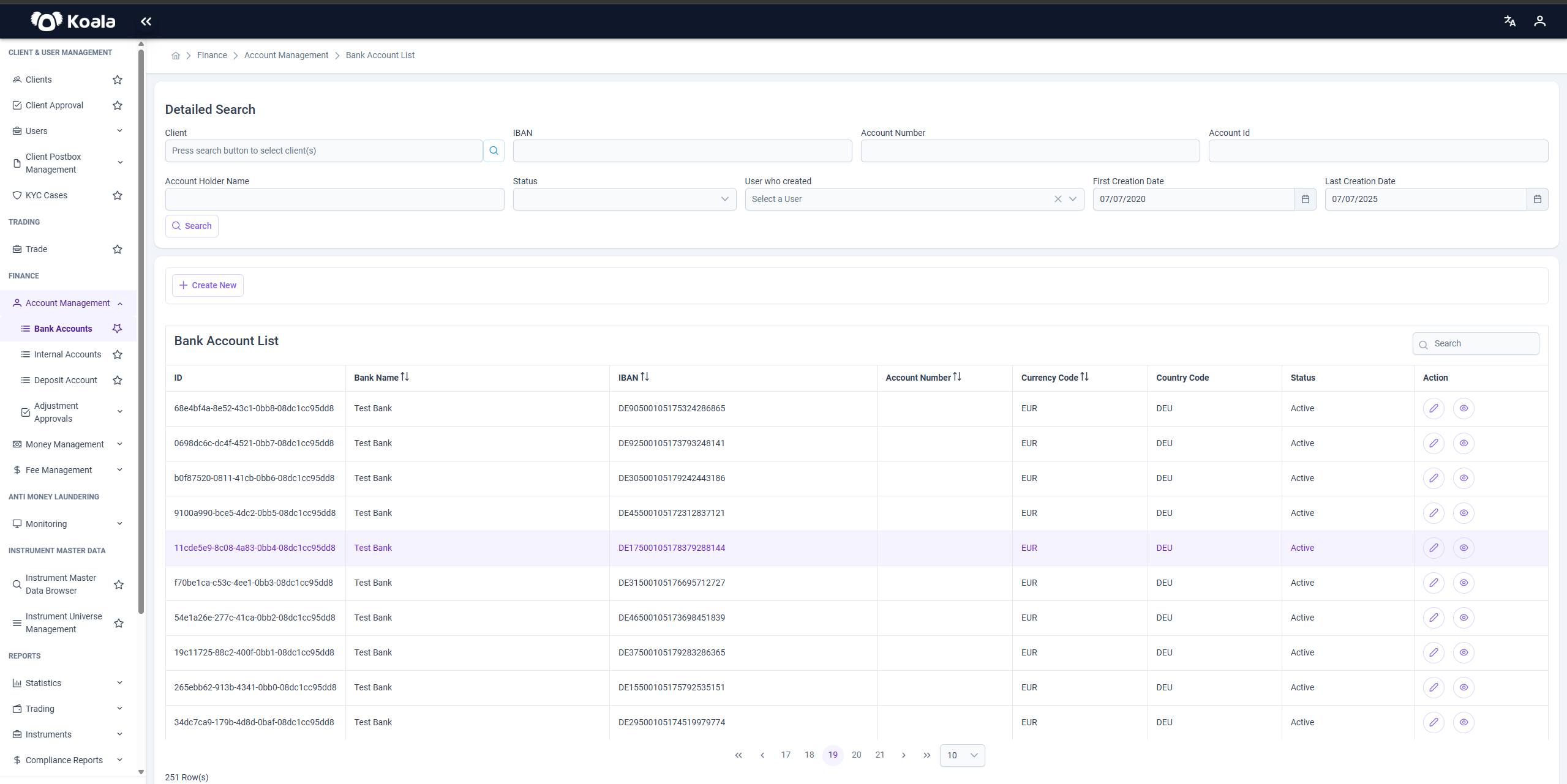
This page displays an overview of all existing Bank Accounts within the Koala Markets system.
It allows users to view, search, and manage bank accounts effectively.
🔍 Features
📝 Detailed Search
You can filter bank accounts by:
- Client
- IBAN
- Account Number
- Account ID
- Status (Initial, Active, Suspended, Deleted, Closed)
- User who created the account
- Creation Date (range)
Use the Search button to apply filters.
📋 Bank Account List
Below the search section, the list of bank accounts is displayed in a table format.
Each row represents a bank account with the following columns:
| Column | Description |
|---|---|
| ID | Unique identifier of the account |
| Bank Name | Name of the bank |
| IBAN | International Bank Account Number |
| Account Number | Local account number |
| Currency Code | Currency of the account (e.g., EUR, USD) |
| Country Code | Country where the account is held |
| Status | Current status of the account (Initial, Active, Suspended, Deleted, Closed) |
| Action | Buttons to edit, view, or manage the account |
🔗 Actions
On each row in the Bank Account List, you can perform the following actions using the buttons in the Action column:
- ✏️ Edit (Update): Modify the bank account details.
- 👁️ View: View account details in read-only mode.
You can also create a new bank account by clicking the + Create New button above the table.
📖 Summary
The Bank Account Overview page provides a complete list of bank accounts in Koala Markets,
enabling you to:
- Search and filter accounts based on various criteria.
- View details of each account.
- Edit account information.
- Manage external bank accounts linked to clients.
This page is essential for managing the financial accounts held at external banks effectively.
📄 Bank Account Create
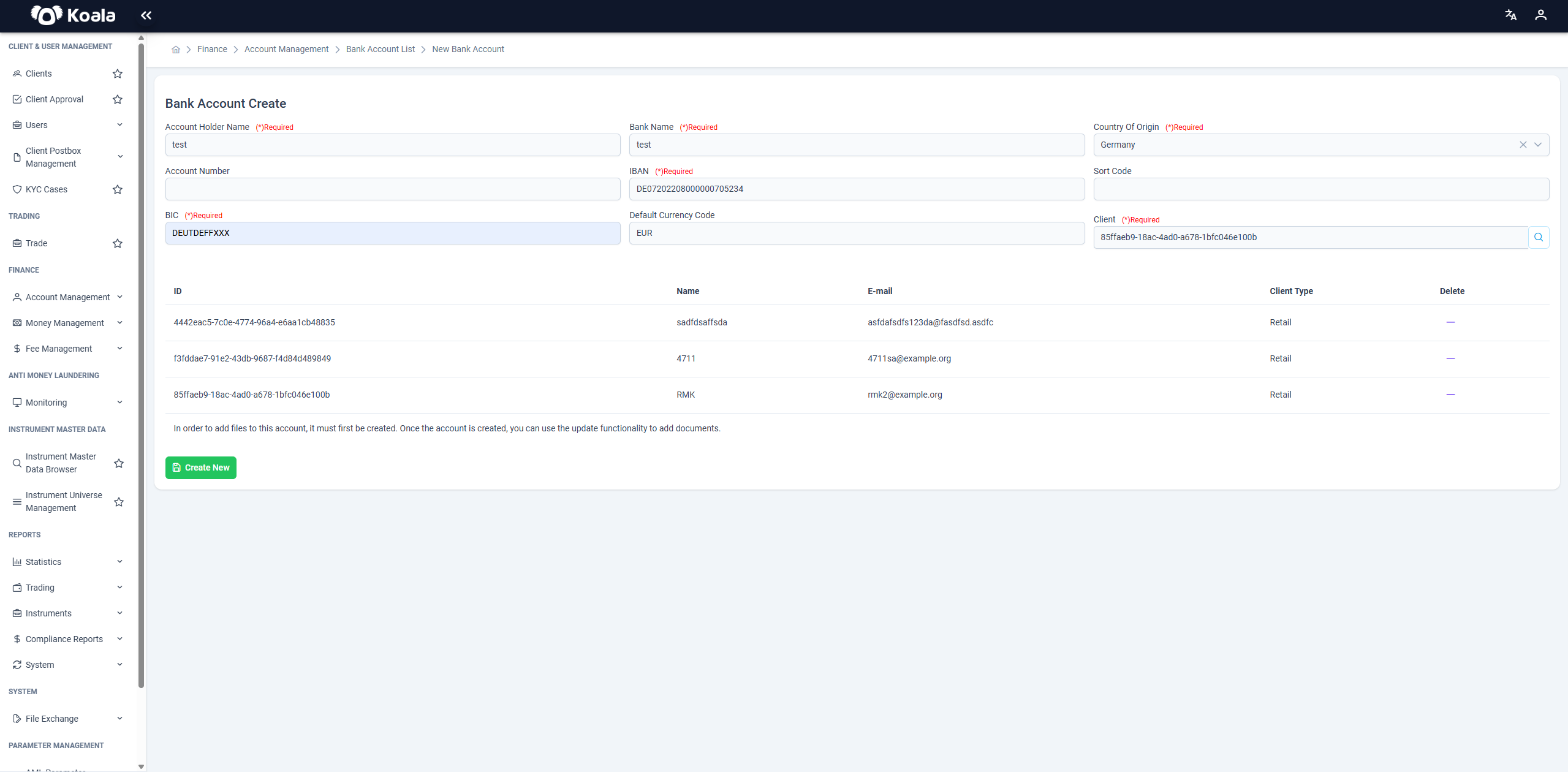
The Bank Account Create page allows you to add a new Bank Account to the Koala Markets system.
This page is designed to capture all necessary details for registering a bank account and associating it with one or more clients.
Required Fields
When creating a new bank account, you must fill in all of the following fields:
- Account Holder Name: Name of the person or entity holding the account.
- Bank Name: Name of the bank where the account is held.
- Country of Origin: The country in which the account is opened.
- Account Number: The local account number of the bank account.
- IBAN: International Bank Account Number (required by default, see notes below).
- Sort Code: Bank sort code (required in some countries, see notes below).
- BIC: Bank Identifier Code — must always be valid.
- Default Currency Code: The currency of the bank account (e.g., EUR, USD).
- Client(s): At least one client must be selected; however, the account can also be associated with multiple clients.
Important Notes
-
The Client selection works the same way as in Internal Account:
You must select at least one client, and you can associate the account with multiple clients if needed. -
By default, the IBAN field is mandatory.
However, depending on the selected Country of Origin, the IBAN requirement may change:- In countries that do not support IBAN, the Account Number and Sort Code fields become mandatory instead.
-
The BIC (Bank Identifier Code) must always be valid.
The system validates the BIC during account creation to ensure it is correct and matches the bank. -
In order to add files to this account, it must first be created. Once the account is created, you can use the update functionality to add documents.
Summary
The Bank Account Create page enables you to:
- Register new bank accounts with complete and validated information.
- Ensure compliance with country-specific banking rules regarding IBAN, Account Number, and Sort Code.
- Associate the bank account with one or more clients for proper linkage.
After filling in all the required fields and ensuring the information is valid, click the Create button to successfully create the bank account.
📄 Bank Account Update
This page allows you to view and update a registered bank account in the system.
It provides a detailed view of the bank account data along with validation functionalities.
Below is a breakdown of the page functionality, sections, and tabs.
✍️ Editable Fields
When creating a bank account, several fields (like IBAN, account number, account name, etc.) are entered.
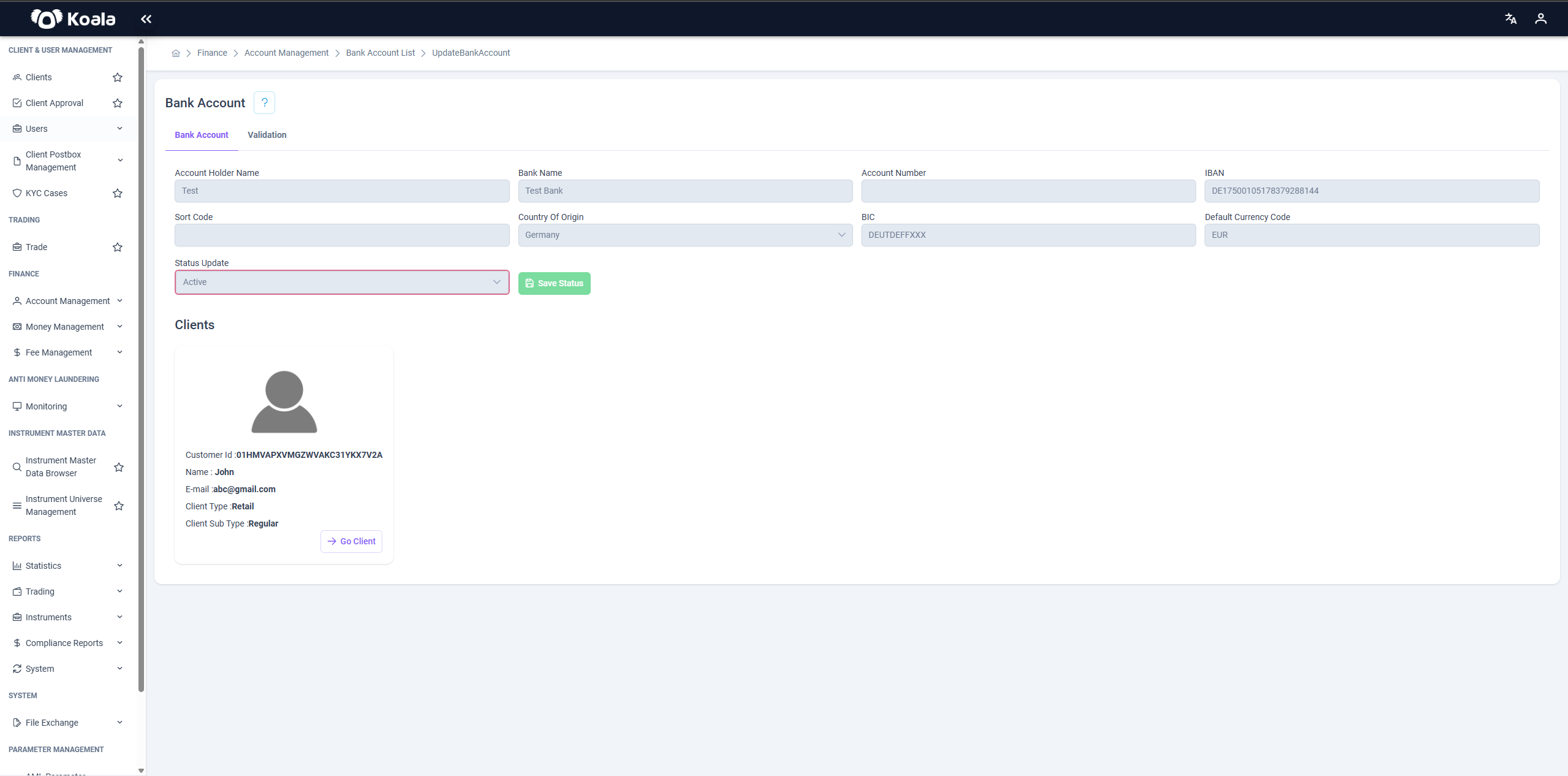
However, on this update/view page, the only field that can be modified is the Status of the account.
⚠️ Note: Updating the status is restricted to users with the Tenant Management role.
🗂️ Tabs
The page contains two main tabs that organize the functionality:
1️⃣ Bank Account Tab
-
Displays all the information about the bank account as entered during creation.
-
Includes details such as:
- IBAN
- Account Name
- Account Number
- Currency
- Bank Name
- Branch Code
- Swift/BIC
- Country
- Any other identifying information.
-
The data on this tab is read-only, except for the Status field, which can be updated by authorized roles.
-
2️⃣ Validation Tab
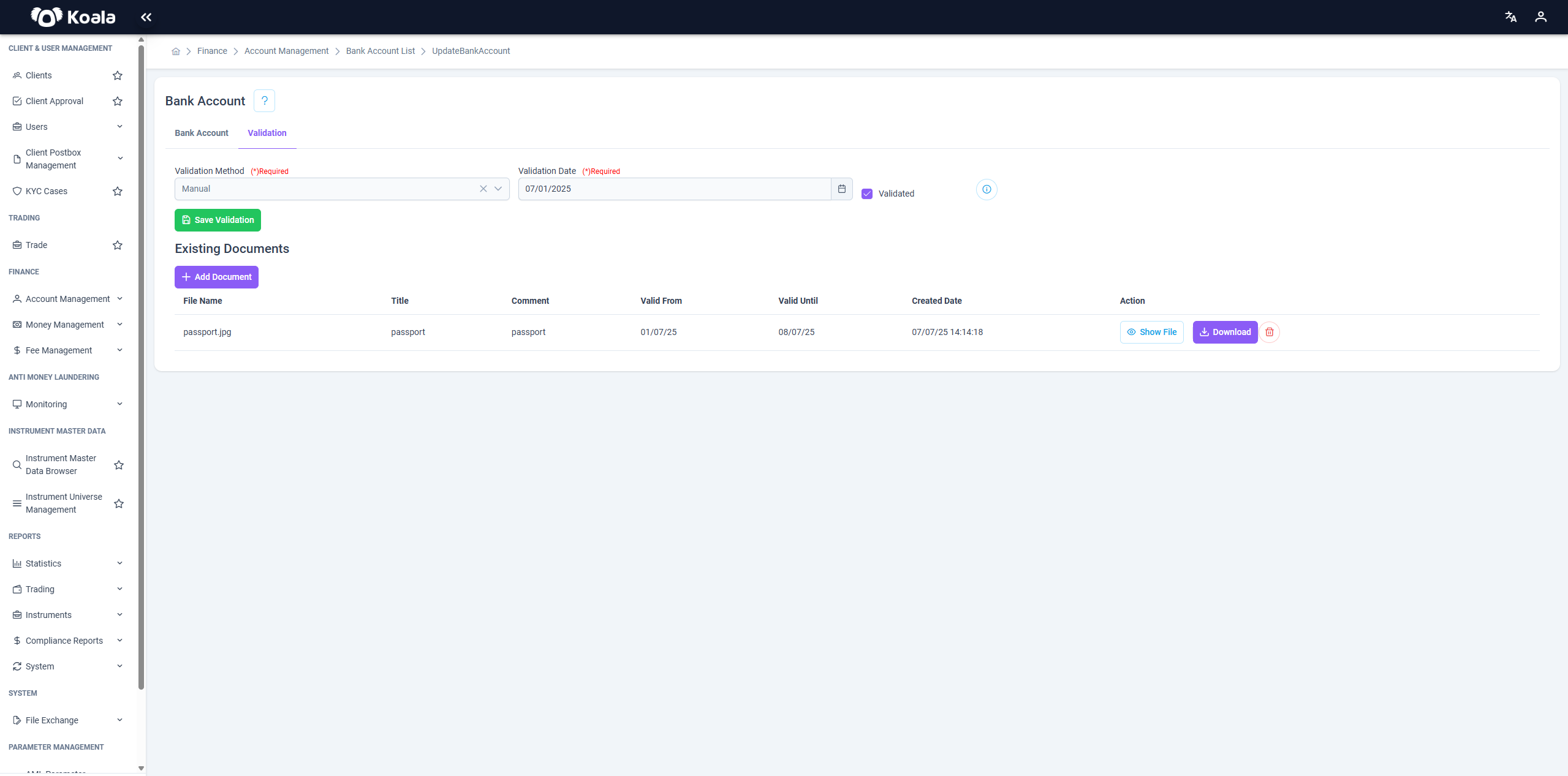
This tab is used to validate the bank account by uploading supporting documents and confirming the account’s authenticity.
Features:
- Upload validation documents.
- Examples: Bank statements, official confirmation letters, identification documents.
- Once documents are uploaded, the account can be validated or marked accordingly.
- Provides a log or history of the validation actions taken.
📝 This tab ensures compliance and proper verification of the bank account before it is fully activated or used for transactions.
👤 My Bank Account
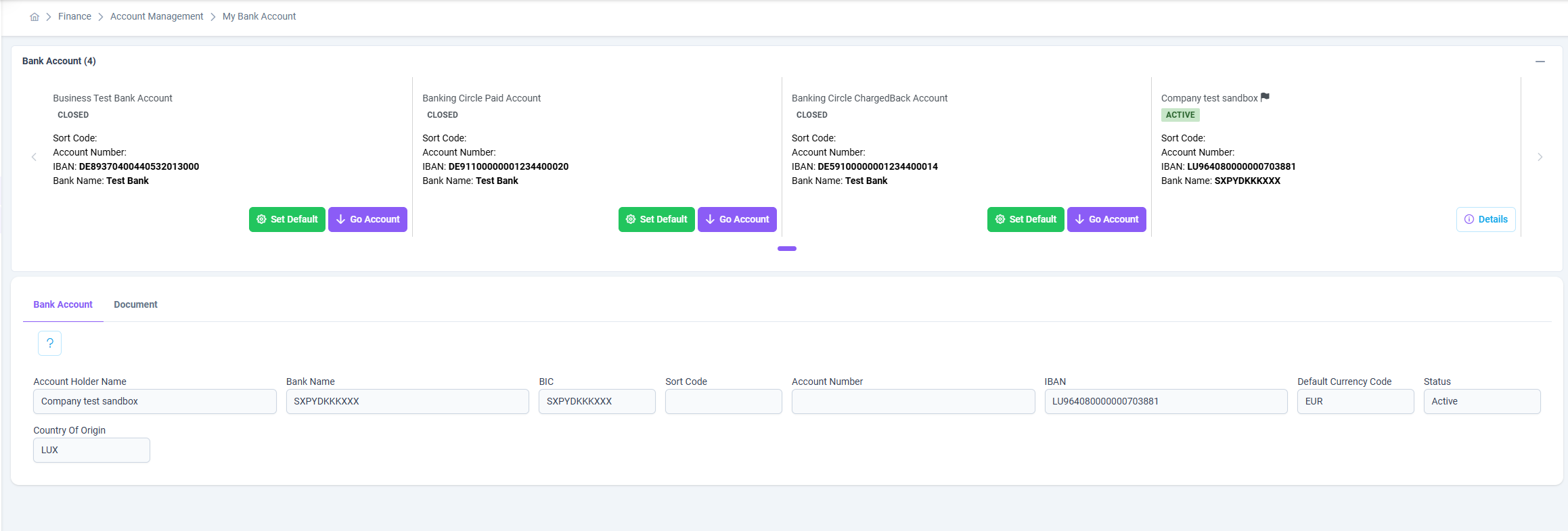
The My Bank Account page provides a complete overview of the bank accounts linked to a tenant or client within the Koala platform.
It allows users to view, manage, and select active or default accounts for financial operations such as withdrawals or transfers.
👥 Access Permissions
This page is accessible only to users with the following roles:
client_*retail_client
🏦 Bank Account Overview
At the top of the page, all bank accounts associated with the tenant or client are displayed as individual cards.
Each card provides essential account information, including:
- Account Name
- Status (e.g., Active, Closed)
- Sort Code
- Account Number
- IBAN
- Bank Name
From this section, users can:
- Click Go Account to view detailed bank account information.
- Use Set Default to designate a preferred default account for outgoing transfers or withdrawals.
📋 Bank Account Details
When a user selects a specific bank account, the detailed information section below displays key attributes, such as:
- Account Holder Name
- Bank Name
- BIC (Bank Identifier Code)
- Sort Code
- Account Number
- IBAN
- Default Currency Code
- Status (Active / Closed)
- Country of Origin
This view ensures transparency and clarity regarding the operational and compliance details of each connected bank account.
📎 Document Tab
Alongside the Bank Account tab, a Document tab is available where supporting documentation (such as proof of account ownership or verification forms) may be uploaded or reviewed, depending on platform configuration and compliance requirements.

✅ Note:
Each user may have multiple linked bank accounts, but only one active default account can be selected at a time. Closed accounts remain visible for record-keeping and audit purposes.