Internal Account
📄 Internal Account Overview
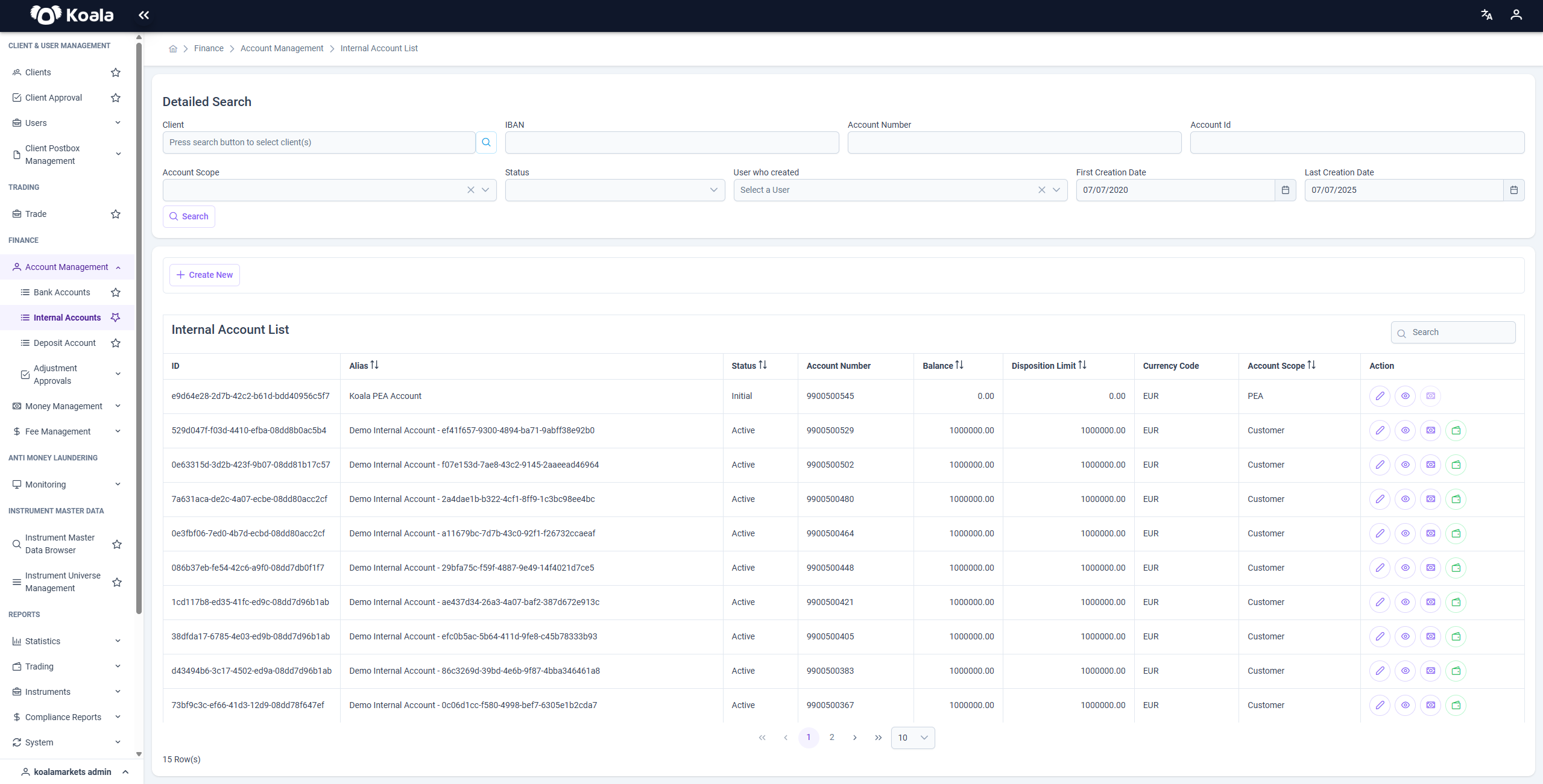
This page displays an overview of all existing Internal Accounts within the Koala Markets system.
It allows users to view, search, and manage internal accounts effectively.
🔍 Features
📝 Detailed Search
You can filter internal accounts by:
- Client
- IBAN
- Account Number
- Account ID
- Account Scope (Customer, PEA, Conto Pro Diverse, RBA)
- Status (Initial, Active, Suspended, Deleted, Closed)
- User who created the account
- Creation Date (range)
Use the Search button to apply filters.
📋 Internal Account List
Below the search section, the list of internal accounts is displayed in a table format.
Each row represents an internal account with the following information:
- ID: Unique identifier of the account
- Alias: Account name or alias
- Status: Current status of the account (
Initial,Active,Suspended,Deleted,Closed) - Account Number
- Balance
- Disposition Limit
- Currency Code
- Account Scope: (
Customer,PEA,Conto Pro Diverse,RBA)
🔗 Actions
On each row in the Internal Account List, you can perform the following actions using the buttons in the Action column:
- ✏️ Edit (Update): Modify the internal account details.
- 👁️ View: View account details in read-only mode.
- 💶 Disposition Limit Update: Adjust the disposition limit of the account.
- 👛 Balance Adjustment Update: Adjust the balance of the account.
You can also create a new internal account by clicking the + Create New button above the table.
📖 Summary
The Internal Account Overview page provides a complete list of internal accounts in Koala Markets,
enabling you to:
- Search and filter accounts based on various criteria.
- View details of each account.
- Edit account information.
- Update balance and disposition limits.
This page is essential for managing the internal financial accounts of the platform effectively.
📄 Internal Account Create
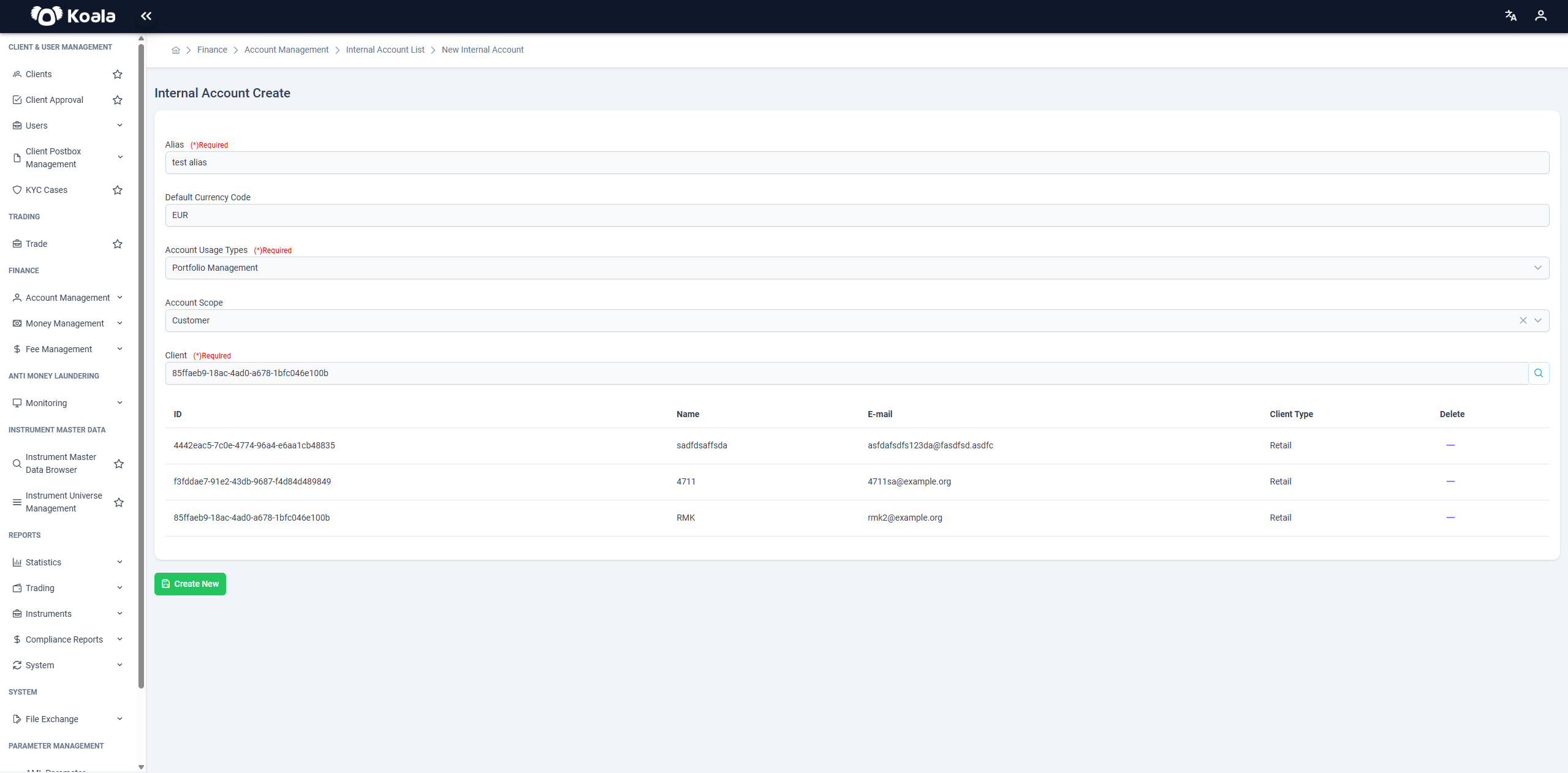
When creating a new Internal Account, you are required to fill in all of the following fields:
- Alias: The name or identifier for the internal account.
- Default Currency Code: The default currency of the account (e.g., EUR).
- Account Usage Types: Select one or more usage types, such as
Portfolio ManagementorBrokerage. - Account Scope: Define the scope of the account (e.g., Customer, PEA, Conto Pro Diverse, RBA).
- Client(s): Select at least one client to associate with this internal account.
📌 An internal account can be linked to multiple clients, but at least one client must be selected.
🔸 PEA, CPD, and RBA accounts are tenant-based, not client-based. You can only add clients when the Account Scope is set to Customer.
🔹 Each tenant can have only one PEA, one CPD, and one RBA account.
After filling in all the required fields, click the Create New button to successfully create a new internal account.
📄 Internal Account Update
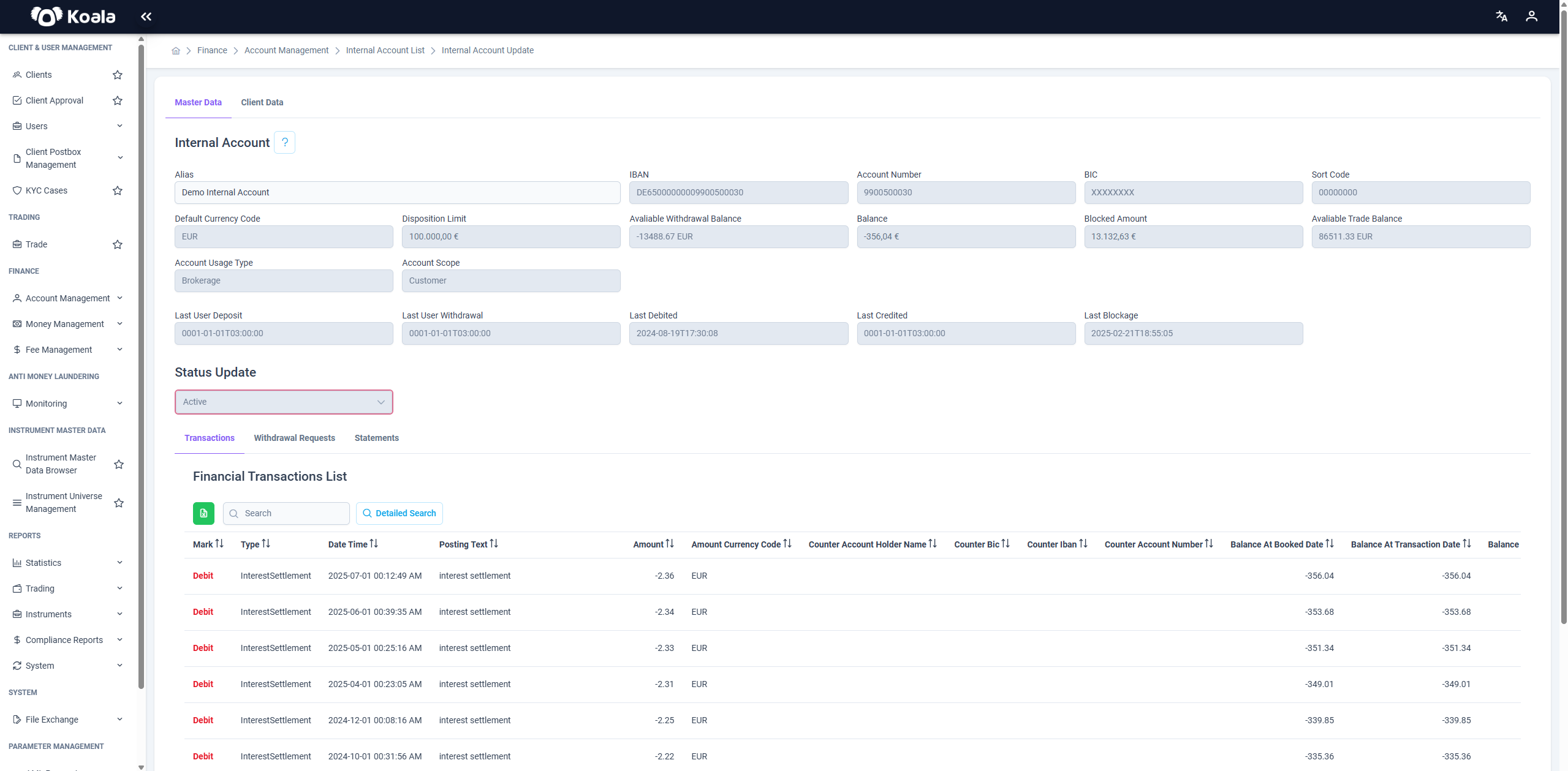
This page is used to view and update an Internal Account in the system.
Here is a breakdown of the page functionality and sections.
🗂️ Master Data
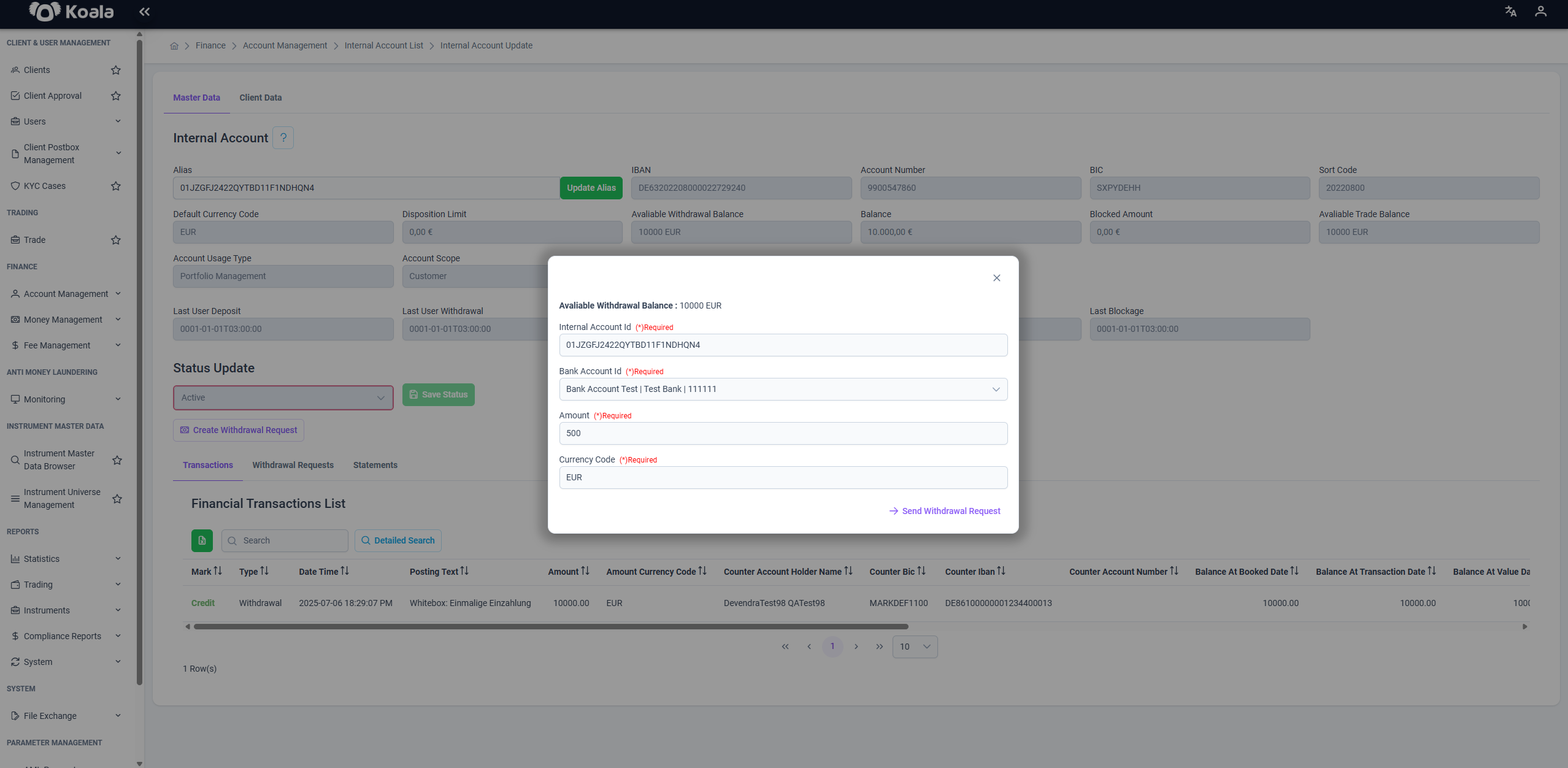
This section displays the main information about the internal account:
- Alias: The name of the internal account — editable on this page.
- Status Update: The current status of the account (e.g., Active/Inactive) — editable only by users with the Tenant Management role.
- IBAN, Account Number, BIC, Sort Code: Identifiers of the account.
- Default Currency Code: The currency of the account.
- Disposition Limit: The account’s disposition limit.
- Available Withdrawal Balance: Shows the amount currently available for withdrawal.
- Balance: Current balance of the account.
- Blocked Amount: Funds currently blocked and unavailable.
- Available Trade Balance: Amount available for trading.
- Account Usage Type / Scope: Defines how and by whom the account is used.
- Last User Deposit, Last User Withdrawal, Last Debited, Last Credited, Last Blockage: Timestamps of recent activities.
👤 Client Data
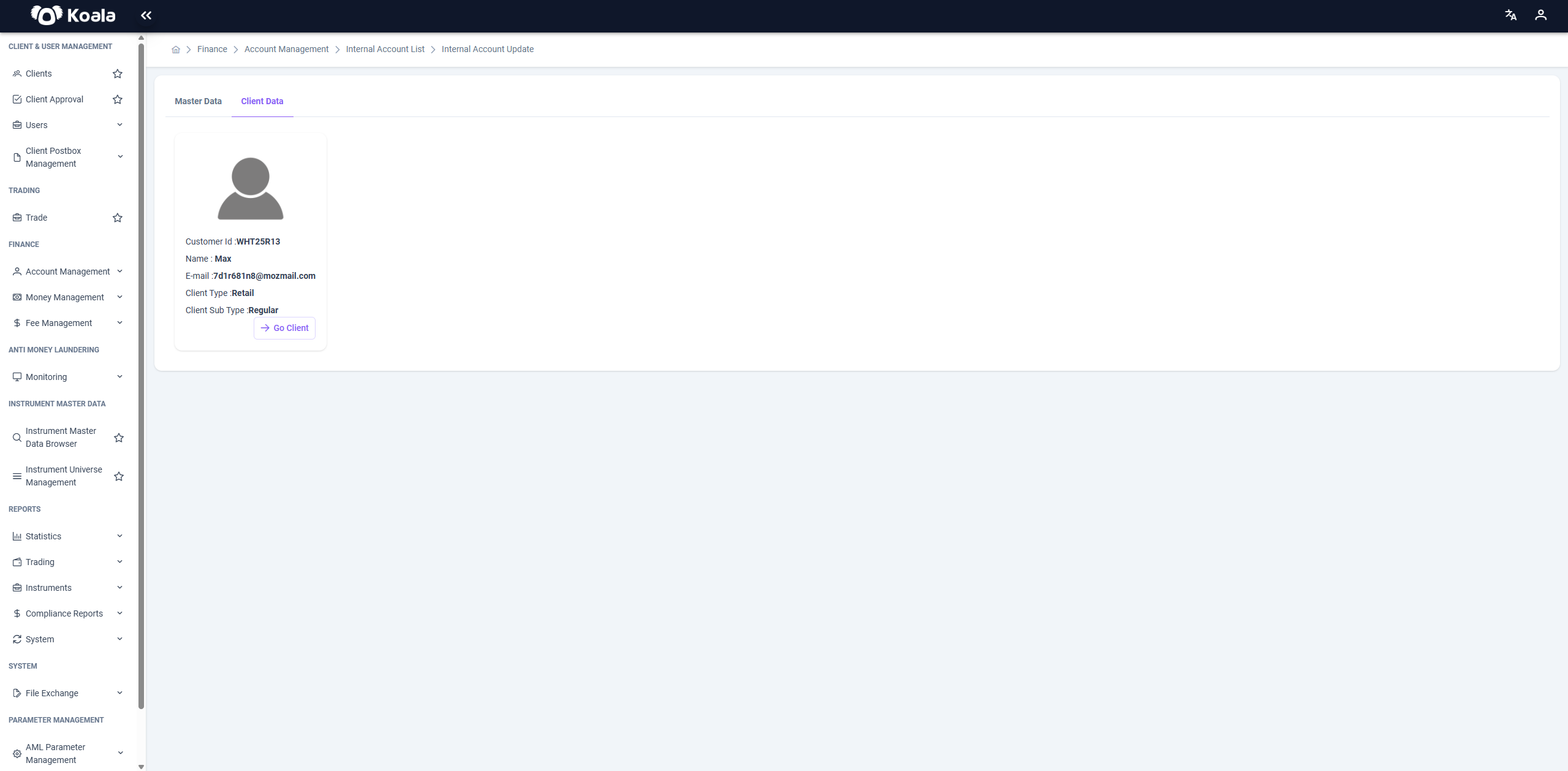
In this section, you can view details of the client who owns this internal account, including their personal and contact information.
This helps to easily identify and verify the client associated with the account.
🚀 Create Withdrawal Request
From this page, you can also create a Withdrawal Balance Update Request, which allows you to request a withdrawal from the internal account.
This request is sent for approval (visible under Withdrawal Request Approval), and until approved, the withdrawal is not processed.
Steps to Create a Withdrawal Request
- Enter the amount to withdraw.
- Specify the desired withdrawal amount in the appropriate field.
- Select the target account (if required).
- Choose the bank or internal account where the funds should be transferred.
- Add notes or reasons (optional).
- Provide any additional information if needed.
- Submit the request.
- Once submitted, the request appears in the Withdrawal Requests tab below with a Pending status and awaits approval.
🔽 Tabs at the Bottom
At the bottom of the page, there are three tabs that help you monitor account activity and history:
1️⃣ Transactions
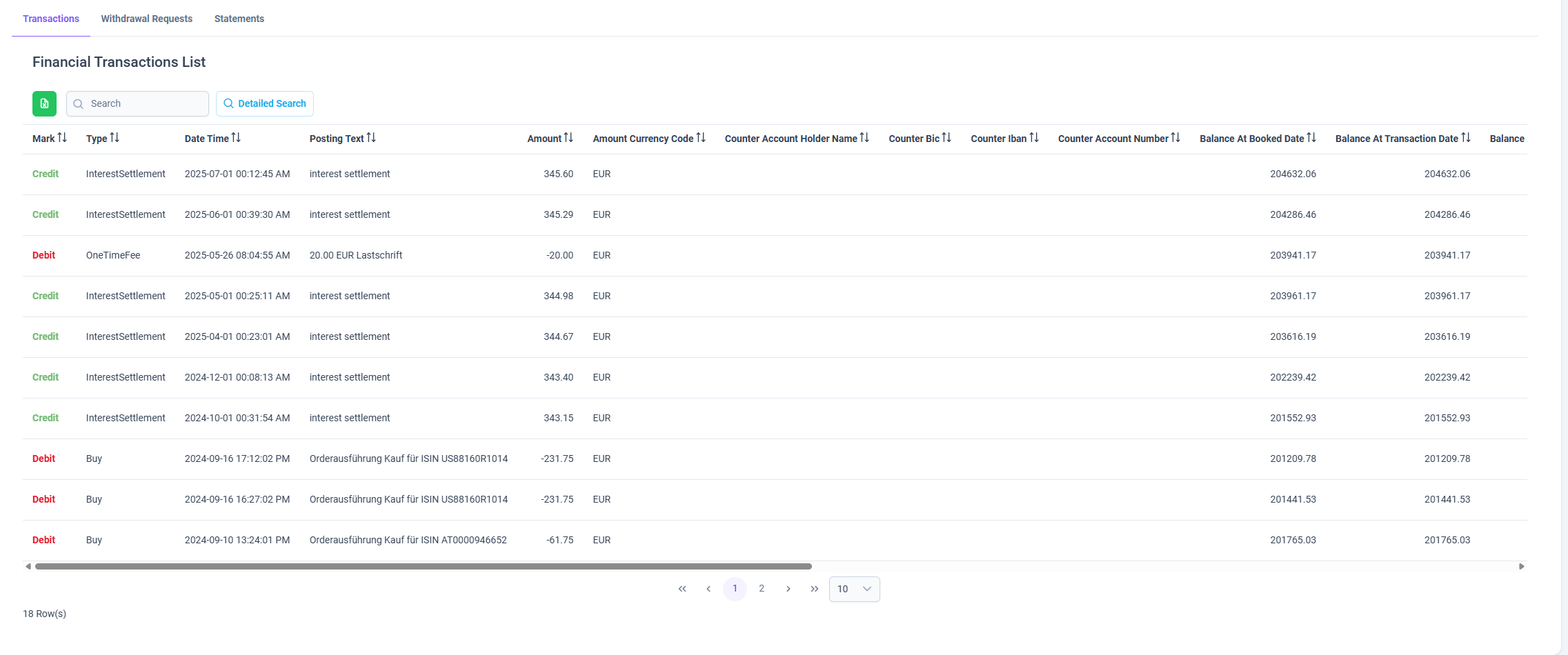
- Displays a list of all financial transactions related to this internal account.
- Columns include:
- Type (Debit / Credit)
- Date & Time
- Posting Text
- Amount
- Currency
- Counterparty details (IBAN, BIC, Account Holder, etc.)
- Balance at Transaction and Booked Dates
This tab provides full visibility into account movements.
2️⃣ Withdrawal Requests
-
Lists all withdrawal requests made from this internal account.
-
Shows the details and current status of each request:
- Initial
- Approved
- Rejected
-
You can track the request you created above here.
-

3️⃣ Statements
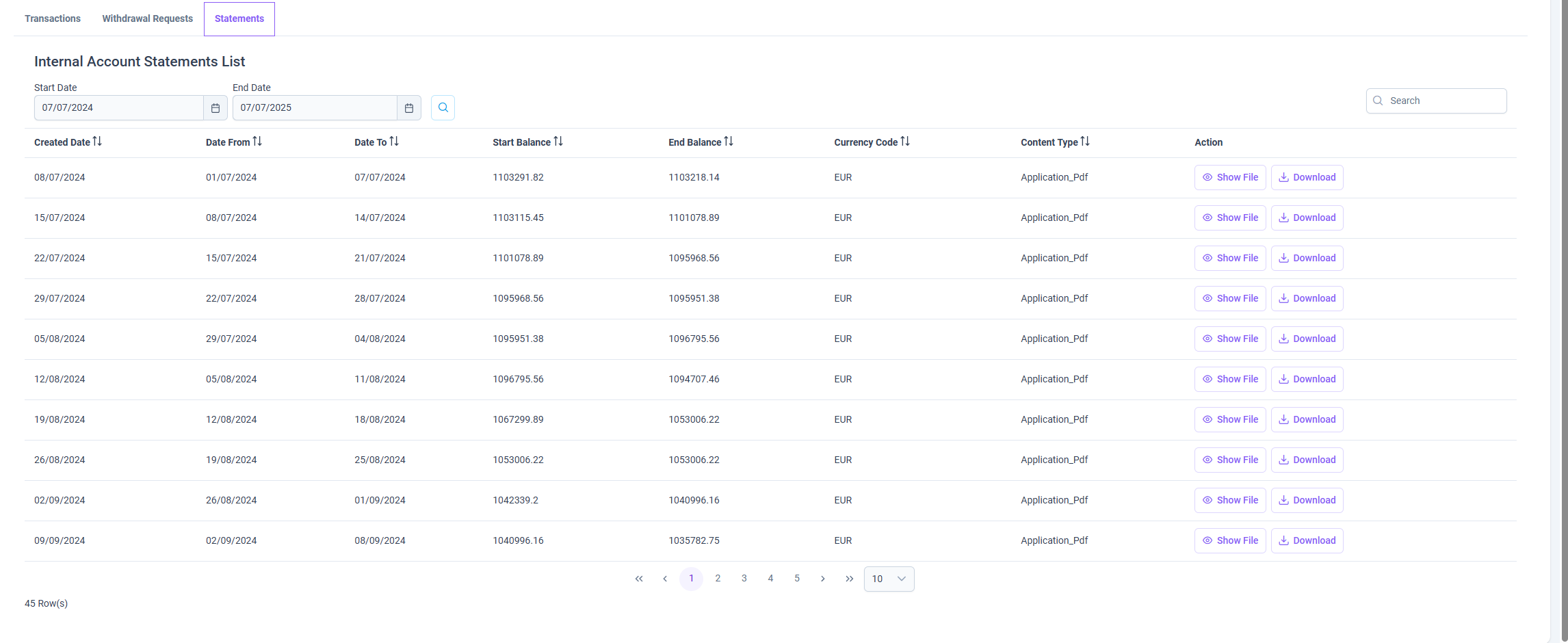
- Shows generated statements for this internal account.
- Useful for auditing, reporting, and reconciliation.
- Typically includes balances, movements, and summaries over a selected time period.
✅ Summary
- Alias and Status can be updated (Status only by users with Tenant Management role).
- You can create a Withdrawal Balance Update Request directly from this page.
- Master Data shows the account details; Client Data shows the owner’s information.
- Tabs at the bottom allow you to review:
- Transactions
- Withdrawal Requests
- Statements
💶 Disposition Limit Update
Manage Internal Account Disposition Limit
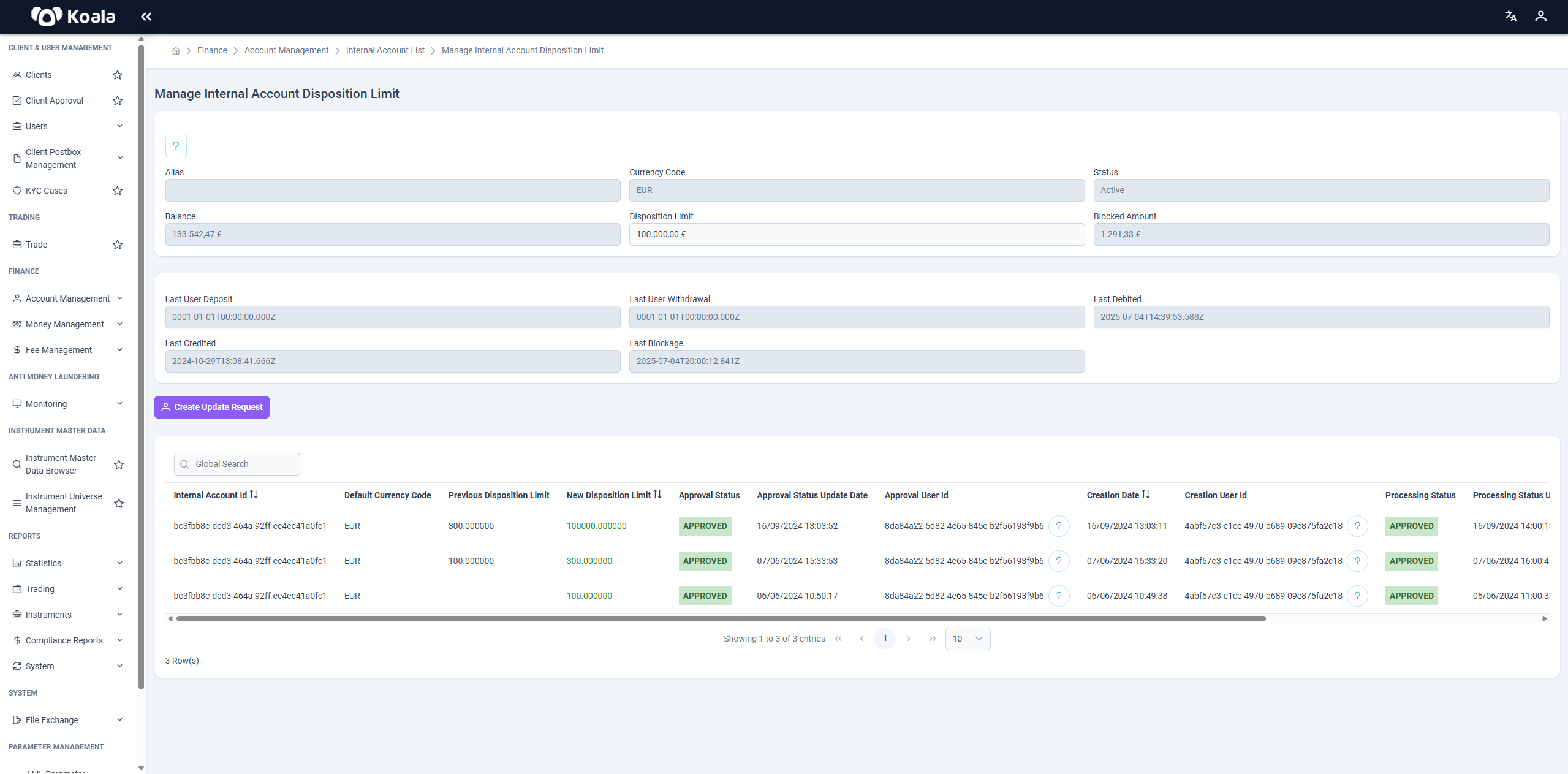
On this page, you can manage the Disposition Limit of an Internal Account.
At the top of the page, the details of the selected internal account are displayed for reference.
How to Create an Update Request
1️⃣ Fill in the Disposition Limit field with the desired value.
2️⃣ Click the Create Update Request button.
3️⃣ A new Disposition Limit Update Request will be created for the internal account.
📌 Once created, the request is added to the list below with an initial status of Initial.
Update Requests List
At the bottom of the page, you can see a table listing all previously created or currently pending Disposition Limit Update Requests.
This table allows you to track the status of your requests over time.
👛 Balance Adjustment Update
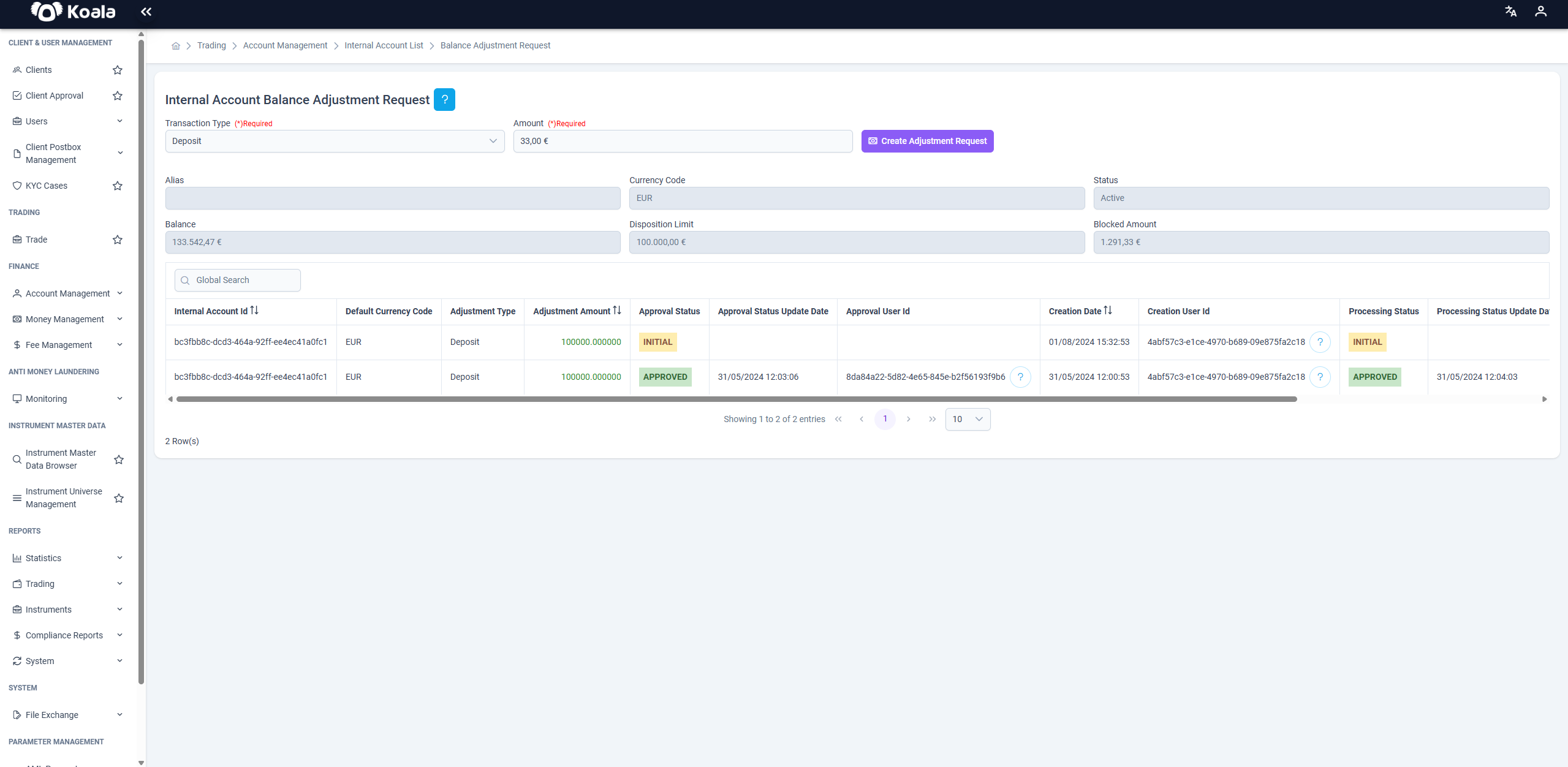
The Balance Adjustment Update page allows you to adjust the balance of an Internal Account by creating a formal request.
This is typically used when you need to correct or update the account’s balance outside of regular transactions — for example, to fix an error, reflect a manual correction, or apply an extraordinary credit/debit.
Manage Internal Account Balance Adjustment
On this page, you can create a Balance Adjustment Request for an Internal Account.
Below the form, the details of the internal account are displayed for reference.
How to Create an Adjustment Request
1️⃣ Fill in the required fields:
- Transaction Type: Select either
DepositorWithdrawal— depending on whether you want to increase or decrease the account balance. - Amount: Enter the amount to adjust.
2️⃣ Click the Create Adjustment Request button.
📌 This will create a new Internal Account Balance Adjustment Request.
Important Notes
- Below the creation form and account details, there is a list of all previously created or currently active Internal Account Balance Adjustment Requests for this account.
- You can create only one adjustment request at a time for an internal account.
- If an adjustment request is already pending, you will see the error message:
“There is a waiting balance adjustment request for this account.”
This page ensures that balance corrections are handled properly and that only one pending adjustment exists at a time, maintaining the integrity of internal account balances.
👤 My Internal Account
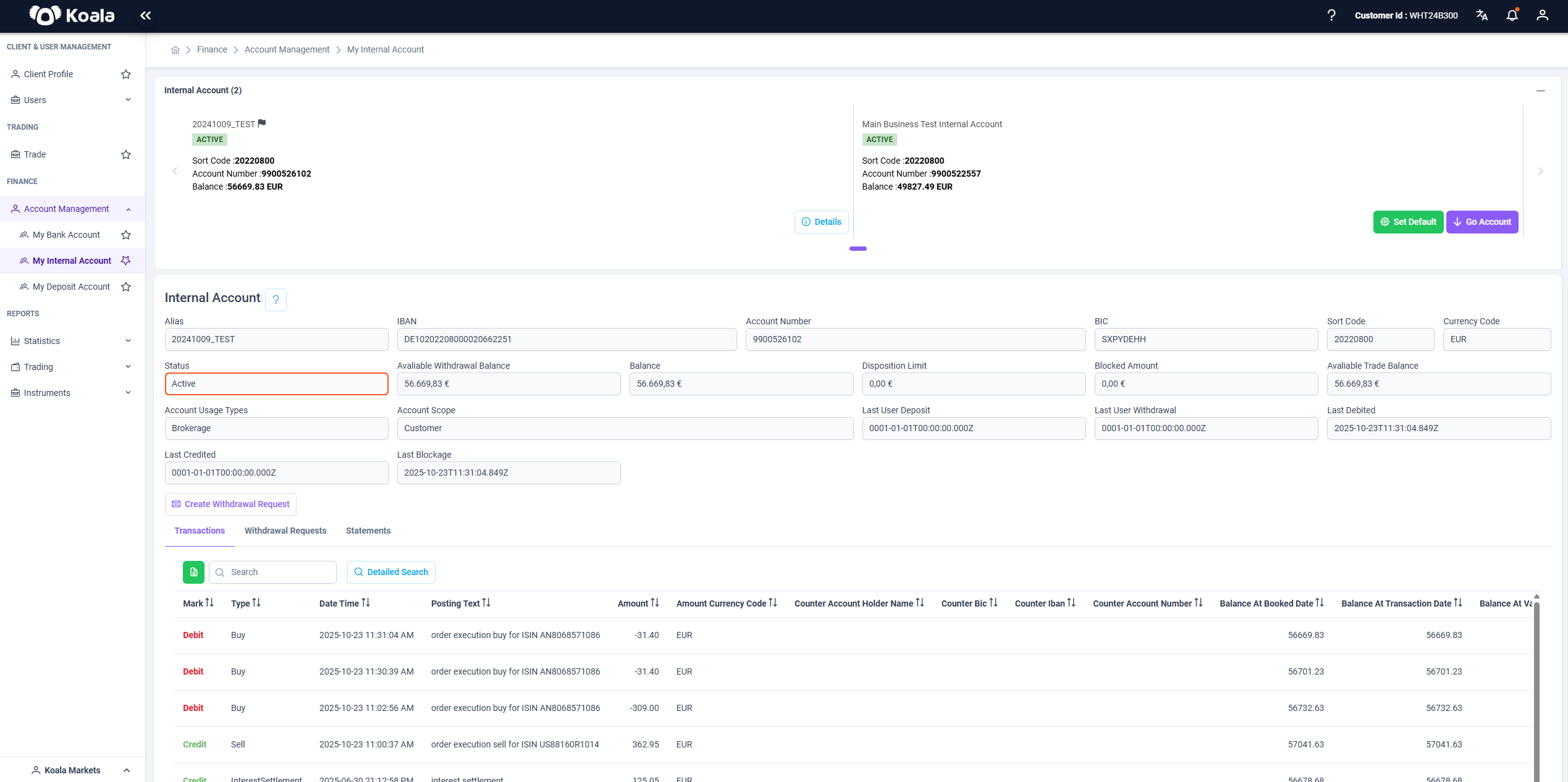
The My Internal Account page provides a detailed overview of the client’s internal accounts, balances, and transaction history.
It allows clients to view account information, initiate withdrawal requests, and review past financial activities.
👥 Access Permissions
This page is accessible only to the following roles:
client_*retail_client
🏦 Account Overview
At the top of the page, all internal accounts associated with the client are displayed.
Each account card includes key identifiers such as:
- Sort Code
- Account Number
- Balance
- Status (e.g., Active)
Clients can:
- Click Go Account to view detailed information about a specific internal account.
- Set an account as Default for future transactions.
📋 Internal Account Details
The detailed section displays the selected account’s key attributes, including:
- Alias
- IBAN
- Sort Code
- Currency Code
- Account Scope (e.g., Customer)
- Account Usage Type (e.g., Brokerage)
- Available Balances (Trade / Withdrawal)
- Last Debited / Last Credited / Last Blockage Information
💸 Withdrawal Request
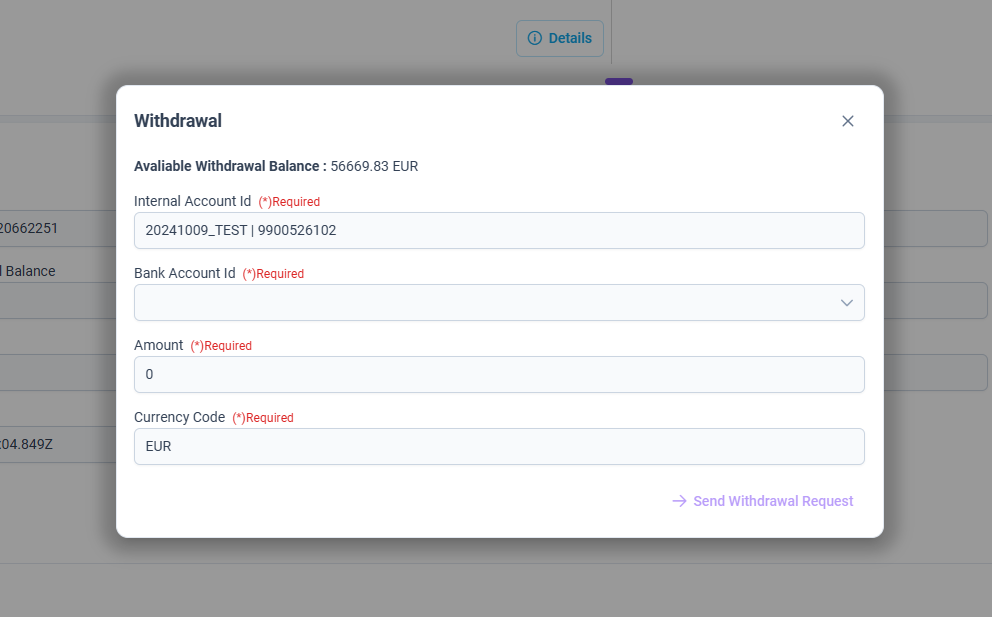
Clients can create a Withdrawal Request directly from this page by selecting the Create Withdrawal Request button.
A dialog opens with the following required fields:
- Internal Account (Required – choose from client’s internal accounts)
- Bank Account (Required – choose destination bank account)
- Amount (Required – withdrawal amount)
- Currency Code
Once all required information is provided, the client can submit the withdrawal request for processing.
📊 Transactional Information
The lower section of the page contains three tabs:
- Transactions – Displays all financial transactions related to the selected internal account, including trade executions, debit/credit movements, and balance updates.
- Withdrawal Requests – Lists all previously created withdrawal requests with their respective statuses.
- Statements – Provides downloadable account statements for reconciliation and audit purposes.
✅ Note:
Fractional balances and blocked amounts are clearly displayed, ensuring clients always have full visibility of their available and restricted funds.