💼 Deposit Account
📄 Deposit Account Overview
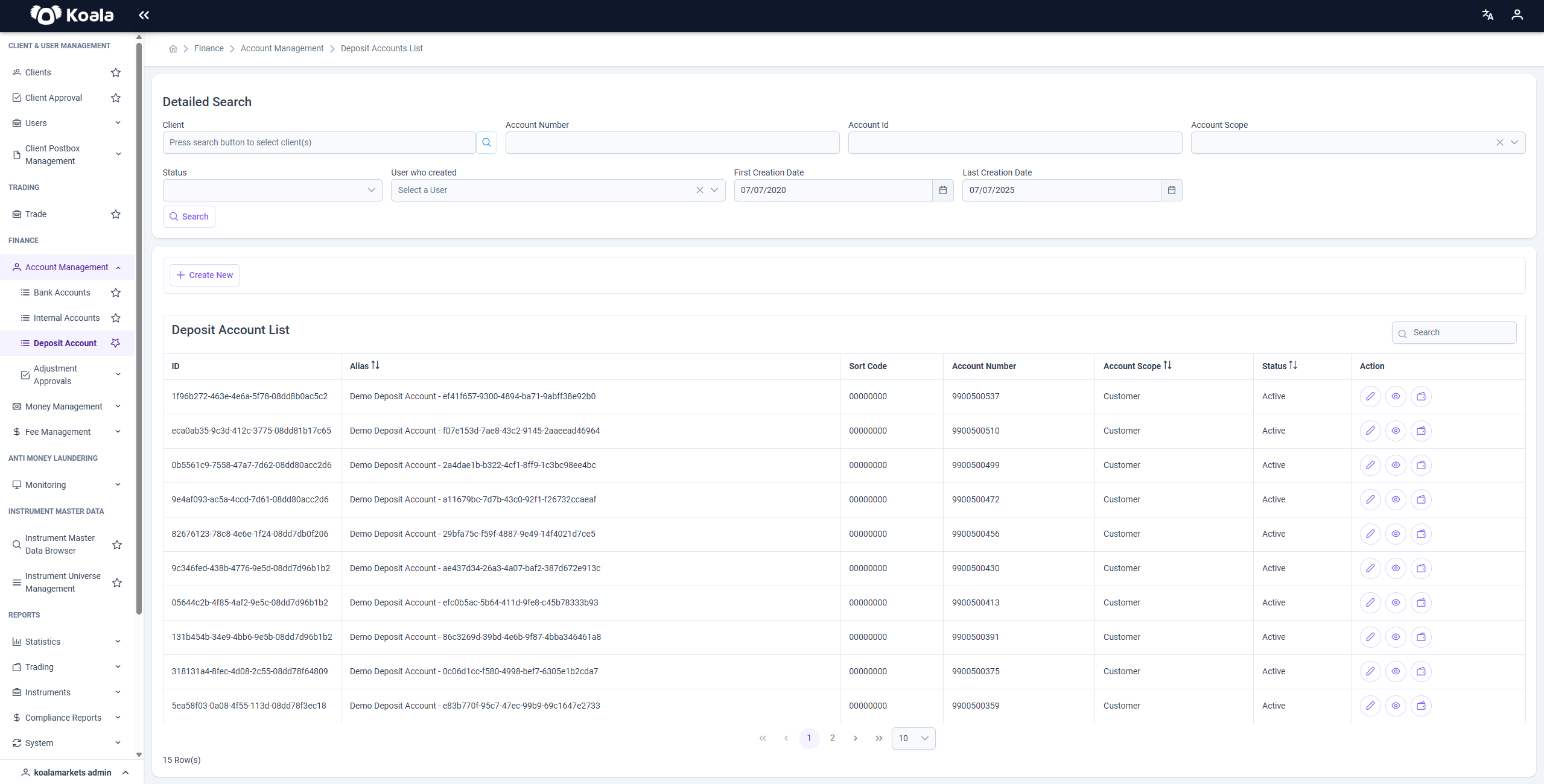
This page displays an overview of all existing Deposit Accounts within the Koala Markets system.
It allows users to view, search, and manage deposit accounts efficiently.
🔍 Features
📝 Detailed Search
At the top of the page, you can filter deposit accounts using the search fields.
The search criteria are the same as those on the Internal Account page:
- Client
- IBAN
- Account Number
- Account ID
- Account Scope (Customer, PEA, RBA)
- Status (Initial, Active, Suspended, Deleted, Closed)
- User who created the account
- Creation Date (range)
Use the Search button to apply filters.
📋 Deposit Account List
Below the search section, the list of deposit accounts is displayed in a table format.
Each row represents a deposit account with the following columns:
| Column | Description |
|---|---|
| ID | Unique identifier of the account |
| Alias | Account name or alias |
| Sort Code | Sort code of the account |
| Account Number | Local account number |
| Account Scope | Scope of the account (Customer, PEA, RBA) |
| Status | Current status of the account (Initial, Active, Suspended, Deleted, Closed) |
| Action | Buttons to manage the account |
🔗 Actions
On each row in the Deposit Account List, you can perform the following actions using the buttons in the Action column:
- ✏️ Edit (Update): Modify the deposit account details.
- 👁️ View: View account details in read-only mode.
- 👛 Deposit Account Adjustment Request: Create an adjustment request for the deposit account.
You can also create a new deposit account by clicking the + Create New button above the table.
📖 Summary
The Deposit Account Overview page provides a complete list of deposit accounts in Koala Markets,
enabling you to:
- Search and filter accounts based on various criteria.
- View details of each account.
- Edit account information.
- Create adjustment requests.
📄 Deposit Account Create
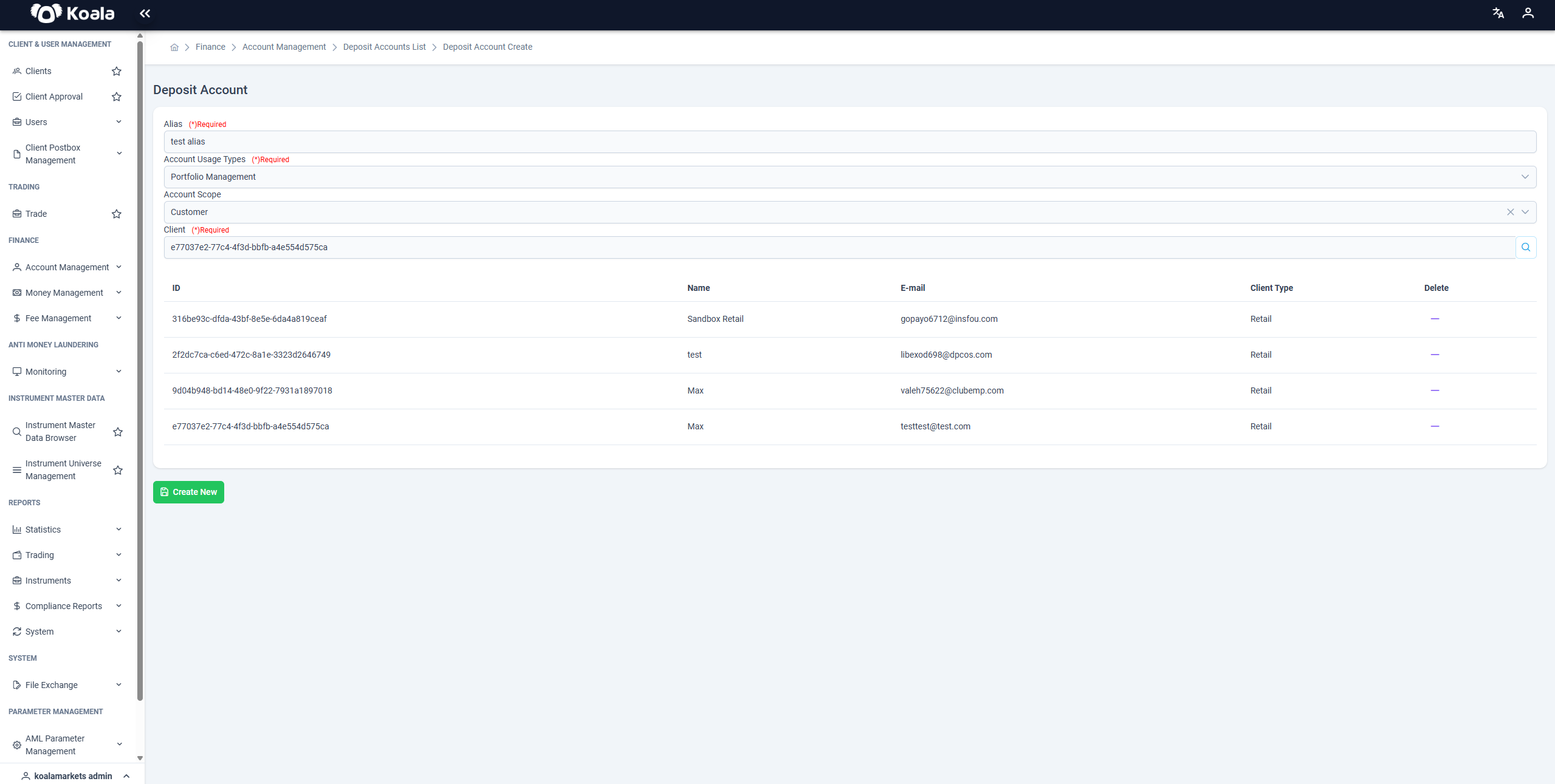
When creating a new Deposit Account, you are required to fill in all of the following fields:
-
Alias
The name or identifier for the deposit account. -
Default Currency Code
The default currency of the account (e.g., EUR). -
Account Usage Types
Select one or more usage types, such asPortfolio ManagementorBrokerage. -
Account Scope
Define the scope of the account (e.g., Customer, PEA, RBA). -
Client(s)
Select at least one client to associate with this deposit account.
📌 A deposit account can be linked to multiple clients, but at least one client must be selected.
🔸 PEA and RBA accounts are tenant-based, not client-based. You can only add clients when the Account Scope is set to Customer.
🔹 Each tenant can have only one PEA and one RBA account.
After filling in all the required fields, click the Create New button to successfully create a new deposit account.
📄 Deposit Account Update
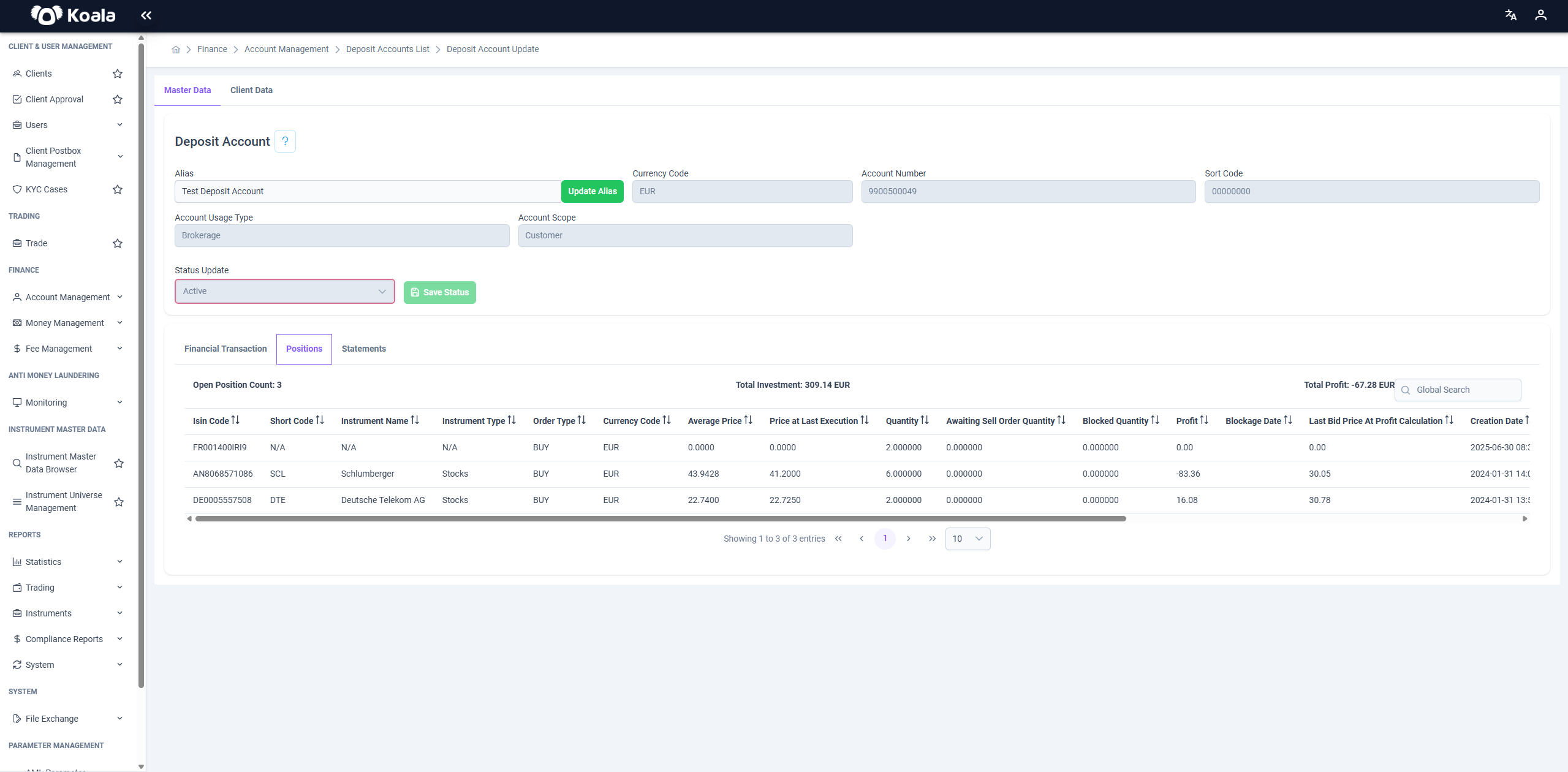
Deposit Account Page Overview
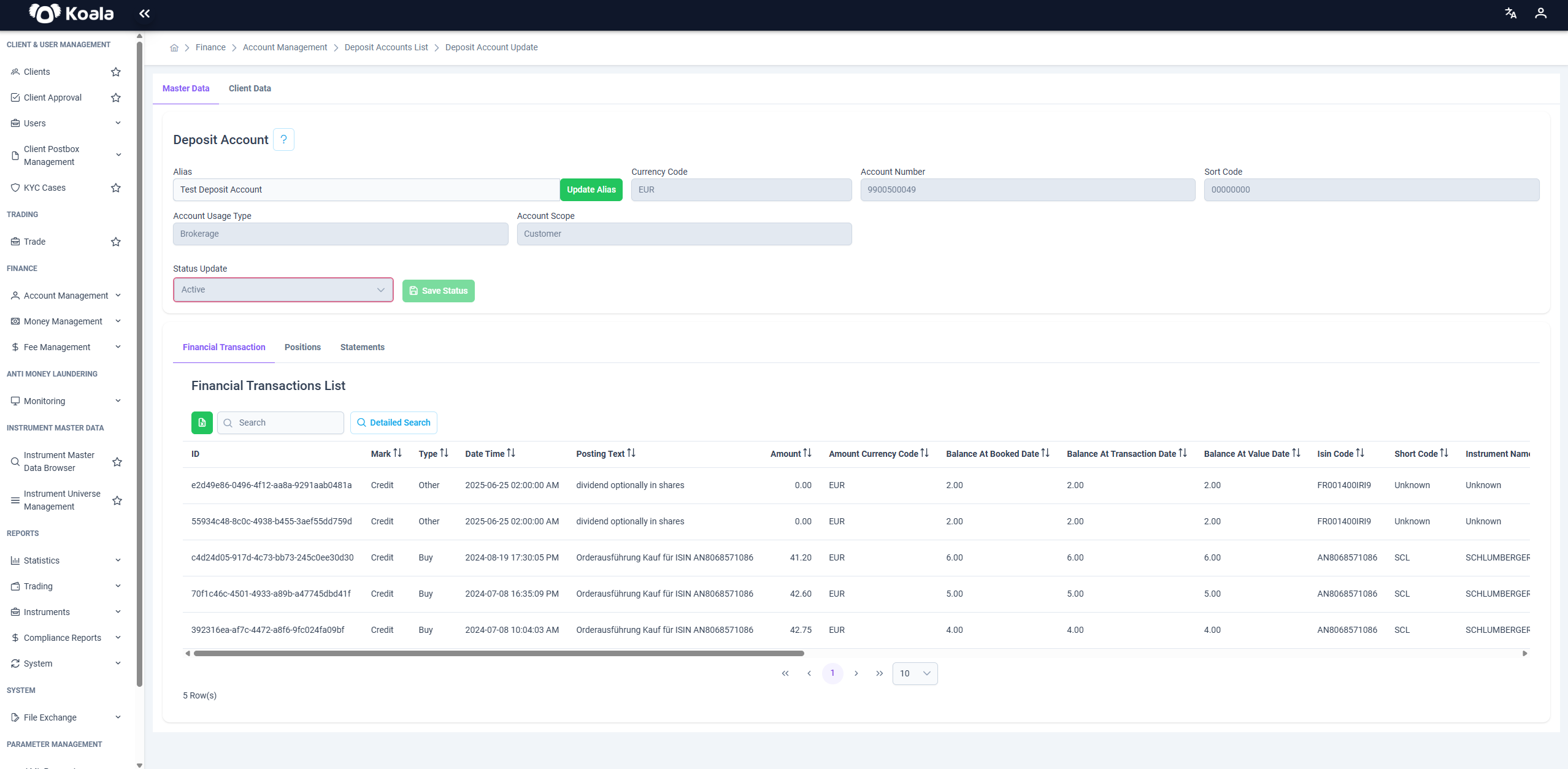
This page is used to view and update a Deposit Account in the system.
Here is a breakdown of the page functionality and sections.
🗂️ Master Data
This section displays the main information about the deposit account:
- Alias: The name of the deposit account — editable on this page.
- Currency Code: The default currency code of the deposit account.
- Account Number: Unique number identifying the deposit account.
- Sort Code: Bank sort code related to the deposit account.
- Account Usage Type: Defines the usage type(s) for this deposit account.
- Account Scope: Defines the scope of the deposit account (e.g., Customer, Internal).
- Status: Current status of the deposit account (e.g., Active, Inactive) — editable only by users with the Tenant Management role.
👤 Client Data
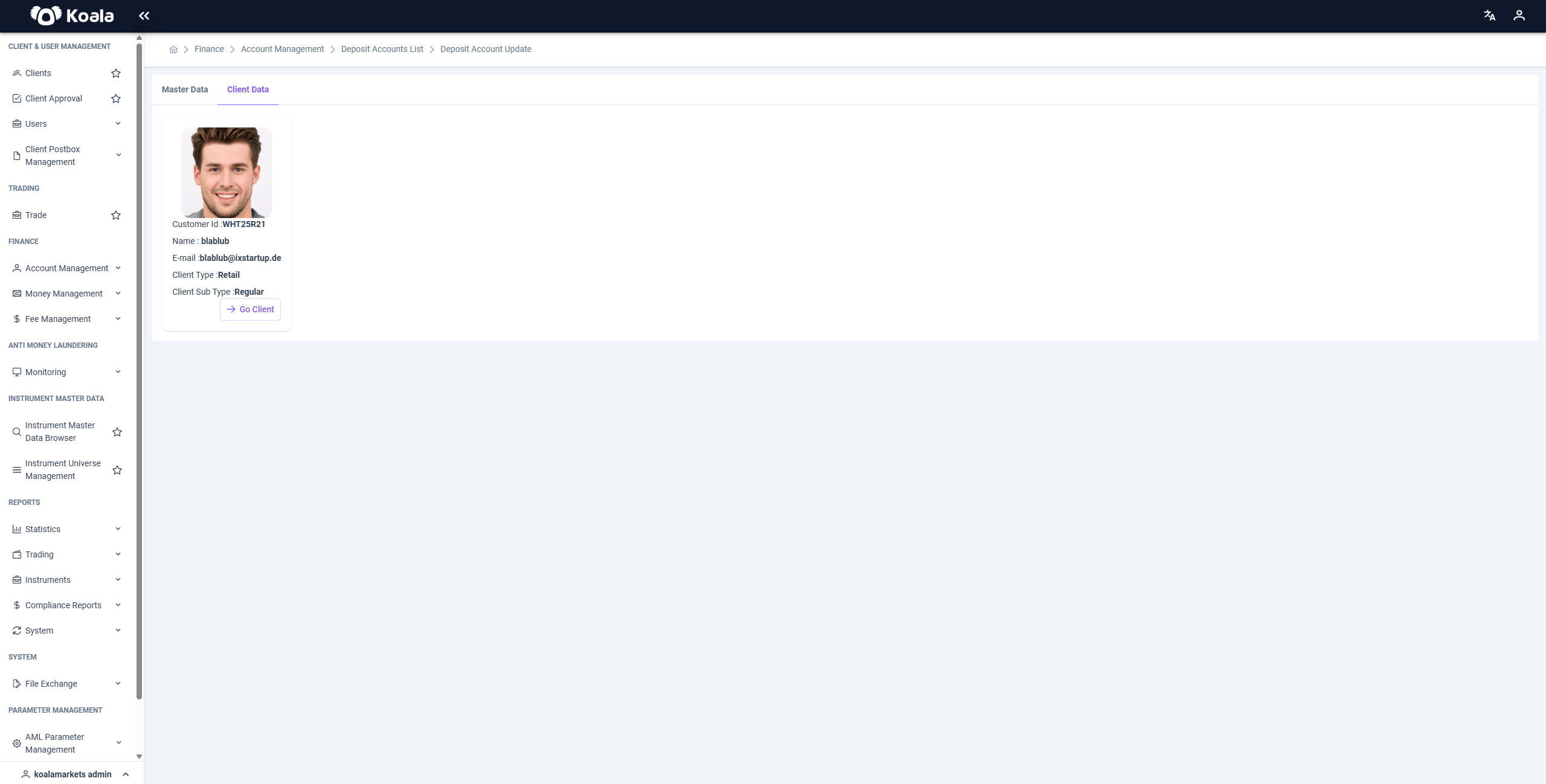
In this section, you can view details of the client who owns this deposit account, including their personal and contact information.
This helps to easily identify and verify the client associated with the deposit account.
🔽 Tabs at the Bottom
1️⃣ Transactions
- Displays a list of all financial transactions related to this deposit account.
- Columns include:
- Type (Debit / Credit)
- Date & Time
- Posting Text
- Amount
- Currency
- Counterparty details (IBAN, BIC, Account Holder, etc.)
- Balance at Transaction and Booked Dates
2️⃣ Positions
- Shows current positions held within this deposit account.
- Columns include:
- Short Instrument Name
- Instrument Type
- Order Type
- And other relevant position details
3️⃣ Statements
- Shows generated statements for this deposit account.
- Useful for auditing, reporting, and reconciliation.
- Typically includes balances, movements, and summaries over a selected time period.
📄 Deposit Account Adjustment Request
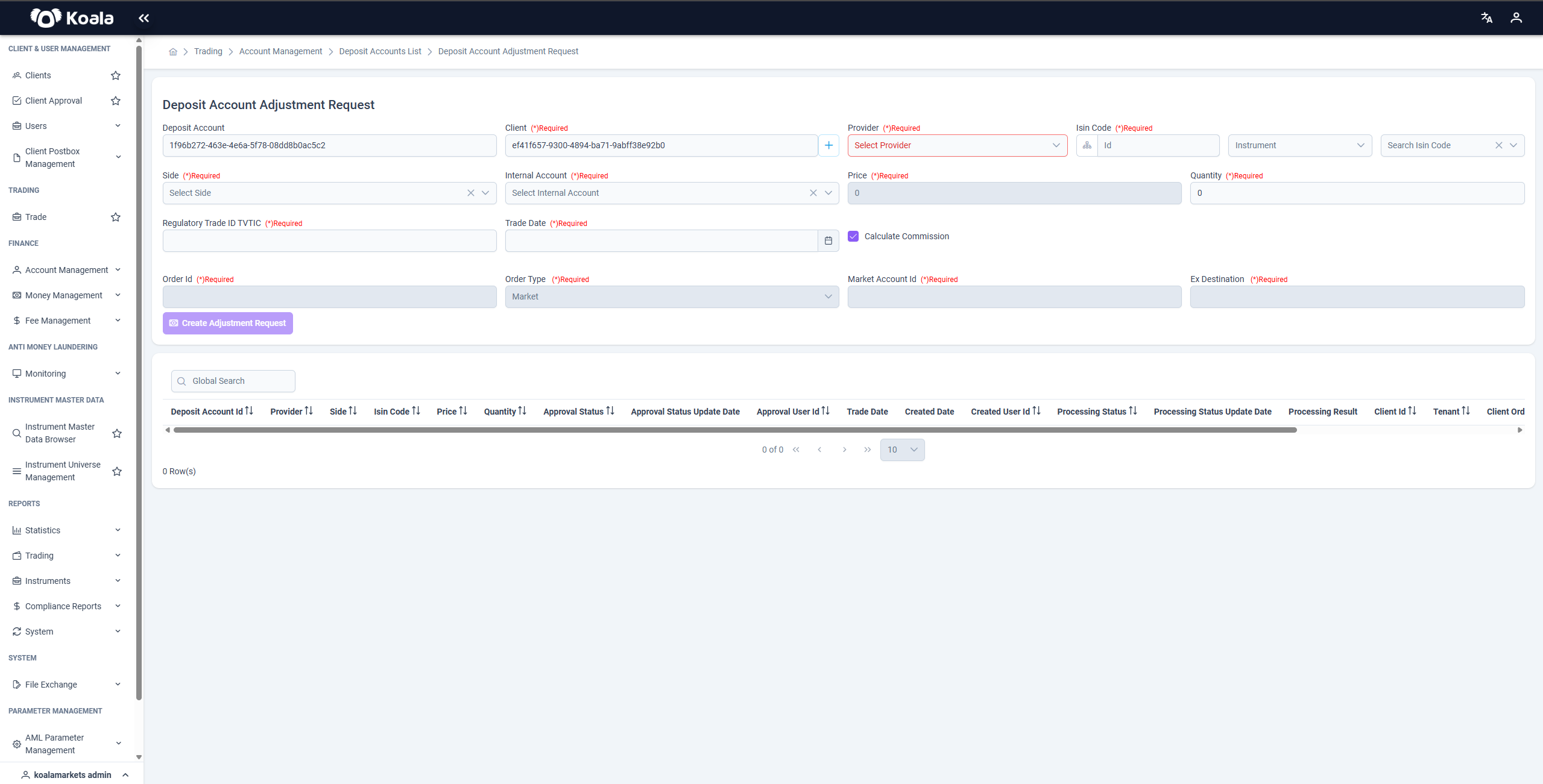
This page enables users to create and monitor adjustment requests related to a Deposit Account.
Form Fields
-
Side: Required. Indicates the side of the adjustment (e.g., Buy or Sell).
-
Provider: Required. Specifies the provider associated with the request.
-
ClientId: Required. Unique identifier of the client.
-
IsinCode: Required. International Securities Identification Number of the instrument.
-
InternalAccountId: Required. Identifier of the internal account linked to this adjustment.
-
DepositAccountId: Automatically populated with the current deposit account’s ID.
-
Price: Required. Unit price for the adjustment.
-
Quantity: Required. Quantity involved in the adjustment.
-
RegulatoryTradeID_TVTIC: Required. Must be accurately provided as it is mandatory for regulatory compliance.
-
TradeDate: Required. Date when the trade occurred.
-
CalculateCommission: Required. Flag indicating whether commission calculation is enabled (default is true).
-
OrderId , OrderType , MarketAccountId , ExDestination : For providers ICF and AllFunds, filling these fields is currently not required and they remain hidden.
Usage Instructions
- Complete all mandatory fields accurately, ensuring the RegulatoryTradeID_TVTIC is correct.
- Click the Create Adjustment Request button to submit the request.
- Below the form, a list displays all submitted adjustment requests along with their current statuses, allowing for effective tracking.
This structured workflow ensures seamless management of deposit account adjustments while adhering to regulatory standards.
👤 My Deposit Account
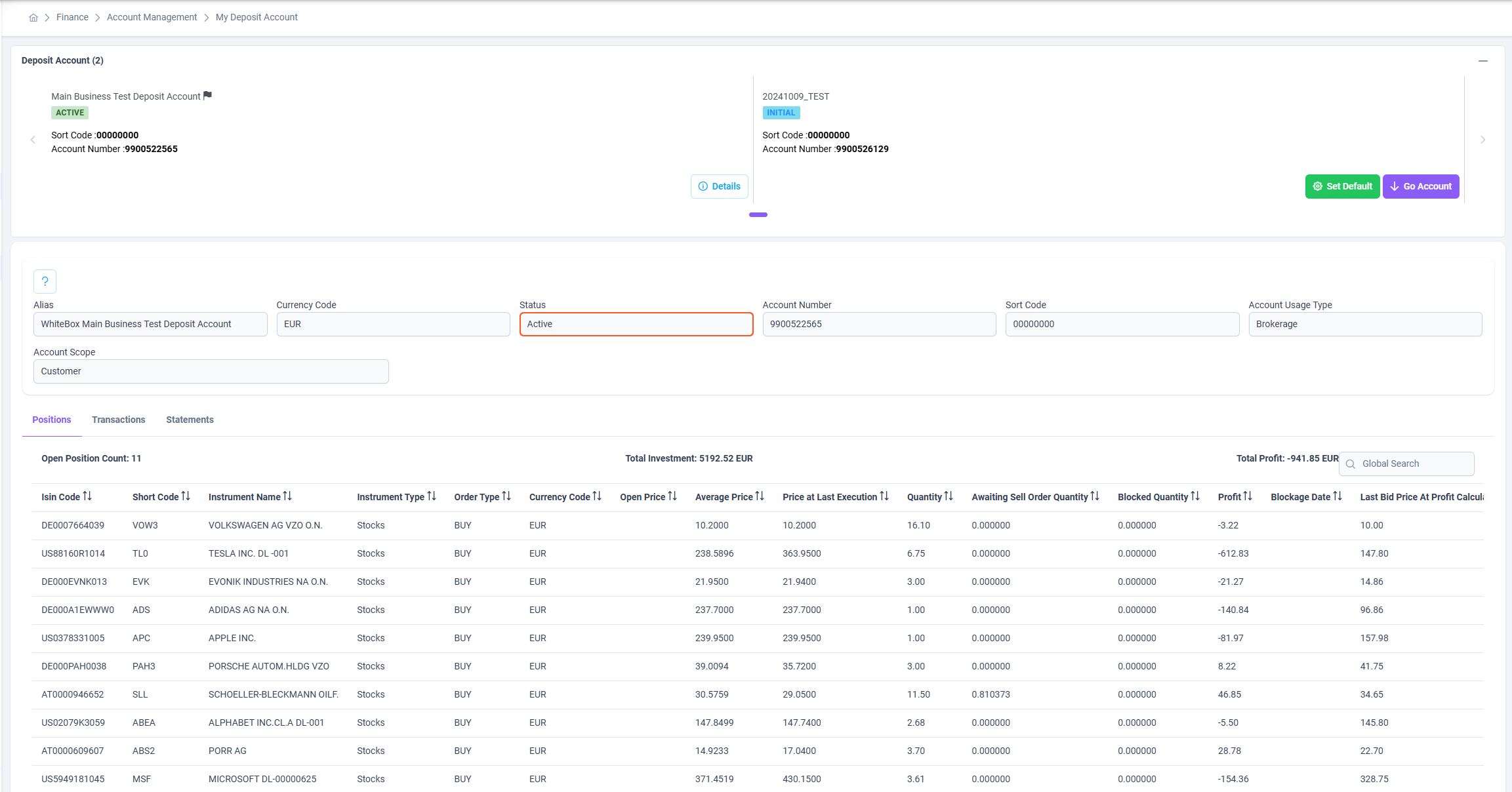
The My Deposit Account page provides a detailed view of all deposit accounts associated with a client or tenant.
This section serves as the central hub for monitoring investment portfolios, tracking financial transactions, and reviewing account statements.
👥 Access Permissions
This page is accessible only to users with the following roles:
client_*retail_client
💼 Deposit Account Overview
At the top of the page, all deposit accounts linked to the client are displayed as cards.
Each card provides essential information, including:
- Account Alias
- Status (Active, Initial, Closed)
- Sort Code
- Account Number
Users can:
- Click Go Account to view detailed account information.
- Use Set Default to mark a preferred deposit account as the default one.
🧾 Deposit Account Details
Below the overview, the selected account’s detailed information is displayed, including:
- Alias
- Currency Code
- Status
- Account Number
- Sort Code
- Account Usage Type (e.g., Brokerage)
- Account Scope (e.g., Customer)
This section provides a concise yet comprehensive summary of the account’s operational and usage attributes.
📊 Account Tabs
1. Positions
Displays all open investment positions within the selected deposit account, along with detailed financial data.
Each position includes:
- ISIN Code
- Short Code
- Instrument Name
- Instrument Type (Stocks, Bonds, Funds, etc.)
- Order Type (Buy/Sell)
- Currency Code
- Open Price / Average Price
- Price at Last Execution
- Quantity
- Awaiting Sell Order Quantity
- Blocked Quantity
- Profit / Loss
- Blockage Date
- Last Bid Price at Profit Calculation
At the top of this table:
- Total Investment and Total Profit/Loss are displayed for overall portfolio insight.
- The Global Search function allows quick filtering by instrument or code.
2. Transactions
The Transactions tab lists all financial activities related to the selected deposit account — including executed orders, transfers, and settlements.
Each transaction entry typically includes trade date, amount, currency, and counterparty details for full traceability.
3. Statements
The Statements tab provides access to historical account statements, allowing users to download or review detailed reports for auditing or reconciliation purposes.
✅ Note:
Each user may hold multiple deposit accounts but can only designate one default account.
The Positions tab provides live data synchronized with trading operations, while Transactions and Statements serve for record-keeping and regulatory reporting.