📊 Compliance Reports
The Compliance Reports module within the Koala system is designed to assist compliance officers, auditors, and risk analysts in monitoring client behaviors and financial patterns that may indicate regulatory concerns or operational risks.
This module provides a set of focused analytical tools and reports that help ensure clients are operating within the defined legal and financial boundaries, specifically targeting areas relevant to anti-money laundering (AML), client solvency, and risk assessment.
By centralizing critical insights in one dashboard, Compliance Reports empower users to take timely and informed decisions based on real-time or snapshot-based data.
📁 Report Categories
The Compliance Reports module is composed of the following key report sections, accessible from the left-side navigation menu:
- Most Risky Clients
- Inactive Cash Positions
- Negative Cash Balances
- MiFIR History
Each section serves a specific compliance-related purpose and offers detailed filtering, data export, and investigation capabilities.
📉 Most Risky Clients
🎯 Purpose
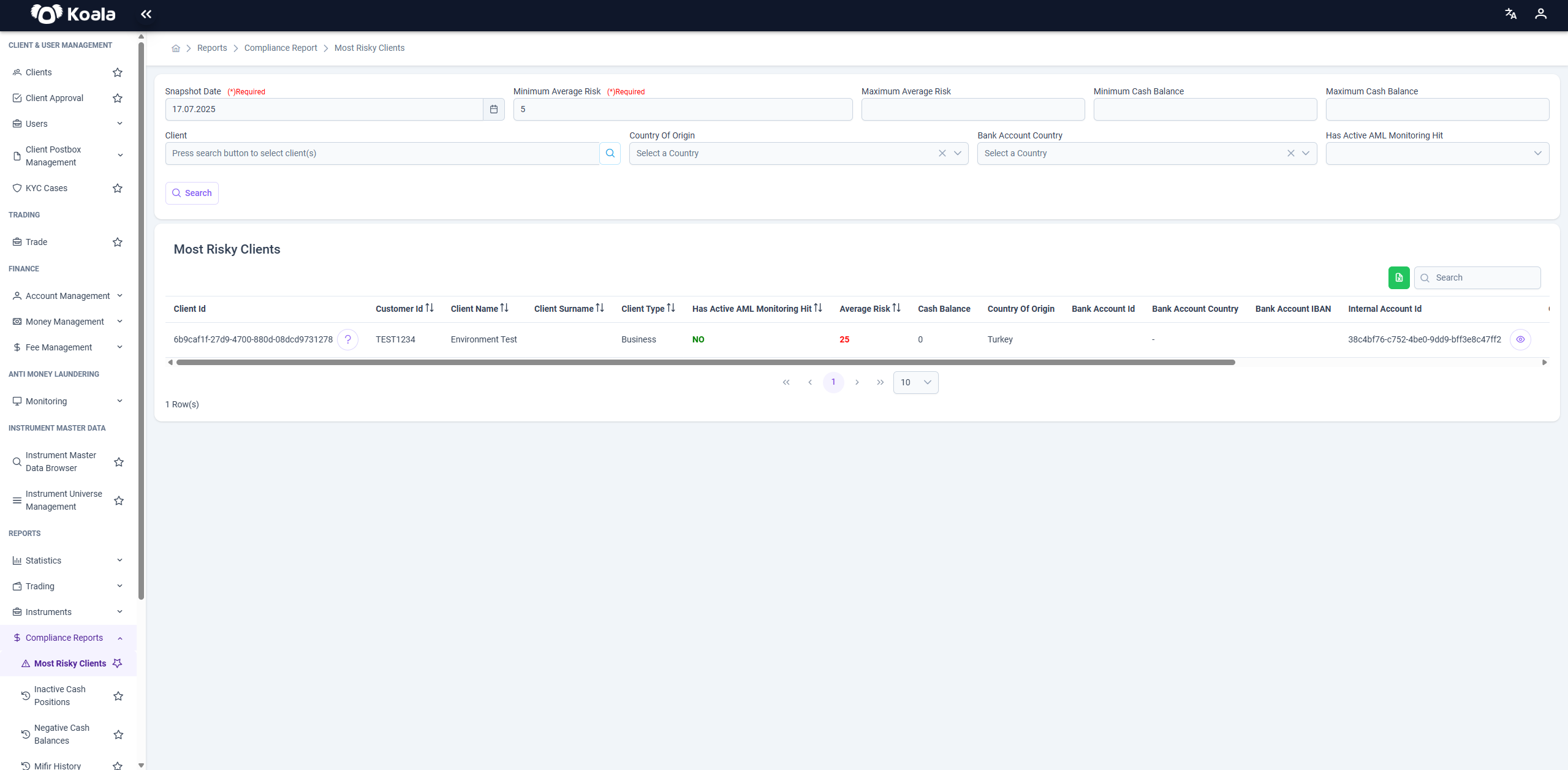
The Most Risky Clients report helps identify and investigate clients who pose the highest potential financial or reputational risk to the organization. It uses key metrics such as average risk scores, monitoring hits, and cash balances to highlight the riskiest entities within a defined time period.
🧰 Filters and Parameters
Users can refine the report using various filtering options at the top of the screen:
- Snapshot Date (Required): Defines the date for which the client risk data is evaluated.
- Minimum Average Risk (Required): Sets the minimum risk score threshold to include clients in the report.
- Maximum Average Risk: Optional filter to define an upper bound for the risk score.
- Minimum/Maximum Cash Balance: Filters clients by their cash holdings.
- Client: Allows selection of one or more specific clients to narrow down the results.
- Country of Origin: Filters clients by their registered country.
- Bank Account Country: Filters by the country associated with the client’s bank account.
- Has Active AML Monitoring Hit: Enables filtering by clients with active anti-money laundering alerts.
Clicking the 🔍 Search button applies the filters and updates the report.
📄 Report Table
The report displays a data table with the following columns:
- Client Id: System-generated unique identifier for the client.
- Customer Id: External or business-facing client code.
- Client Name / Surname: The registered name of the client.
- Client Type: Business or Individual.
- Has Active AML Monitoring Hit: Indicates whether the client has ongoing AML flags (e.g.,
YES/NO). - Average Risk: Numerical score reflecting the client's calculated risk level.
- Cash Balance: The total amount of cash associated with the client at the time of the snapshot.
- Country of Origin / Bank Account Info / Internal Account Id: Additional metadata for further investigation.
Each row can be expanded by clicking the 👁️ action icon at the end of the row, enabling users to drill down into more detailed client-level data.
📥 Inactive Cash Positions
Purpose
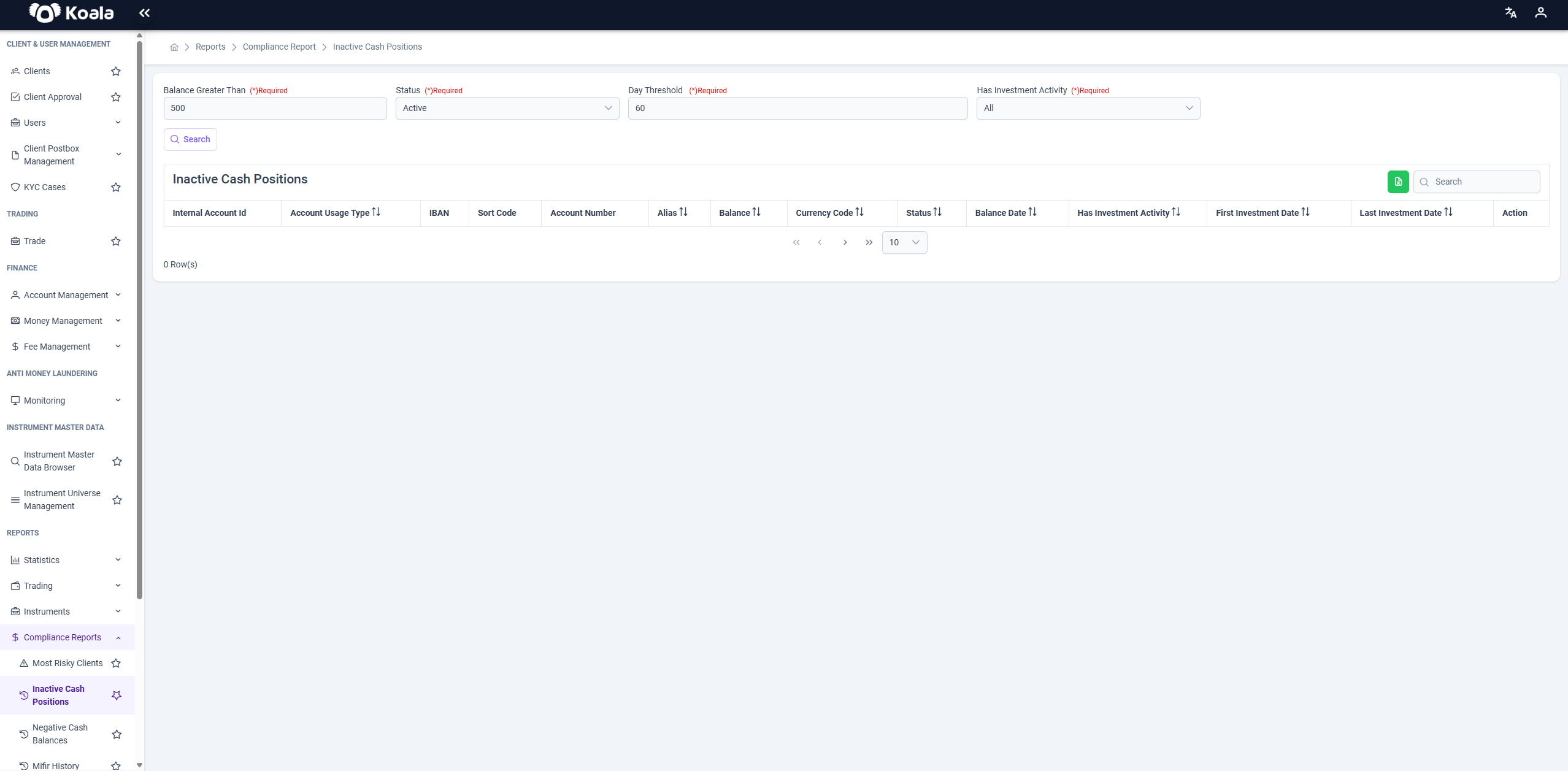
The Inactive Cash Positions report is designed to identify internal accounts that hold a positive balance but have remained inactive for a defined period. These accounts might represent underutilized or forgotten assets and can indicate potential inefficiencies in fund allocation or client engagement.
This report helps operations, compliance, and treasury teams monitor idle funds and make informed decisions about cash management strategies.
Filters and Parameters
Users can filter the data using the following criteria available at the top of the page:
- Balance Greater Than (Required): Minimum balance threshold to include in the report. For example,
500will list only accounts with balances above 500. - Status (Required): Filters by the account status such as
Active. - Day Threshold (Required): Defines the minimum number of days an account must be inactive to appear in the report (e.g.,
60days of inactivity). - Has Investment Activity (Required): Allows filtering based on whether the account has any associated investment activity (
Yes,No, orAll).
Once the desired filters are selected, pressing the Search button updates the results accordingly.
Report Table
The resulting table provides detailed account information, including:
- Internal Account ID: Unique system ID for the internal account.
- Account Usage Type: Specifies the usage category of the account, such as
BrokerageorPortfolio Management. - IBAN / Sort Code / Account Number: Banking details associated with the account.
- Alias: Custom label for easier identification.
- Balance / Currency Code: The current cash balance and the account currency.
- Status: Indicates whether the account is active.
- Balance Date: Date of the last recorded balance.
- Has Investment Activity: Shows whether the account has any investment history.
- First / Last Investment Date: Indicates the start and end points of any investment activity related to this account.
Each record includes an action icon to view further details about the account when necessary.
ℹ️ This report is valuable for identifying unused capital and ensuring that resources are effectively deployed across the system.
📉 Negative Cash Balances
Purpose
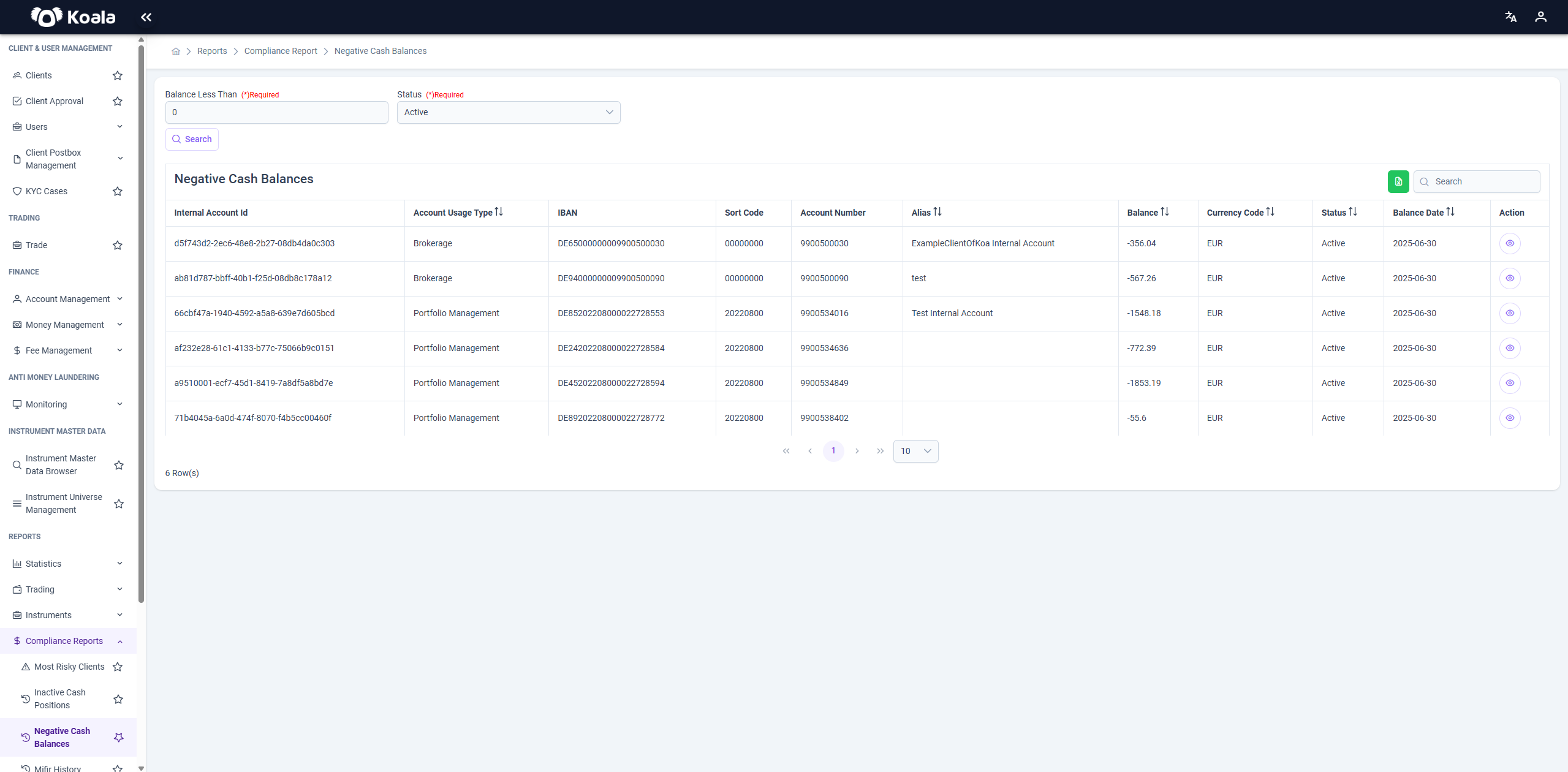
The Negative Cash Balances report is designed to identify internal accounts within the institution that currently hold a negative balance, which may indicate potential liquidity issues, operational mismatches, or settlement delays.
This report is particularly useful for finance, compliance, and operations teams to monitor and resolve unwanted account deficits proactively.
Filters and Parameters
At the top of the screen, users can refine the report results by applying the following filters:
- Balance Less Than (Required): Defines the upper threshold for negative balances. For example, entering
0will list all accounts with balances less than 0 (i.e., all negative balances). - Status (Required): Filters the report by account status (e.g.,
Active,Closed).
After selecting the desired criteria, pressing the Search button updates the report results accordingly.
Report Table
The data table displays all accounts matching the filter criteria, along with the following key details:
- Internal Account ID: Unique identifier for the internal account.
- Account Usage Type: Specifies the usage category of the account, such as
BrokerageorPortfolio Management. - IBAN: International Bank Account Number associated with the internal account.
- Sort Code: Bank sort code (routing number).
- Account Number: The specific number assigned to the internal account.
- Alias: Friendly or user-defined name of the account (if applicable).
- Balance: Current balance of the account, displayed in the system currency (negative values are highlighted).
- Currency Code: The currency in which the account is denominated (e.g., EUR).
- Status: Indicates whether the account is currently active.
- Balance Date: The date at which the displayed balance was recorded.
Each row also includes an action icon at the end, allowing users to view additional account-level details when needed.
ℹ️ This report helps financial administrators ensure all internal accounts are properly funded and enables timely action to prevent overdraft situations or operational disruptions.
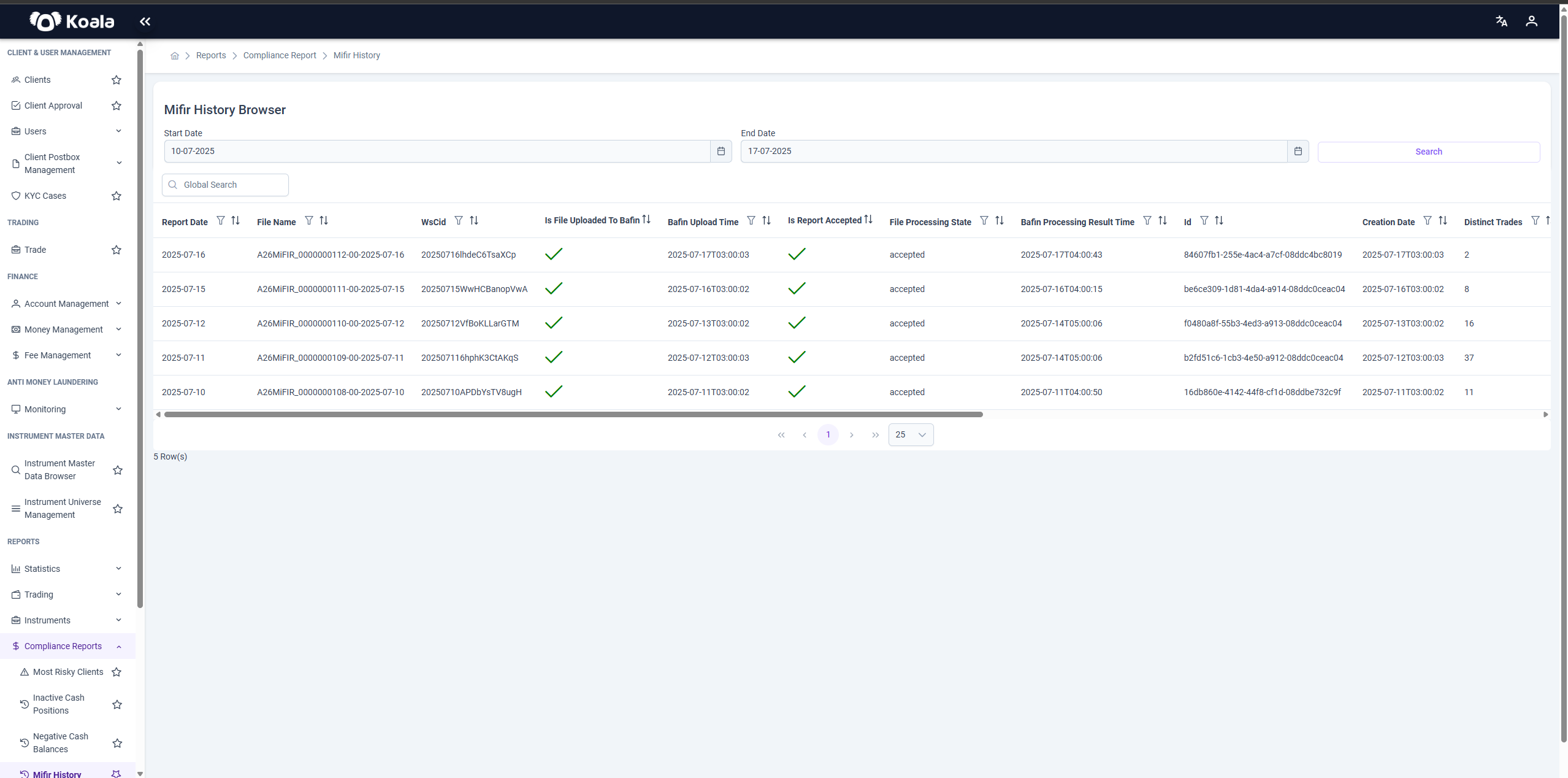
📄 MiFIR History
Overview
The MiFIR History Records page provides a centralized interface to monitor and manage historical MiFIR (Markets in Financial Instruments Regulation) submissions. It enables users to track regulatory reporting outcomes, access detailed results, and download relevant submission data.
This page plays a key role in ensuring transparency, traceability, and completeness in MiFIR compliance reporting processes.
Filter Parameters
The page allows users to filter submission records using the following parameters:
- Start Date: Defines the beginning of the reporting period.
- End Date: Defines the end of the reporting period.
These mandatory fields help narrow down the search results to a specific timeframe.
Page Functionality
After applying filters, the page displays matching MiFIR submission records in a tabular format. Each row represents a submission batch and includes metadata such as submission time, batch identifiers, transaction counts, and legal entity references.
Users can perform the following actions:
- View result details via integrated links to BaFin Web Services.
- Download individual submission batches.
- Sort and scroll through the records for better data navigation.
Purpose
The page is designed to provide operational transparency for MiFIR reporting, enabling users to:
- Track submission outcomes.
- Validate results via external regulatory sources.
- Maintain an accessible historical archive of all MiFIR reports.
📄 Securities Statistics History
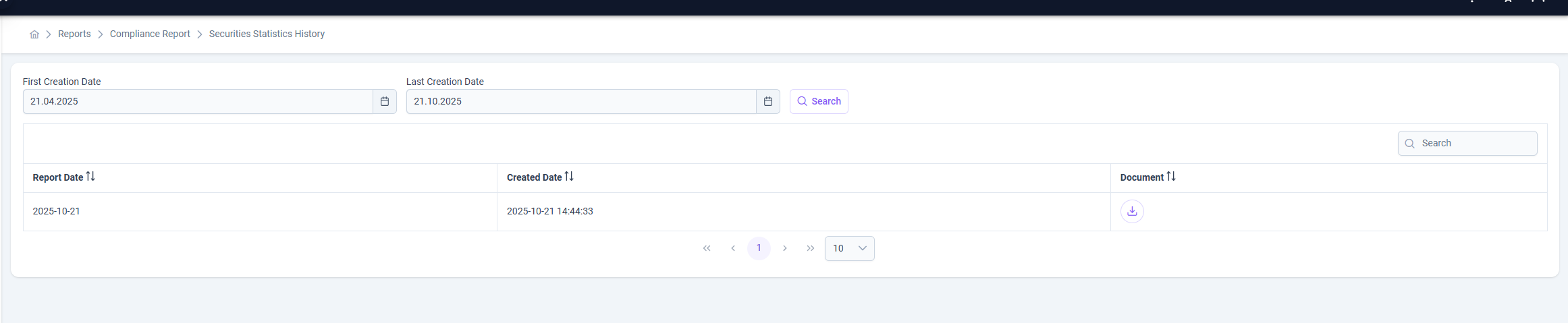
The Securities Statistics History page provides a record of all previously generated securities statistics reports within the system. It allows users to review, filter, and download historical reporting documents for compliance and auditing purposes.
🔍 Page Overview
Users can filter reports by selecting a First Creation Date and Last Creation Date range, then clicking the Search button to display relevant records.
Each record in the table includes:
- Report Date – The reporting date for which the statistics were generated.
- Created Date – The exact timestamp when the report was created in the system.
- Document – A downloadable link to the corresponding report file.
📄 Document Details
The exported Document is generated in XML format, ensuring standardized data structure and compatibility with external systems and regulatory bodies.
👥 Roles & Access
Access to this page is restricted to the following roles:
tenant_admintenant_compliance
✅ Note:
This page is designed for compliance teams to verify reporting consistency and maintain a transparent audit trail of securities-related submissions.