💹 Trading
The Trading module provides a comprehensive view of trading workflows, including orders, executions, positions, and reports.
It is designed to help users monitor and manage trading activities efficiently, ensuring transparency and control over client and internal trades.
The Trading section enables the user to view, track, and analyze all trading-related operations — from order submission to execution and position reporting.
It covers both client and internal accounts, providing detailed insights into trading performance and status.
The Trading module is divided into six main pages:
📋 Block Orders
The Block Orders page lists and manages large, aggregated buy or sell orders executed on behalf of multiple clients or accounts.
It is designed to provide transparency and operational control over high-volume trades.
📝 Overview
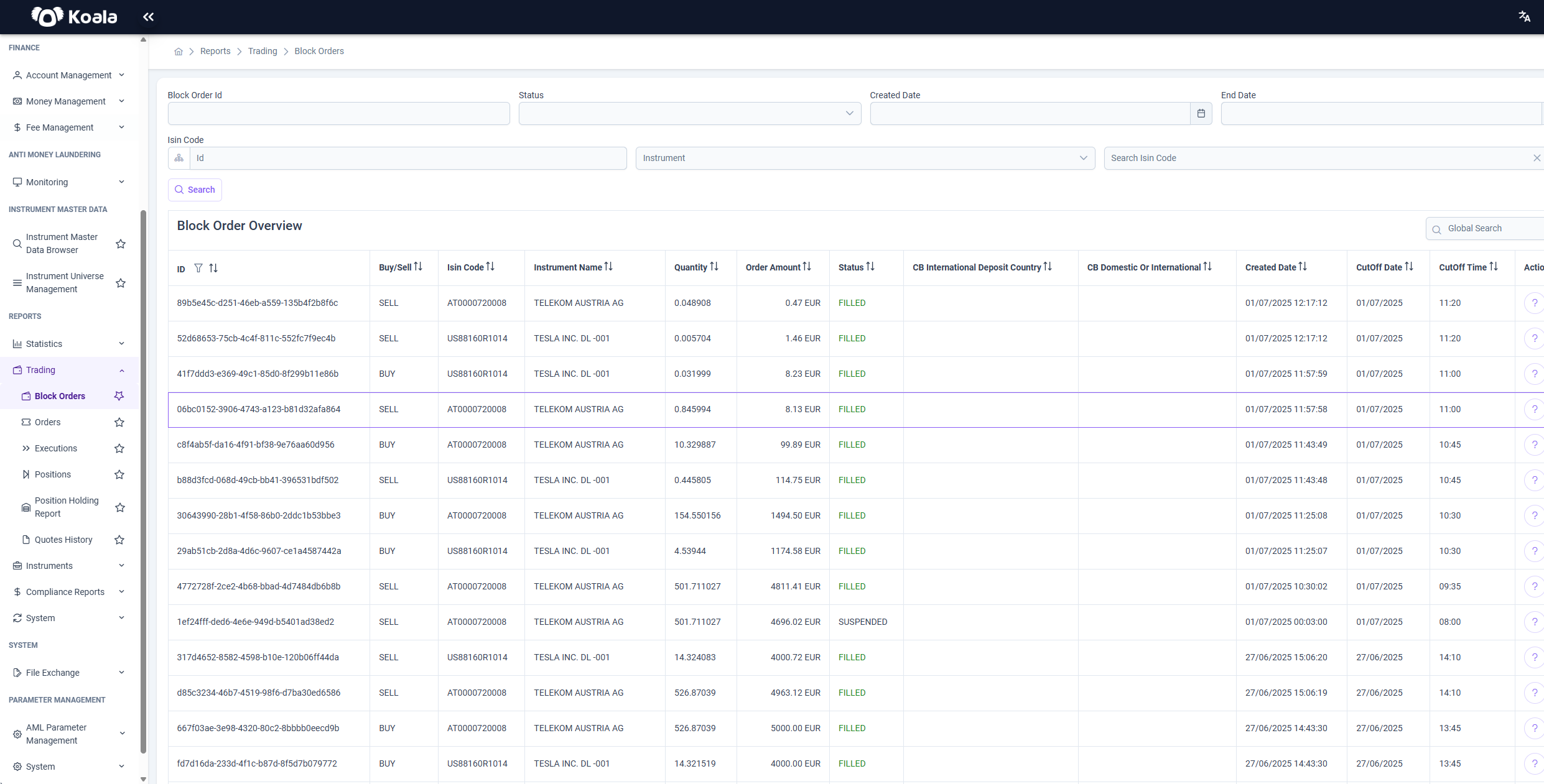
This page displays a list of all block orders along with their key details:
- ID
- Buy/Sell direction
- ISIN Code and Instrument Name
- Quantity and Order Amount
- Status (e.g., FILLED, SUSPENDED)
- CB International Deposit Country and Domestic/International
- Created Date, Cutoff Date, and Cutoff Time
Users can filter and search for specific block orders using:
- Block Order ID
- ISIN Code
- Instrument
- Status
- Date range (Created Date & End Date)
Global Search is also available for quick access.
📊 Actions & Details
On the right side of each row, there is an Action (?) button.
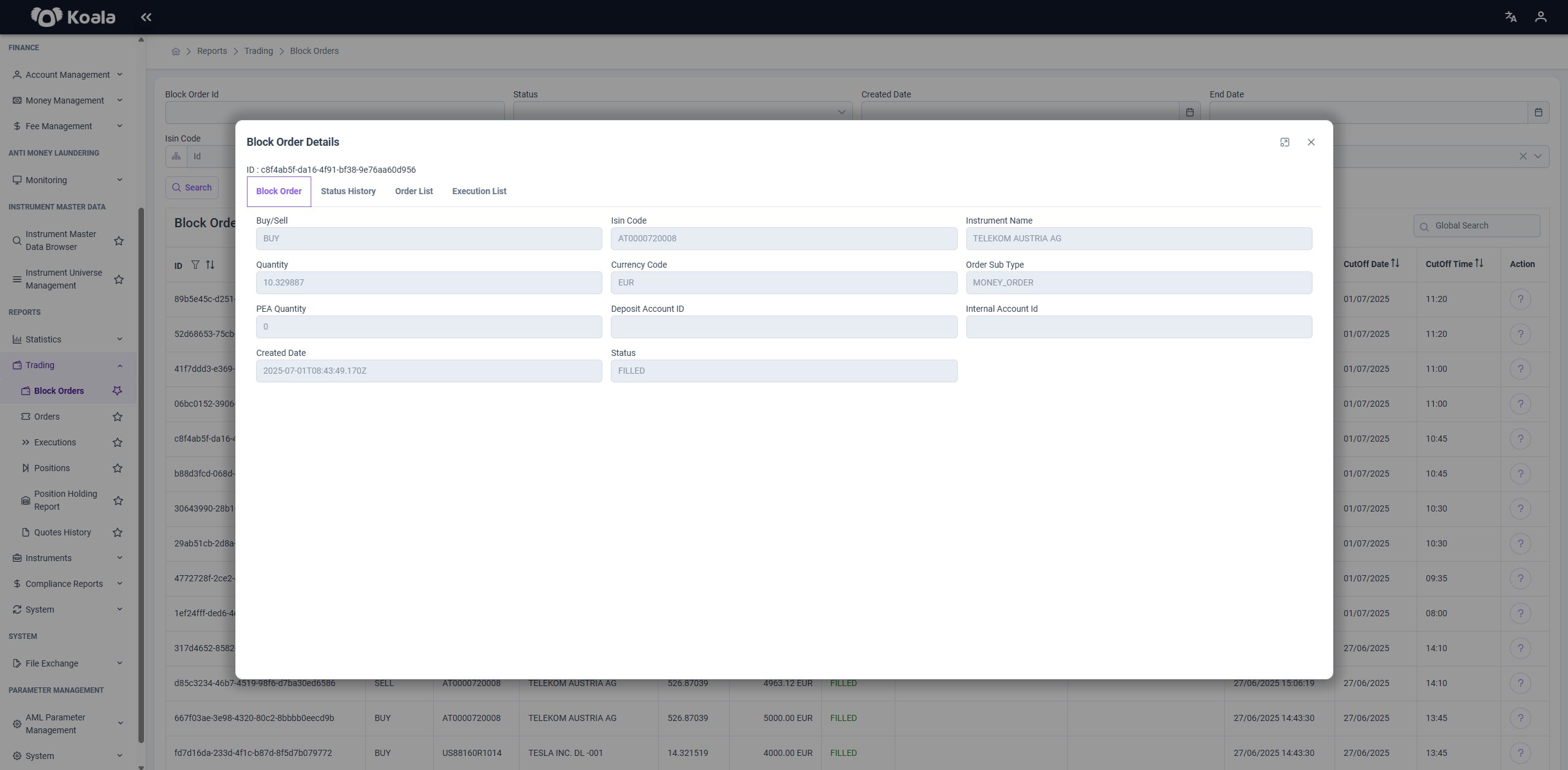
When clicked, it opens the Block Order Details panel which contains additional information organized into four tabs:
🔷 Block Order
- Displays all primary details of the selected block order, including its configuration, quantities, amounts, and settlement details.
🔷 Status History
- Shows the chronological status changes of the block order with timestamps, providing insight into its lifecycle (e.g., Submitted → Filled → Settled).
🔷 Order List
- Lists all individual orders that are part of this block order, including their respective clients, quantities, and statuses.
🔷 Execution List
- Displays the executions associated with this block order, with details such as executed quantities, prices, and timestamps.
✨ Key Features
- Search & Filter: Quickly find orders by multiple criteria.
- Detailed View: Drill down into each block order for a full breakdown of its lifecycle.
- Tabs for Transparency: Track not just the block order, but also the associated orders, executions, and historical statuses.
📋 Orders
The Orders page provides a comprehensive overview of all individual trading orders submitted through the system.
It enables users to search, monitor, and analyze order activity, with detailed tracking of their lifecycle.
📝 Overview
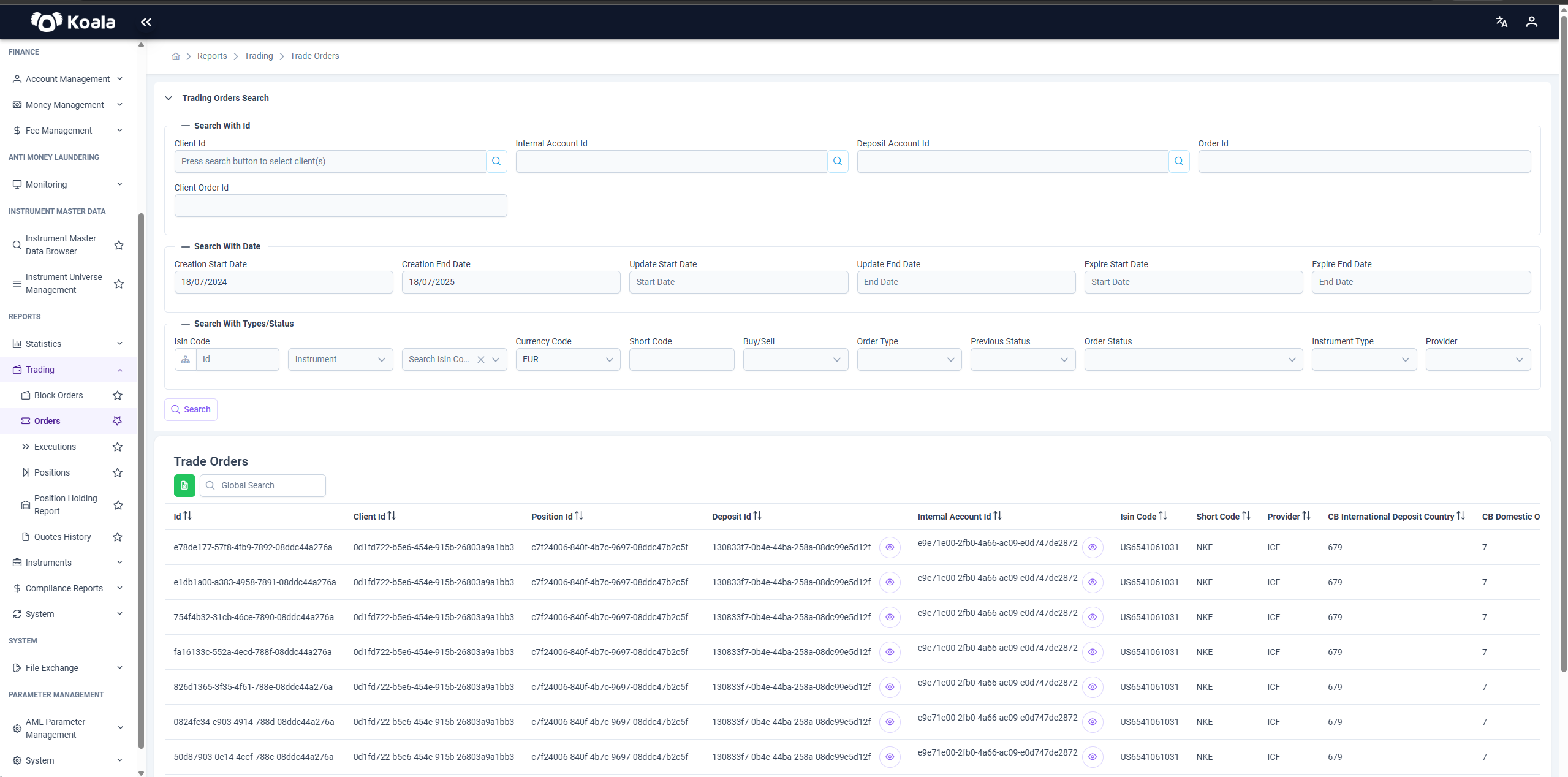
At the top of the page, there is an extensive Search Panel where users can:
- Filter by client, internal account, deposit account, order ID.
- Specify date ranges for creation, update, and expiration.
- Filter by ISIN, instrument, buy/sell side, currency, order type, and provider.
These filters allow users to narrow down large datasets and focus on relevant orders.
Below the search panel, the Trade Orders Table displays all matching orders, including details such as:
- Instrument, short code, provider, domestic/international, instrument type.
- Creation and update timestamps.
- Price, order type, side (buy/sell), estimated slippage info, stop price, and other parameters.
The table is sortable and supports a global search to quickly locate specific records.
👁️ Actions & Details
Each row has an Action (eye icon) in the rightmost column.
Clicking this icon opens the Trade Execution details for the selected order, showing how and when it was executed in the market.
✨ Key Features
- Advanced Search & Filters: Quickly isolate specific orders using multiple criteria.
- Detailed Order Table: View all relevant order data in a structured format.
- Execution Insights: Drill down into the executions of a particular order for full transparency.
🔄 Trade Executions
The Trade Executions page provides a detailed view of all executed trades within the system.
It is designed to allow users to search, review, and analyze executions along with any associated documentation and fees.
📝 Overview
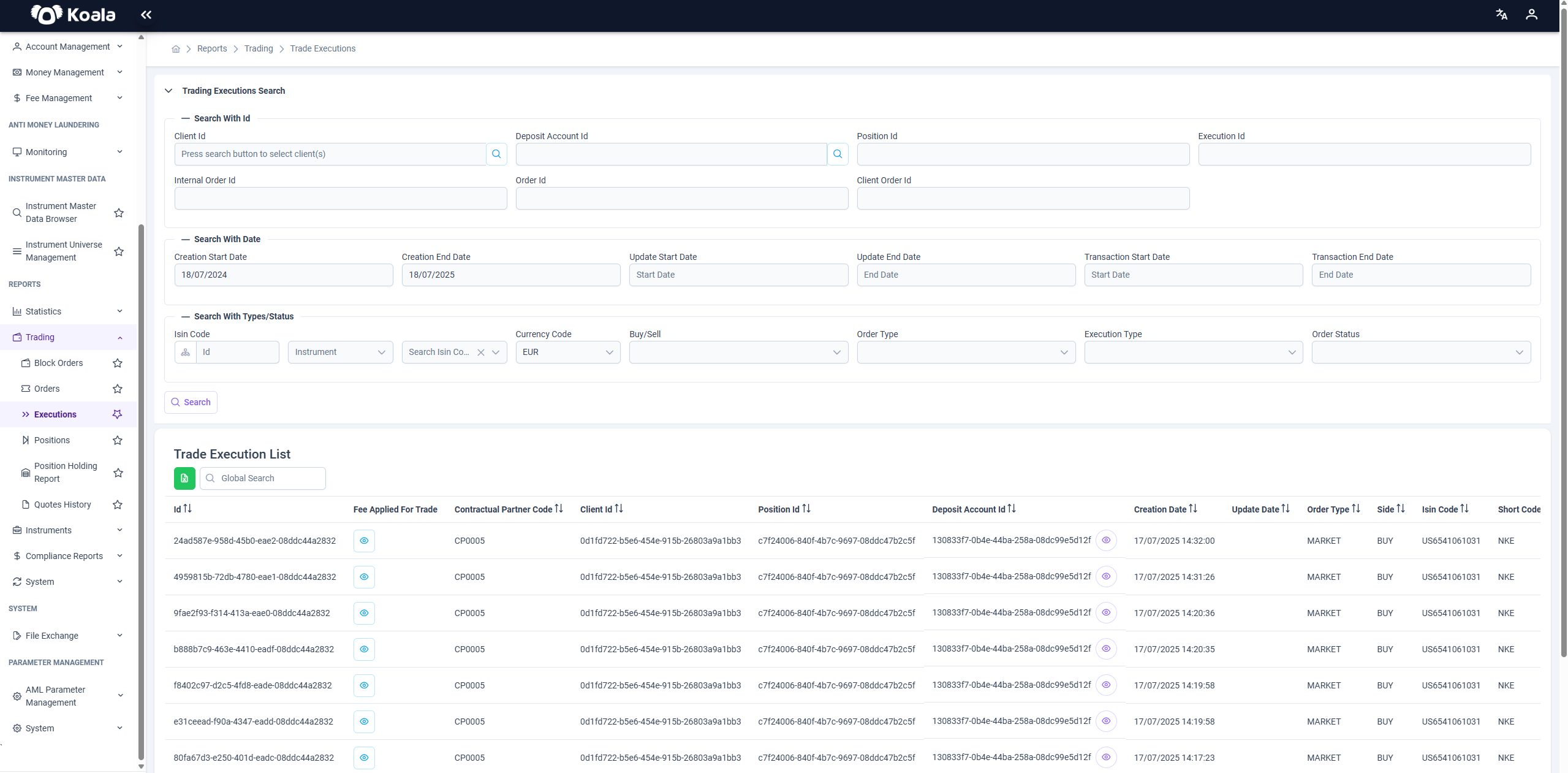
At the top of the page, you will find a Search Panel where you can filter executions using various parameters, such as:
- Client, internal or deposit account, order ID.
- Date ranges for execution.
- Instrument, buy/sell side, order type, and other related criteria.
These filters help you quickly focus on the executions of interest.
Below the search panel, the Trade Executions Table lists all matching executions, including:
- Instrument details, provider, quantity, price, order type, timestamps, and more.
- Each row represents a single execution in the market, providing transparency and traceability.
👁️ Actions & Fee / Document Details
Each execution row contains an Action (eye icon) on the right side.
Clicking this icon opens a Trade Execution Document for the selected execution, which provides a detailed record of the trade.
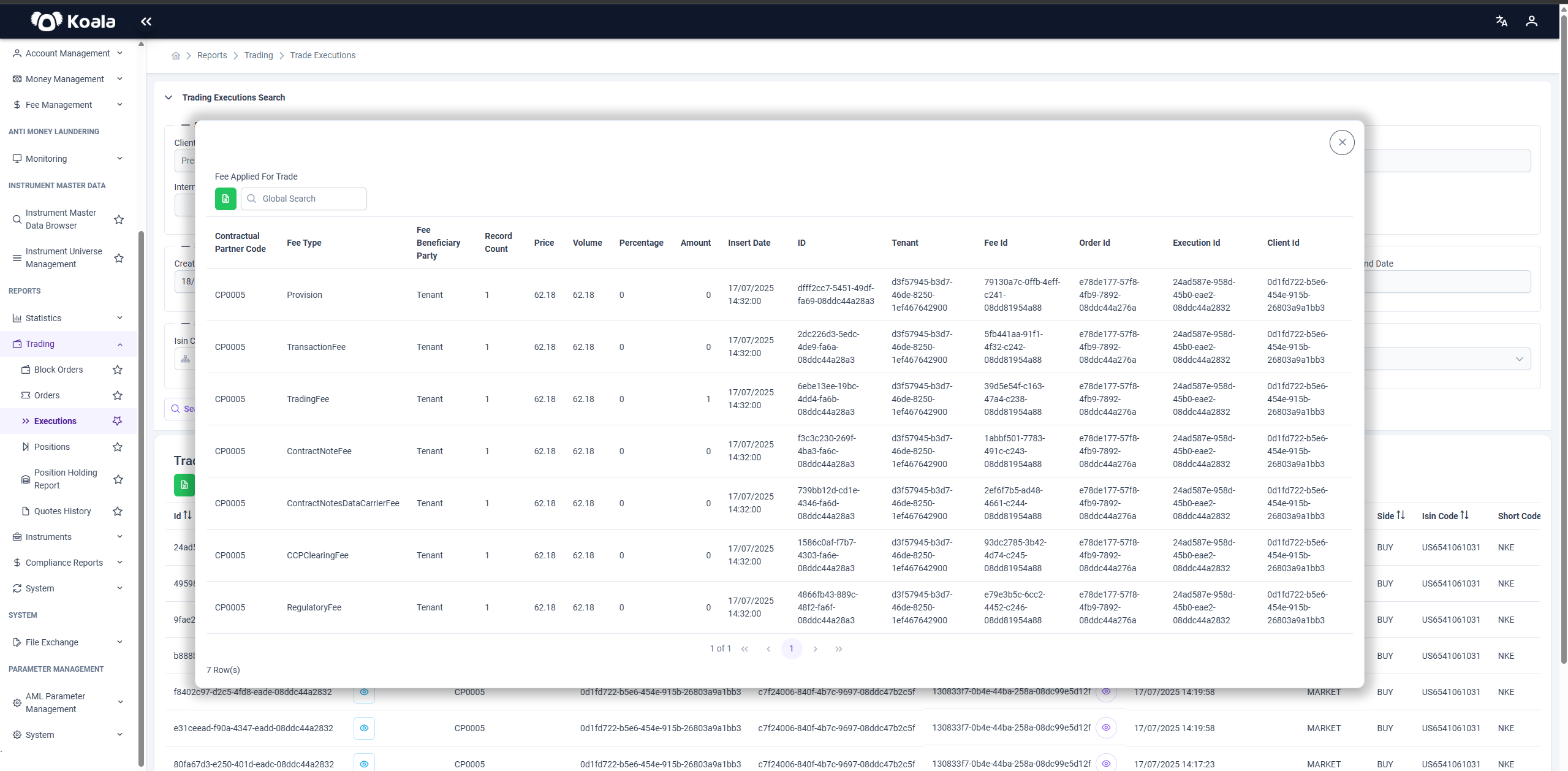
Additionally, within the same context, you can also view the Fee Applied Trade details.
This opens a popup showing all fees associated with that execution.
📄 Fee Applied Trade Table
The Fee Applied Trade popup displays a table of all fees applied to the execution.
The table includes the following columns:
- Contractual Partner Code — Code of the party to whom the fee applies.
- Fee Type — Type of the fee (e.g.,
ContractNoteFee,ContractNotesDataCarrierFee,RegulatoryFee, etc.). - Fee Beneficiary Party — The party receiving the fee.
- Record Count — Number of fee records.
- Price — Price related to the fee.
- Volume — Volume used for calculating the fee.
- Percentage — Applicable percentage.
- Amount — Total fee amount.
- Insert Date — Date when the fee record was inserted.
👁️ Trade Execution – Action Column Enhancements
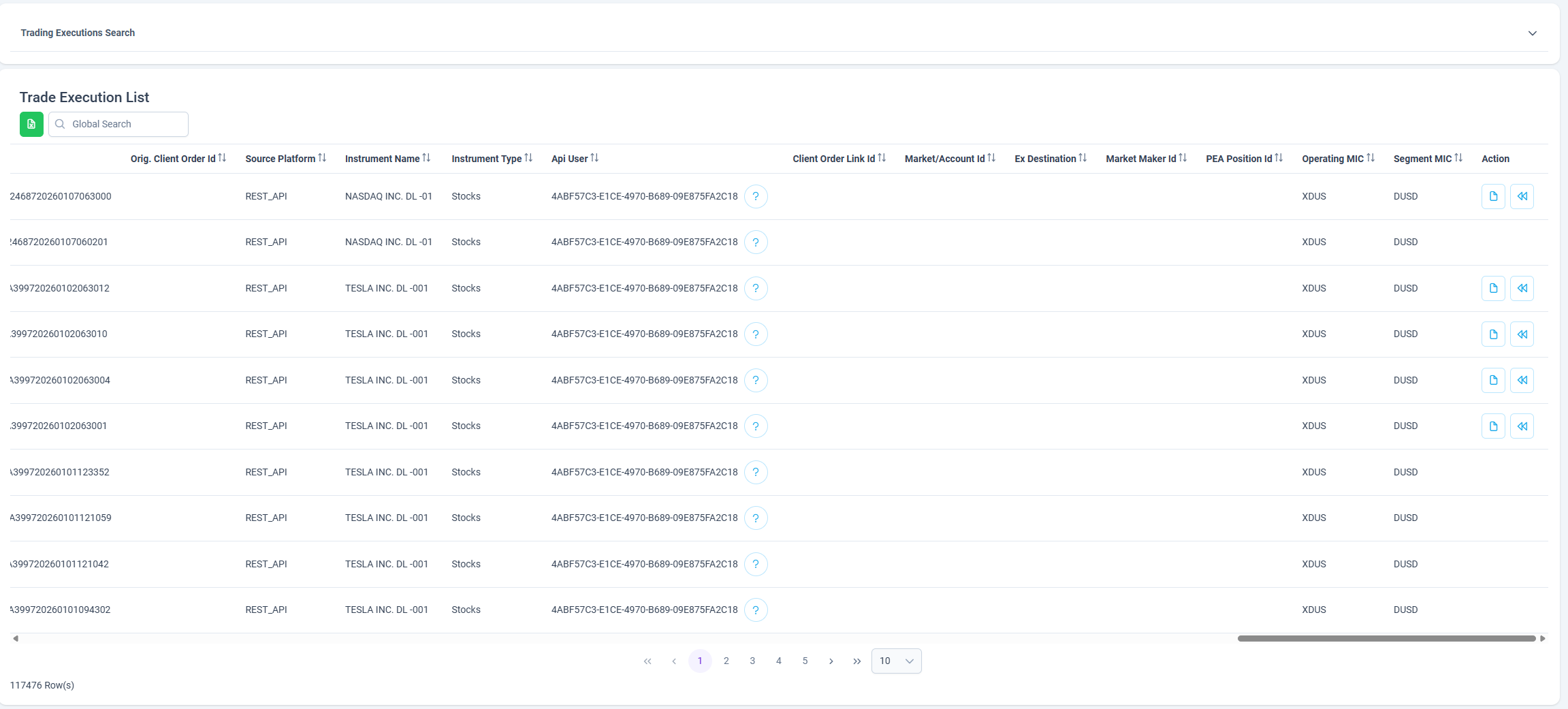
The Action column on the Trade Execution page provides quick access to execution-level operations and supporting documentation.
Client Statement
- Clicking the file icon opens the Client Statement related to the selected trade execution.
- This statement presents execution details in a structured, client-facing format for review, reconciliation, and reporting purposes.
Execution Reversal
- Clicking the back (reverse) icon initiates an Execution Reversal process.
- This action places the selected execution into a reverse workflow, allowing the trade to be reversed in accordance with operational and regulatory procedures.
- Execution reversal is intended for correcting erroneous or invalid executions and should be used with appropriate authorization and controls.
These actions are designed to streamline post-trade operations while ensuring transparency, traceability, and controlled exception handling.
✨ Key Features
- Comprehensive Search & Filters: Refine results using detailed criteria.
- Execution Table: View all executions in a clear and sortable table.
- Execution Document: Quickly access and review the full execution document by clicking the action icon.
- Fee Insights: Review all fees applied to an execution via the Fee Applied Trade popup.
📊 Trade Positions
The Trade Positions page provides an overview of all open and historical trading positions.
It enables users to search, review, and analyze client or internal positions in the system.
📝 Overview
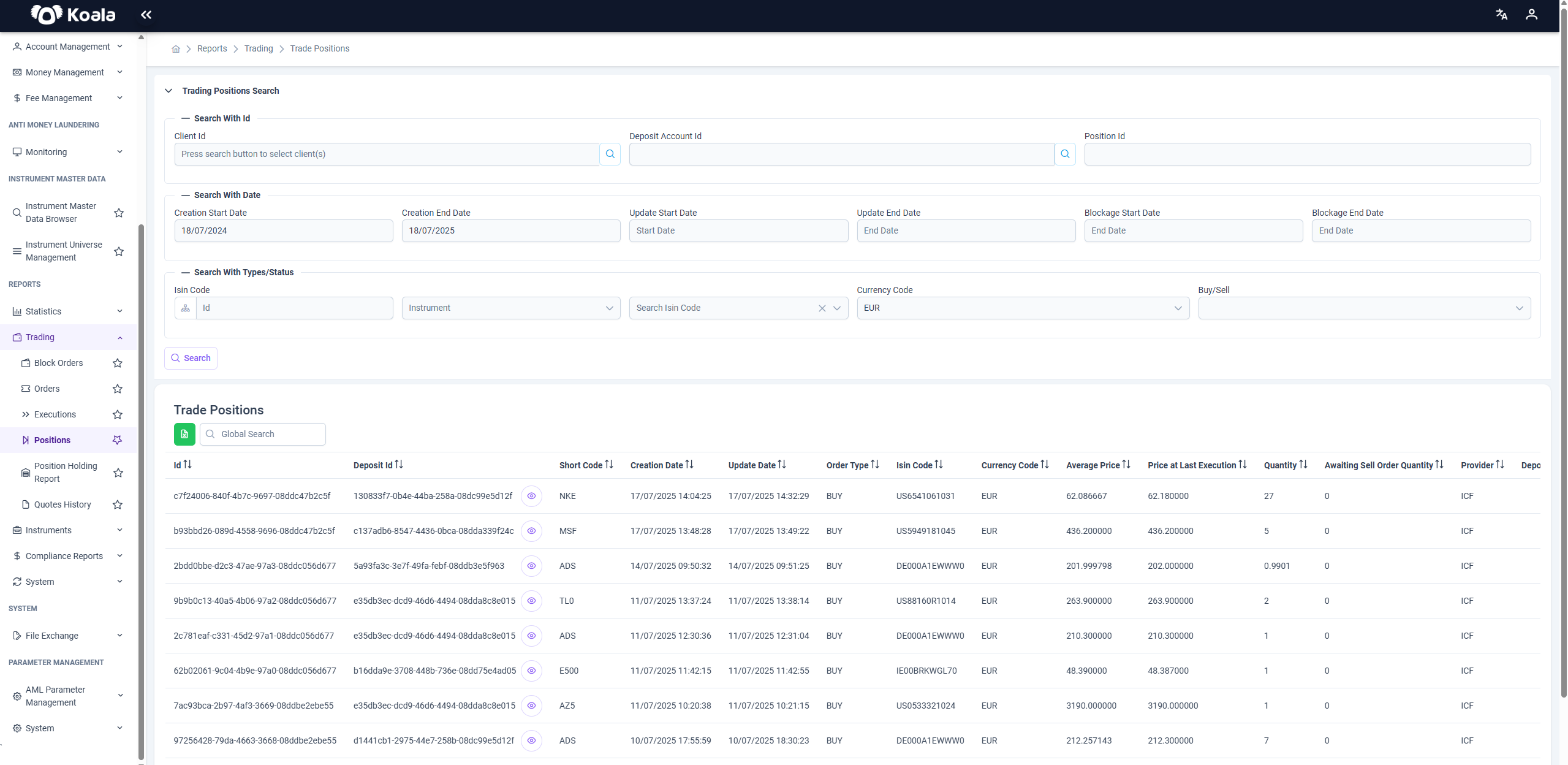
At the top of the page, a Search Panel is available to help you filter positions efficiently.
The search parameters are grouped under three main headings:
-
Search With ID
Filter positions by identifiers such as client ID, deposit account ID, or position ID. -
Search With Date
Filter by relevant date ranges — for example, position creation date, update date, or blockage date. -
Search With Types/Status
Additional filters such as instrument, buy/sell side and currency code.
These options allow users to tailor their queries and quickly locate specific trade positions.
📋 Trade Positions Table
Below the search panel, the Trade Positions Table lists all the positions matching your search criteria.
Each row represents a single position, with details like:
- Instrument information.
- Provider.
- Quantity and price.
- Currency, order type, and timestamps.
You can sort and navigate through the table to review position details effectively.
🔍 Notes
- The Trade Positions page does not include an action column with additional pop-ups or documents.
- There is also no Fee Applied Trade popup in this section — the page focuses solely on positions data.
✨ Key Features
- Advanced Filtering: Use ID, date, and type/status parameters to refine your search.
- Comprehensive Table: View all positions with relevant details at a glance.
- Clean Interface: Focused solely on trade positions without additional overlays or pop-ups.
📄 Position Holding Report
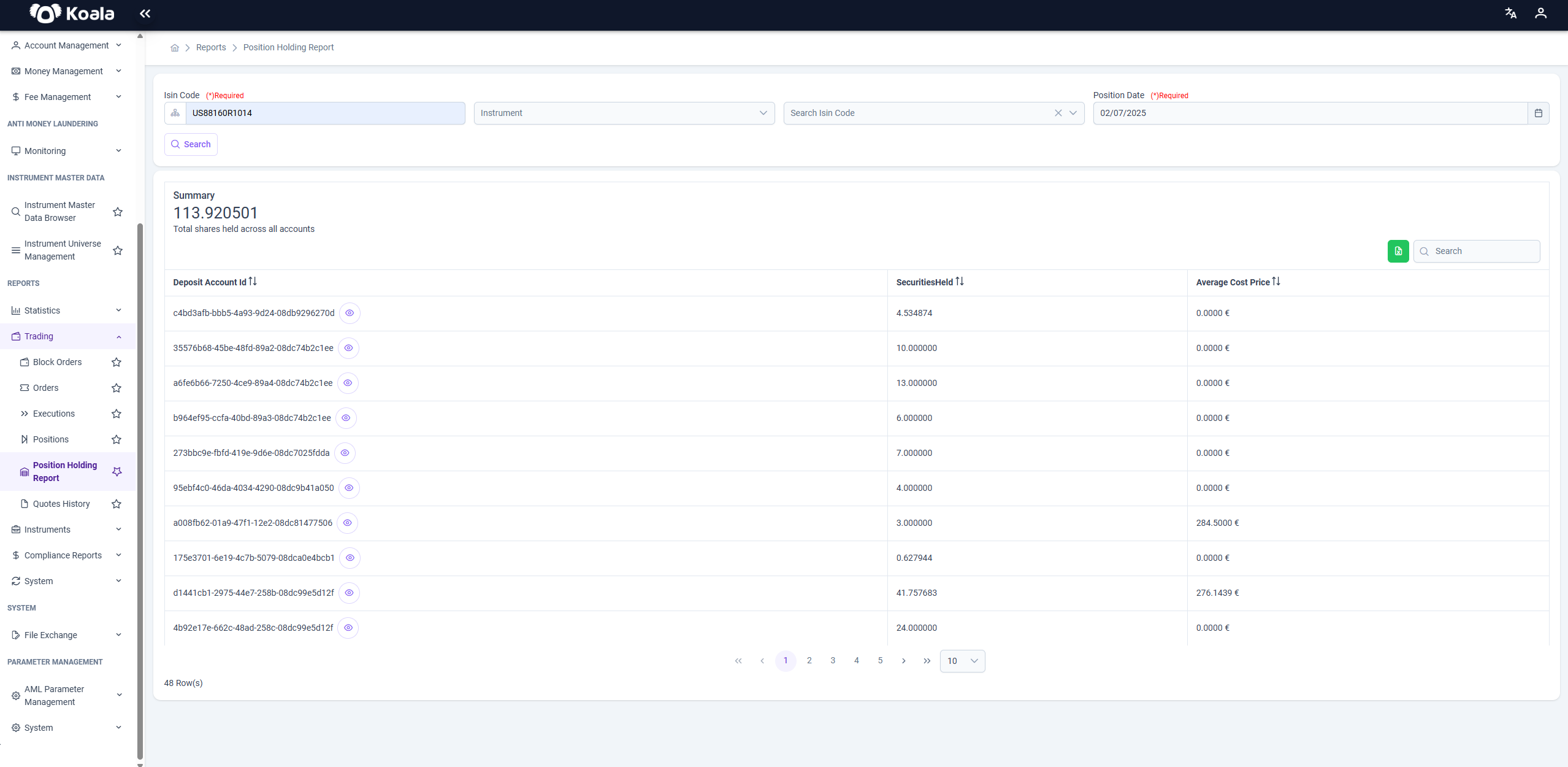
The Position Holding Report page provides a detailed snapshot of the securities held in deposit accounts as of a specific date.
It allows users to see both individual account holdings and an aggregated summary.
📝 Overview
At the top of the page, there is a Search Panel with two simple filters:
- ISIN Code — to search by a specific security.
- Position Date — to view holdings as of a particular date.
These filters help users quickly find the positions they need for analysis or reporting.
📋 Position Holdings Table
Below the search panel, a table displays the results of the search.
Above the table, a Summary Panel shows the total number of shares held across all accounts for the selected ISIN and date.
Each row in the table represents the holding of a particular security in a deposit account, including:
- Deposit Account ID
- Securities Held — quantity of the security held.
- Average Cost Price — average price at which the security was acquired.
📉 Quotes History
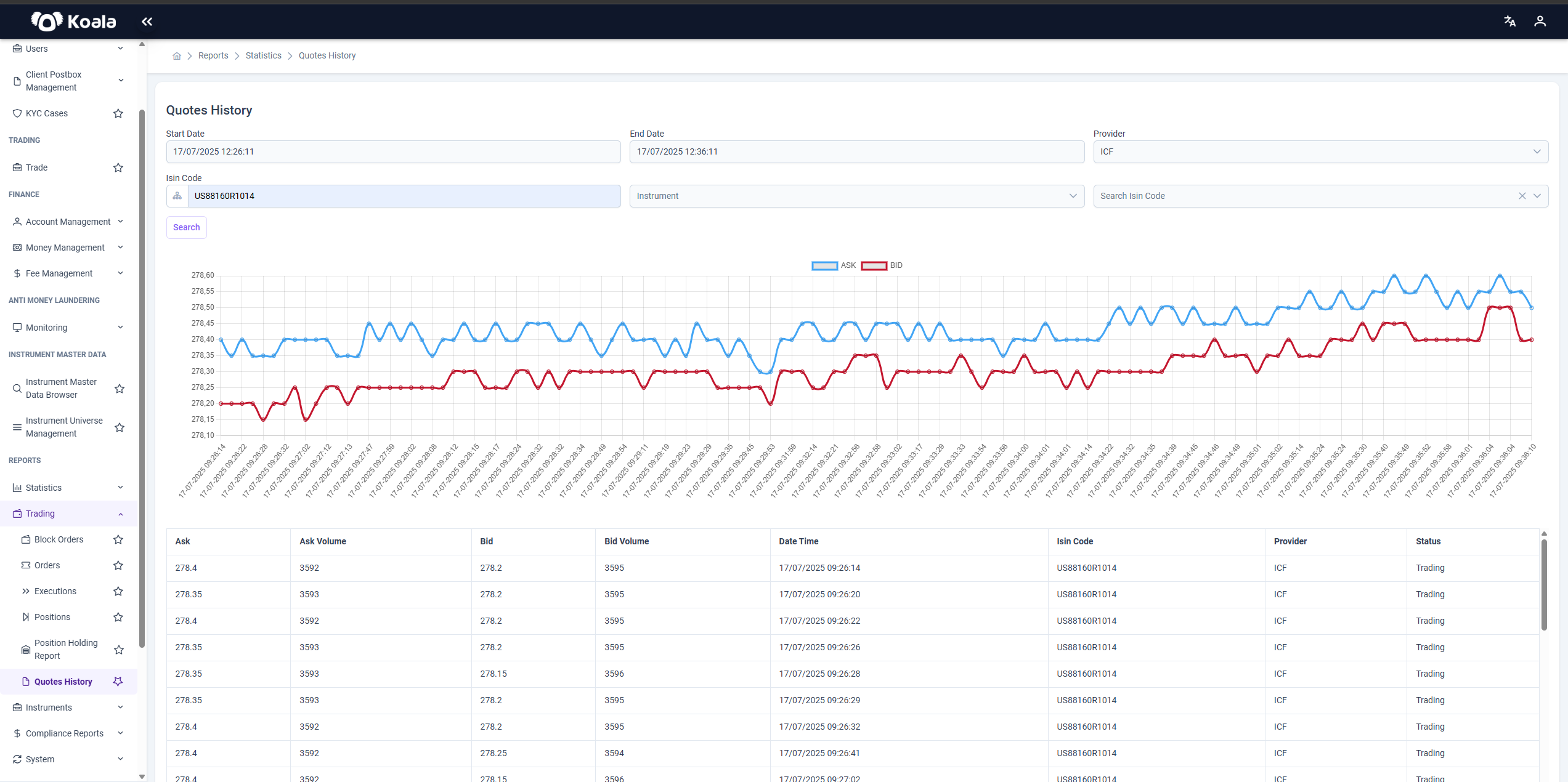
The Quotes History page shows historical price quotes for instruments.
It includes:
- Bid and ask prices.
- Timestamps of each quote.
- Spread information for analyzing price movements over time.
ℹ️ Note: You can query this page with a maximum interval of 10 minutes between time ranges.
✨ Summary
- Block Orders: Track large aggregated orders with full details and actions.
- Orders: Overview and status of all submitted orders.
- Executions: Records of executed trades with prices, quantities, and timestamps.
- Positions: Monitor current holdings and open positions.
- Position Holding Report: Detailed snapshot of holdings at a specific time.
- Quotes History: Historical bid/ask prices and spreads.