Client Overview
📝 Overview
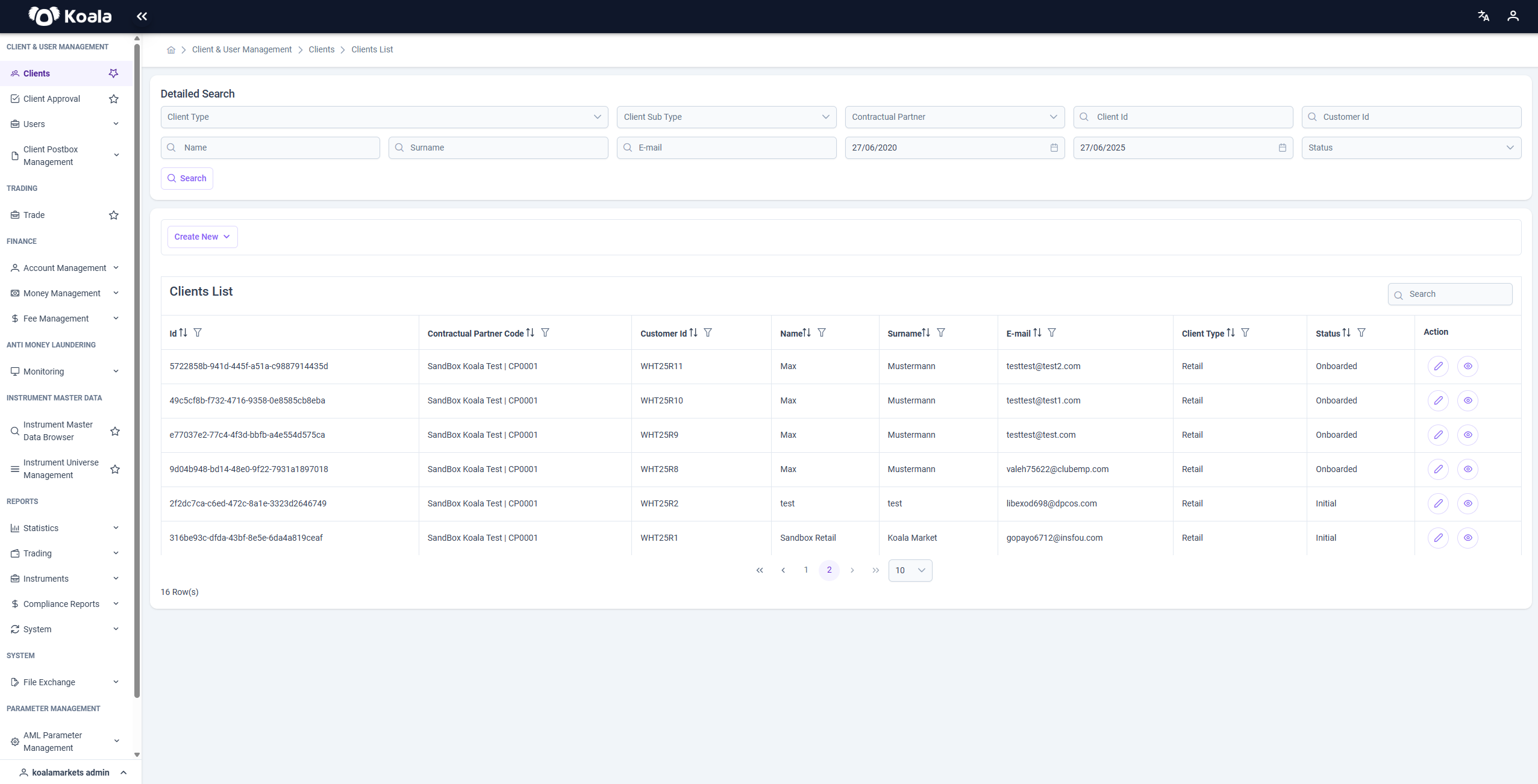
The Client Overview page displays all registered clients within a Tenant and provides filtering and management tools. It serves as a central entry point for searching, viewing, and editing client profiles — including both Retail and Business Clients.
⚠️ Note:
The available functions and permissions on this page depend on the role and assignment of the logged-in user.
Users operating at the Tenant level have full access, including the ability to create and edit Business Clients.
Users working under a Business Client will only see their assigned Retail Clients and have a limited set of available actions.
🔎 Search and Filter Options
The search bar allows you to filter existing clients based on various criteria:
- Client Type
- Client Sub Type
- Contractual Partner
- Client ID / Customer ID
- First Name / Last Name
- Email Address
- Created Start / End Date
- Status
After clicking Search, the client table is updated based on the selected filters.
Additional column-level filters are available via icons above each table column.
⚙️ Actions
Within the Action column, the following options are available:
- 🖉 Edit → Opens the client profile editing screen (Retail or Business depending on client type)
- 👁 View → Opens a read-only detail view of the selected client
➕ Create New Clients
Clicking the Create New button opens a selection menu with the following options:
- Retail Client
- Business Client
After selecting the client type, you will be redirected to the corresponding input form.
Available options depend on the user's role.
Business Clients can only create their own Retail Clients.
Creating Business Clients is only possible on the Tenant level.
👉 Create New Client
🔁 Related Functions
- Client Overview – This page
- Create New Client – Create new clients (Tenant only)
- Update Client – Edit existing client profiles
- Delete Client – Remove clients from the system
- Client Approval – Approve new clients
- KYC Cases – Manage and review KYC processes
- Users – User administration and role management