Create New Client
If you are currently on one of the client creation forms, you have already started the process of creating a new client profile and previously selected whether you want to create a Retail Client or a Business Client.
ℹ️ For detailed definitions of client types, please refer to:
Please follow the instructions below based on the selected client type and be aware of the specific requirements for each type during input and management.
➤ Retail Clients
The current screen is used to enter personal information for Retail Clients:
- Required fields are marked as (Required)
- Customer ID can be entered manually or generated automatically
- Optional: Activate Is External Client if the client is managed across tenants
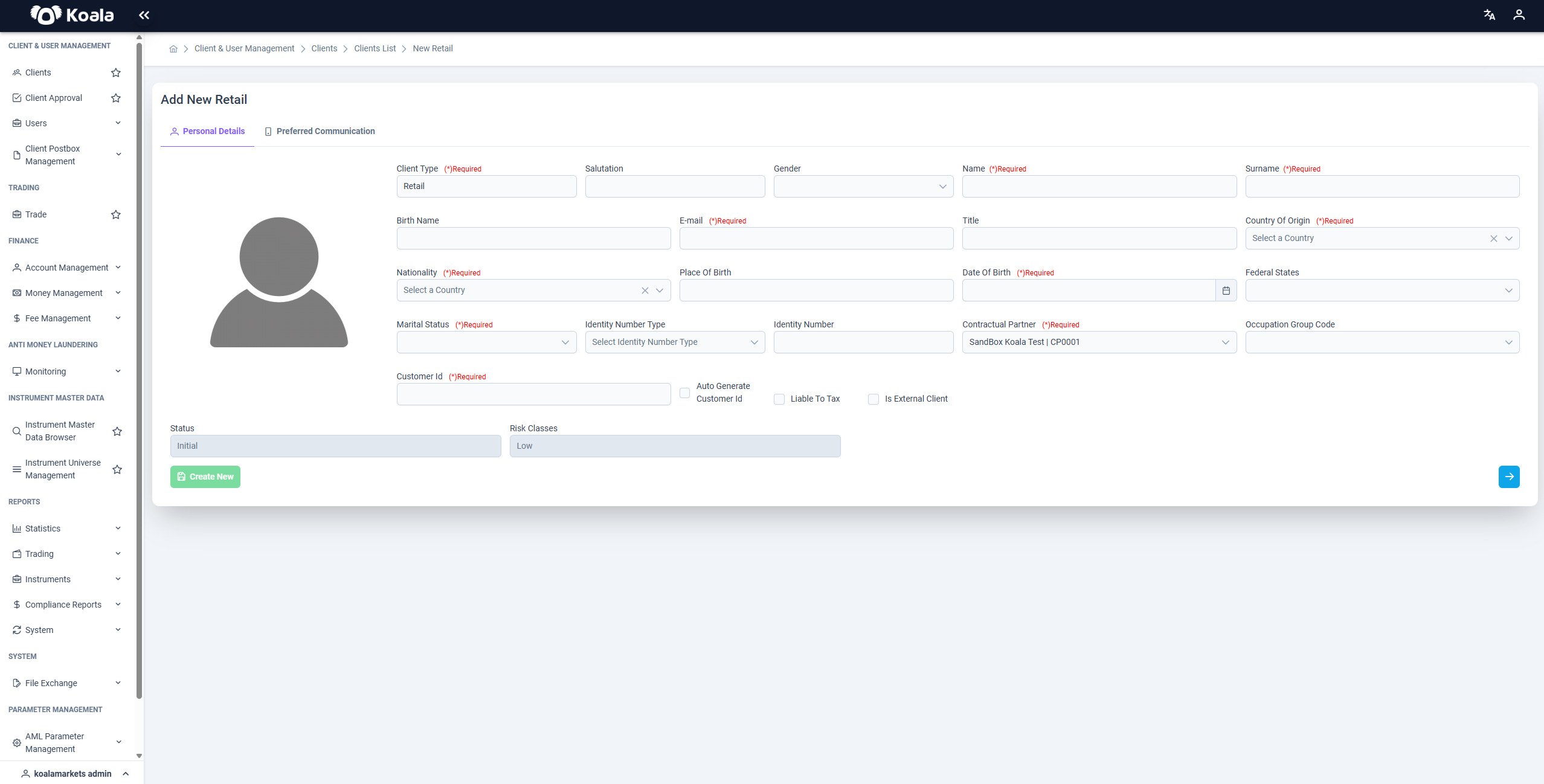
After completing the form, click the ➔ icon to continue to the second page, where communication preferences like language and contact channels can be specified.
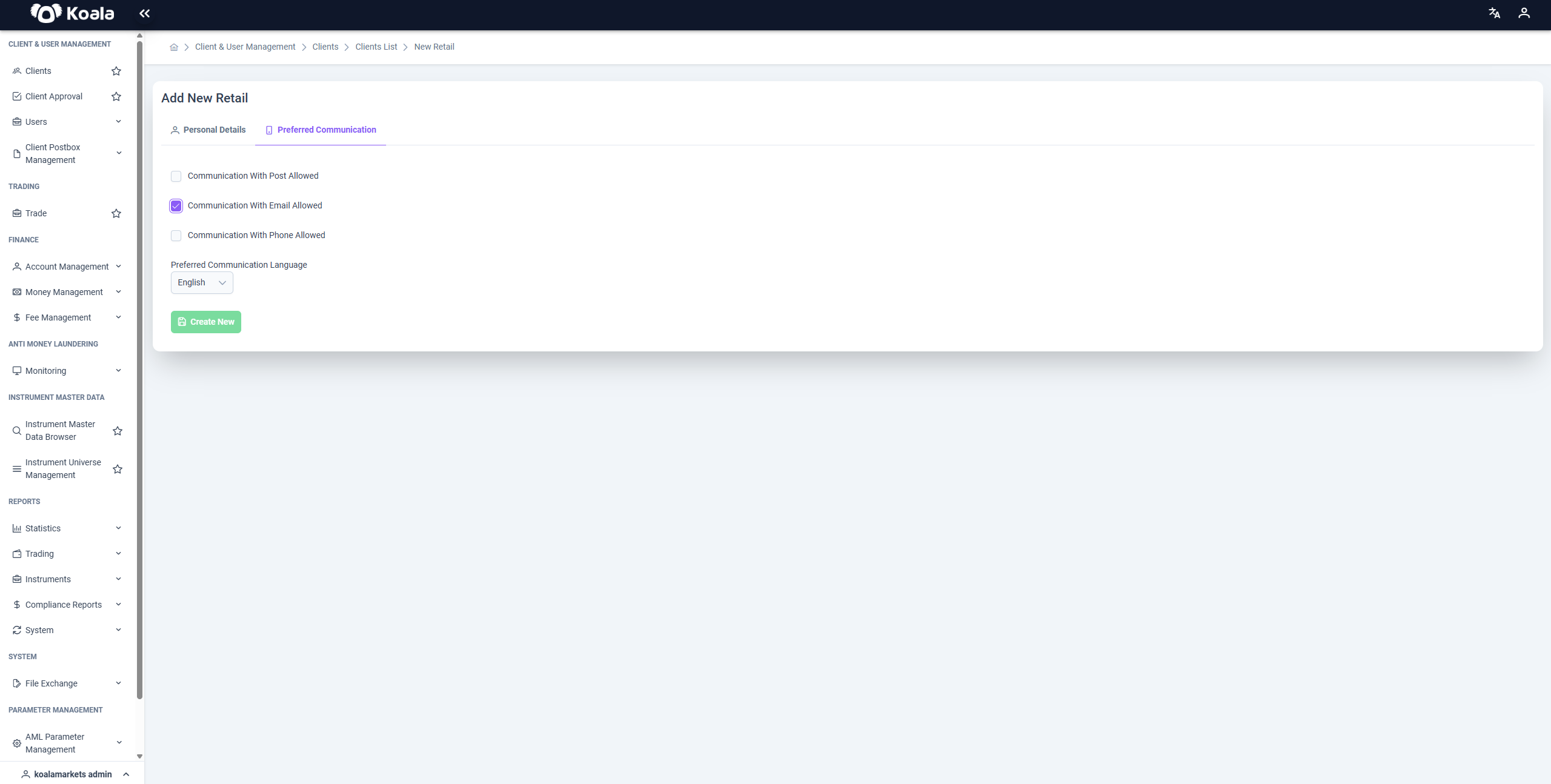
✅ After a Retail Client is created:
- The Retail Client receives a confirmation email with a link to activate their registration and set their own password
- A staff member with the Manager role must initiate the KYC process:
- Request and upload relevant documents (e.g. ID documents, proof of address, tax forms)
- Update the client status in the system from
initialto the appropriate status (e.g.in onboarded,suspended,deleted)
➤ Business Clients
The current screen is used to enter company data for Business Clients:
- Customer ID must be entered or generated automatically
- Client LEI (Legal Entity Identifier, e.g.
123400123456789AAA32) is mandatory - Optional: Activate Is External Client if the client is assigned across tenants
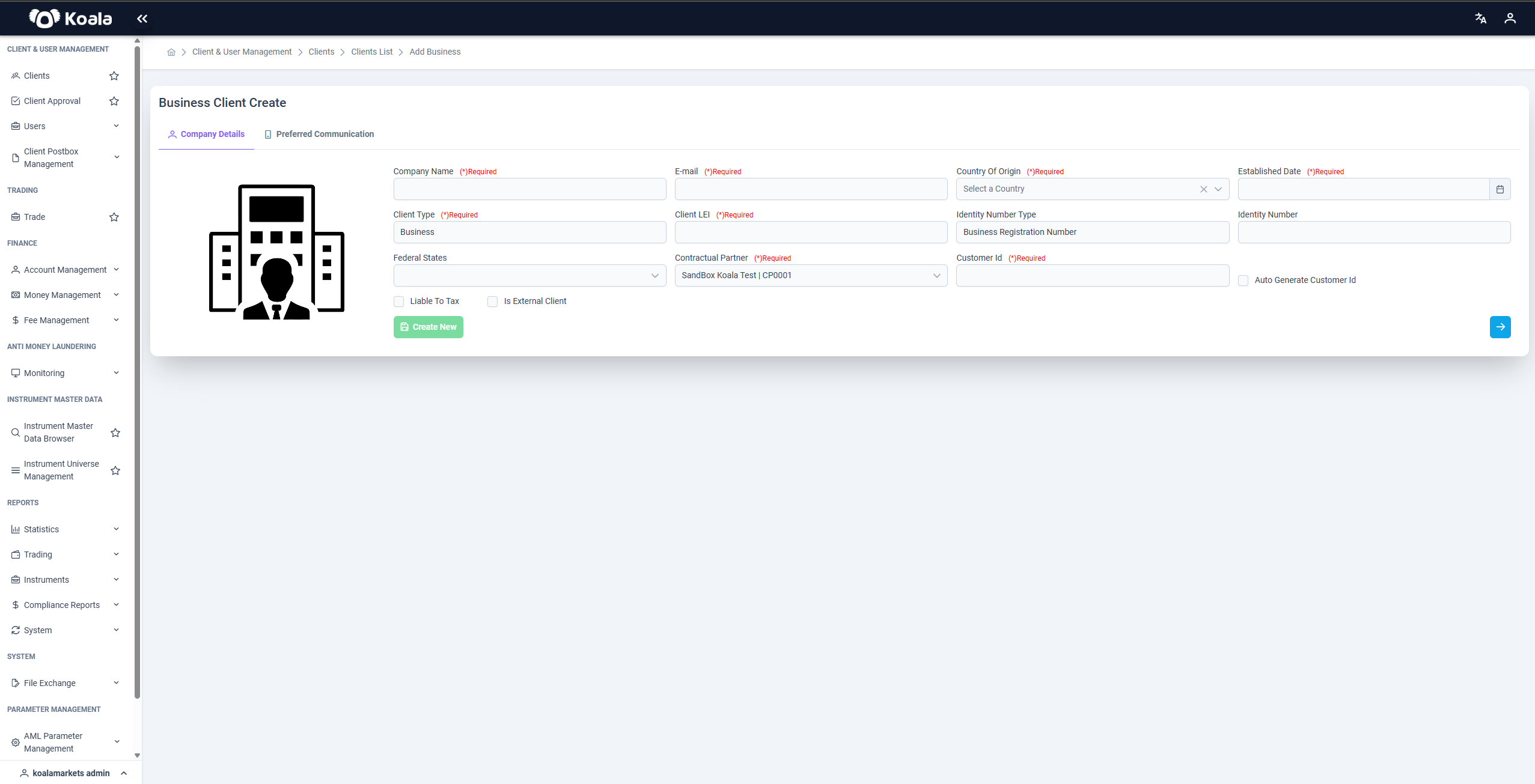
After completing the form, click the ➔ icon to proceed to the second page, where preferred communication channels and language can be specified.
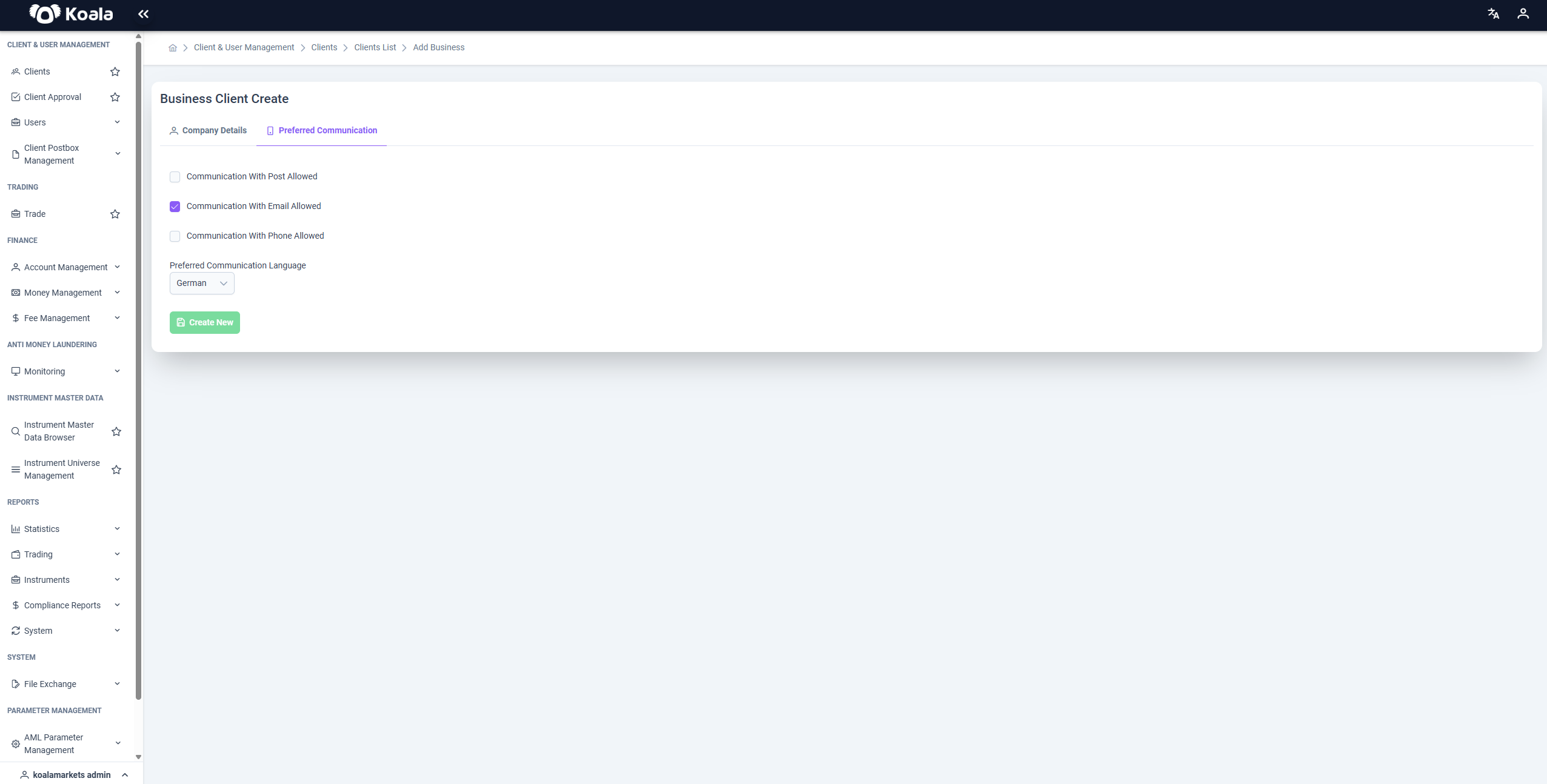
✅ After a Business Client is created:
- The main contact of the Business Client receives an invitation email to confirm their access and set a custom password
- The Business Client can then manage their own Users (e.g. advisors, compliance officers), if granted permission by the Tenant
- A staff member with the Manager role must initiate the KYC process:
- Upload documents such as company register excerpts, shareholder lists, authorizations, etc.
- Update the client status in the system from
initialto the appropriate status (e.g.in onboarded,suspended,deleted)