🎯 Instrument Based Order Parameters
This page allows users to configure order restrictions and behavior parameters for individual financial instruments (e.g., stocks) on a per-provider basis. It supports advanced customization of order types such as fractional orders, money orders, and block trades.
🧭 Overview
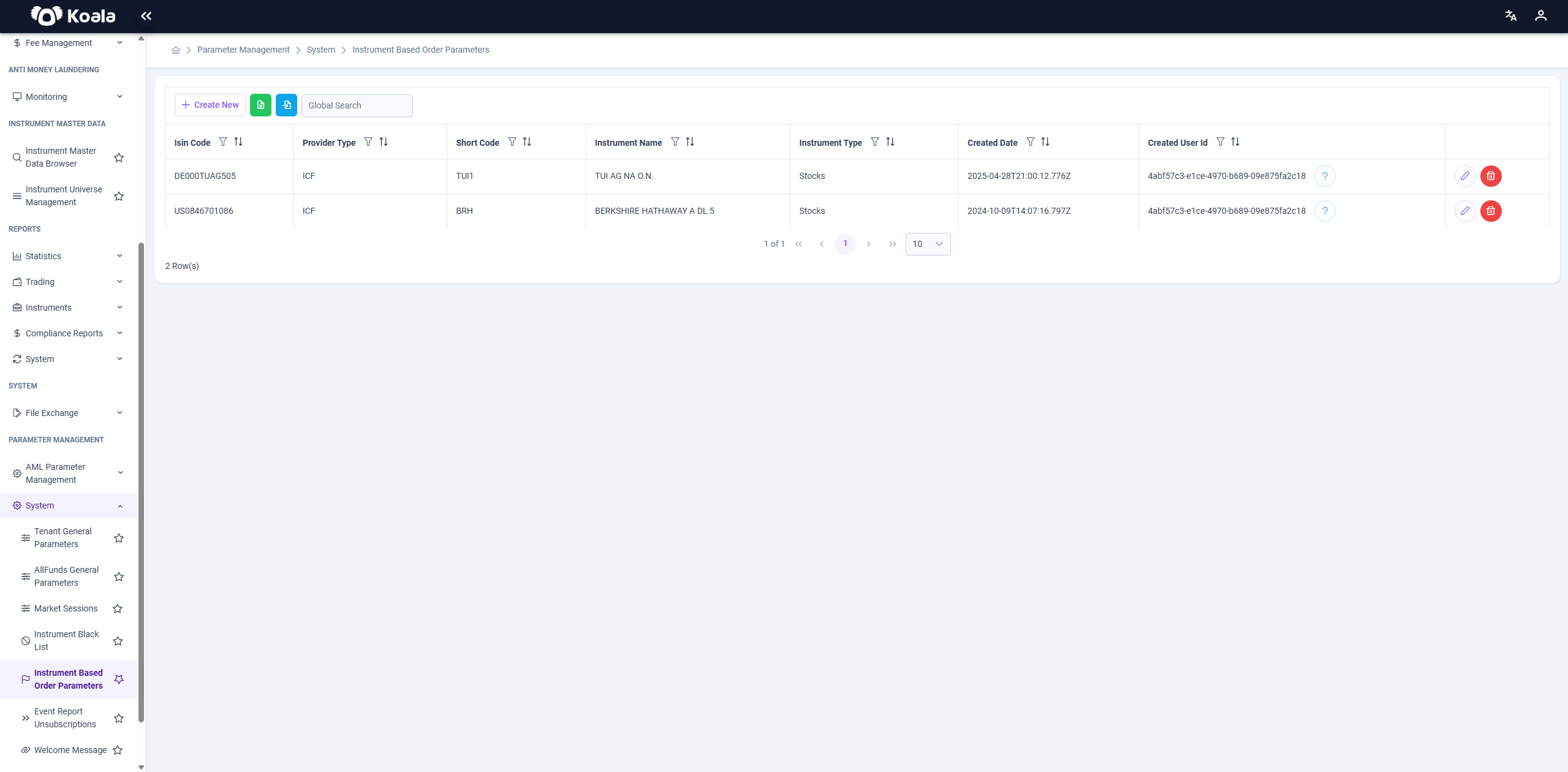
The main data table lists the configured instrument parameters. Each row corresponds to a unique combination of:
- ISIN Code
- Provider Type (e.g., ICF, Allfunds)
- Short Code
- Instrument Name
- Instrument Type
- Created Date
- Created User ID
🔍 Global Search
-
A Global Search input allows keyword-based searching across the entire dataset.
-
There is no dedicated filtering panel.
-
➕ Create New
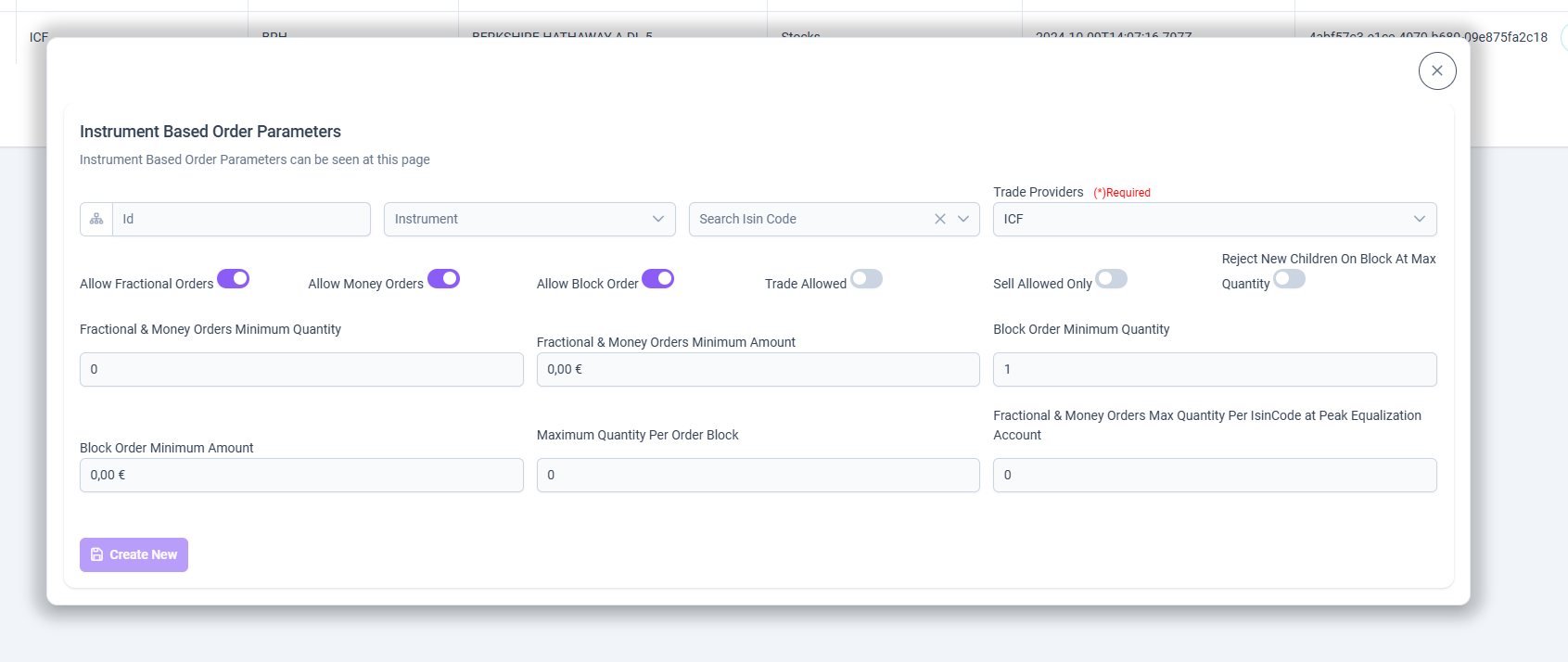
Clicking the + Create New button opens the Create Dialog (bottom-left of the screen). It contains the following input fields for defining new instrument rules:
| Field | Description |
|---|---|
| Search ISIN Code | Lookup tool to quickly find an instrument by its ISIN. |
| Trade Providers | 🔴 Required. Defines the integration source (e.g., ICF). |
⚙️ Order Configuration Toggles
Allow Fractional OrdersAllow Money OrdersAllow Block OrderTrade AllowedSell Allowed OnlyReject New Children on Block at Max Quantity
🔢 Quantity & Amount Rules
| Field Name | Description |
|---|---|
| Fractional & Money Orders Minimum Quantity | Smallest allowed unit for such orders. |
| Fractional & Money Orders Minimum Amount | Lowest monetary value allowed. |
| Block Order Minimum Quantity | Minimum number of shares for block trades. |
| Block Order Minimum Amount | Minimum value threshold for a block order. |
| Maximum Quantity Per Order Block | Defines the cap for individual blocks. |
| Max Quantity Per ISINCode at Peak Equalization Account | Limits exposure at peak positions. |
🖊️ Edit / Update
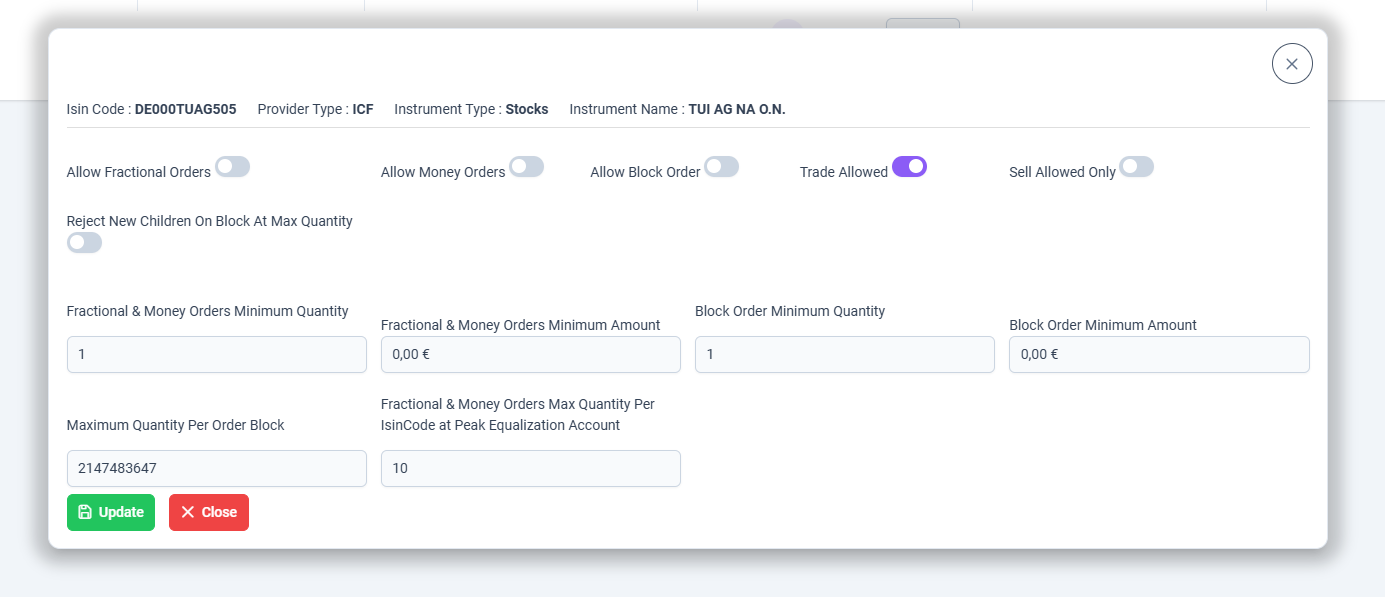
Clicking the Edit (pencil icon) on any row opens the Update Dialog (bottom-right of the screen), pre-filled with the selected record's details.
All fields from the creation form are visible here and editable. In addition:
- ✅ Update button saves the changes.
- ❌ Close exits the dialog without saving.
🔄 When a record is edited, it may also be inactivated, applying the changes while disabling current applicability.
📥📤 Excel Import / Export
The system provides full Excel integration to enhance bulk management of instrument parameters:
-
📤 Export to Excel:
Use the Excel icon at the top to export the current instrument parameters into an Excel file. This file includes all table records in a structured format for offline analysis or backup. -
📥 Import from Excel:
Use the Upload icon to import parameters via a pre-formatted Excel file. Useful for bulk creation or updates of multiple instruments.
⚠️ Make sure the Excel file follows the required format and contains mandatory fields like ISIN, Provider Type, and Quantity rules.
Import & Comparison
This feature enables users to import, review, compare, and update Instrument-Based Order Parameters in a controlled and transparent way.
Supported Import Formats
Users can upload data using:
- CSV (.csv)
- Excel (.xls / .xlsx)
The imported file must include the following headers:
isinCodeprovidershortCodeinstrumentNamefractionalOrdersAllowedmoneyOrdersAllowedblockOrdersAllowedtradeAllowedsellAllowedOnly
Import Scenarios
Two common workflows are supported:
1. Direct Import
- Users can prepare a CSV or Excel file externally.
- All required columns must be populated.
- The system parses and loads the data directly into the comparison view.
2. Export → Modify → Re-import
- Existing Instrument-Based Order Parameters can be exported from the system.
- Users may update the file (single or bulk changes).
- The modified file can be re-imported to apply updates efficiently.
Both workflows support bulk updates as well as single-instrument changes.
Data Comparison & Visualization
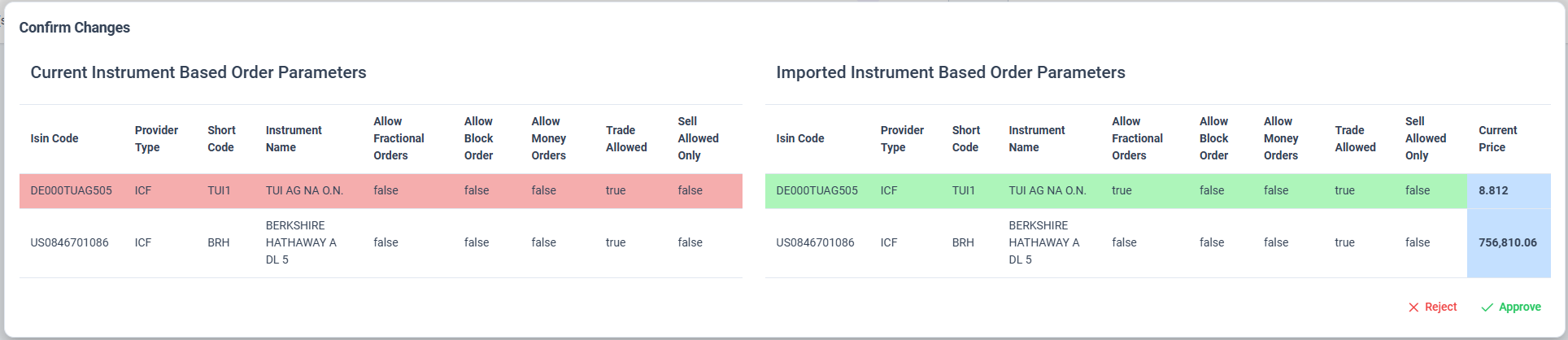
After importing a file, a side-by-side comparison is displayed:
- Left table: Current Instrument-Based Order Parameters
- Right table: Imported Instrument-Based Order Parameters
Visual Indicators
-
Rows containing modified values are highlighted:
- Red: Current (existing) values
- Green: Imported (new) values
-
Only relevant permission and trading-related fields are compared.
-
Unchanged rows remain unhighlighted to maintain clarity.
This visualization enables quick validation of changes prior to approval.
Real-Time Price Information
For each imported instrument:
-
The system retrieves and displays the current market price using:
isinCodeprovider
This provides additional context when reviewing trading-related permissions.
Approval & Update Process
Once the comparison is reviewed, users may:
- Approve the changes to apply them
- Reject the import to discard all changes
Approved imports result in:
- Updates to existing instruments
- Creation of new records for previously unknown ISINs
All operations are executed in a controlled manner to ensure data integrity.
Key Benefits
- Transparent and secure bulk updates
- Clear visibility of changes before approval
- CSV and Excel format support
- Real-time price insight during review
- Reduced operational risk through visual validation
📊 Table Actions
| Icon | Action |
|---|---|
| 🖊️ (Edit) | Opens the Update Dialog for the selected instrument. |
| 🗑️ (Delete) | Removes the record permanently. Confirmation required. |
✅ Use Cases
This module is essential for:
- Enforcing trade restrictions based on instrument characteristics.
- Managing provider-specific trading rules across platforms.
- Preventing invalid or risky trade submissions via configuration.